Find your watch's full model name before choosing a download. The original Galaxy Watch and the Galaxy Watch4 need different kinds of files, even if the same dial design appears on both. The phone you use and the watch's installed software also affect your choices.
Face-Off has a Wear OS APK library, a Huawei HWT model selector and an older Samsung Tizen library. If you know which one you need, you can start browsing there.
Which watch and phone are you using?
On a Samsung watch, open Settings → About watch. Note the model number, then look under Software for the installed version. Keep the case size handy too. Older watches have different menu names; Samsung's information-screen guide covers those variations. Use the version installed today, since the watch may have received updates since launch.
A product advertised simply as "Android" needs a little more investigation. The full-Android versus Wear OS guide helps you identify the platform before downloading an APK.
For an iPhone setup, look up the manufacturer's support for that watch and phone combination. Pairing support and local watch-face import are separate features. An Android tutorial may depend on an import tool unavailable in your iPhone setup.
Where to look for a face
- Wear OS owners can browse the APK library. Read the package's minimum Android API and Watch Face Format version alongside your watch's software information. Google's WFF requirements table explains which versions go together.
- For Huawei or Honor, open the Huawei hub and choose the model and case size. The hub's "Package match" label comes from the HWT package and published model rules. Physical installation and rendering are separate tests. If your model isn't listed, its compatibility remains unverified.
- For an older Samsung Tizen watch, the Tizen library distinguishes GWD projects from TPK installation packages. A GWD needs building and signing. Even a saved TPK still has signing and model requirements, so read the Tizen installation guide before committing to that route.
- On Apple Watch, start with Apple's Face Gallery guidance for the Watch app on iPhone. Use a photo face for your own picture, or read why a Clockology design opens in the app. The Face-Off APKs and HWTs discussed here belong to other platforms.
- Garmin owners should look for their device in the Connect IQ compatibility list. The Forerunner 955 manual, for example, describes that watch's Connect IQ installation route.
- For Amazfit, select your watch in Zepp. Amazfit's Balance instructions use Profile → Amazfit Balance → Watch Faces. Other models may use different menus.
Face visible on the watch, but not in Zepp? See the QR preview guide.
For a Wear OS store installation, Google Play has both paid faces and faces at no charge. Google's availability guidance explains its device compatibility filtering and why an older face may not transfer to a new watch.
Is the whole face free?
Read the price on the design itself. A free companion app can still lead to a paid face, a subscription or a trial that expires. A coupon may have its own conditions and expiry date. Find out what remains usable after the trial before spending time setting everything up.
Installation can also take more than the download button suggests. You may need an account, another phone app or a computer. Look for those requirements on the listing, along with the data fields and provider choices you want. If you only want a finished face, an editable source project adds a build step you might prefer to avoid.
Four free designs to compare
These four Face-Off listings were marked Free on 16 November 2026. Each has a Wear OS APK with matching Normal and always-on emulator captures. Their selected releases require Android API 33 or newer and WFF 1. Read the current file details when you download; the listings also contain source projects and packages for other platforms.
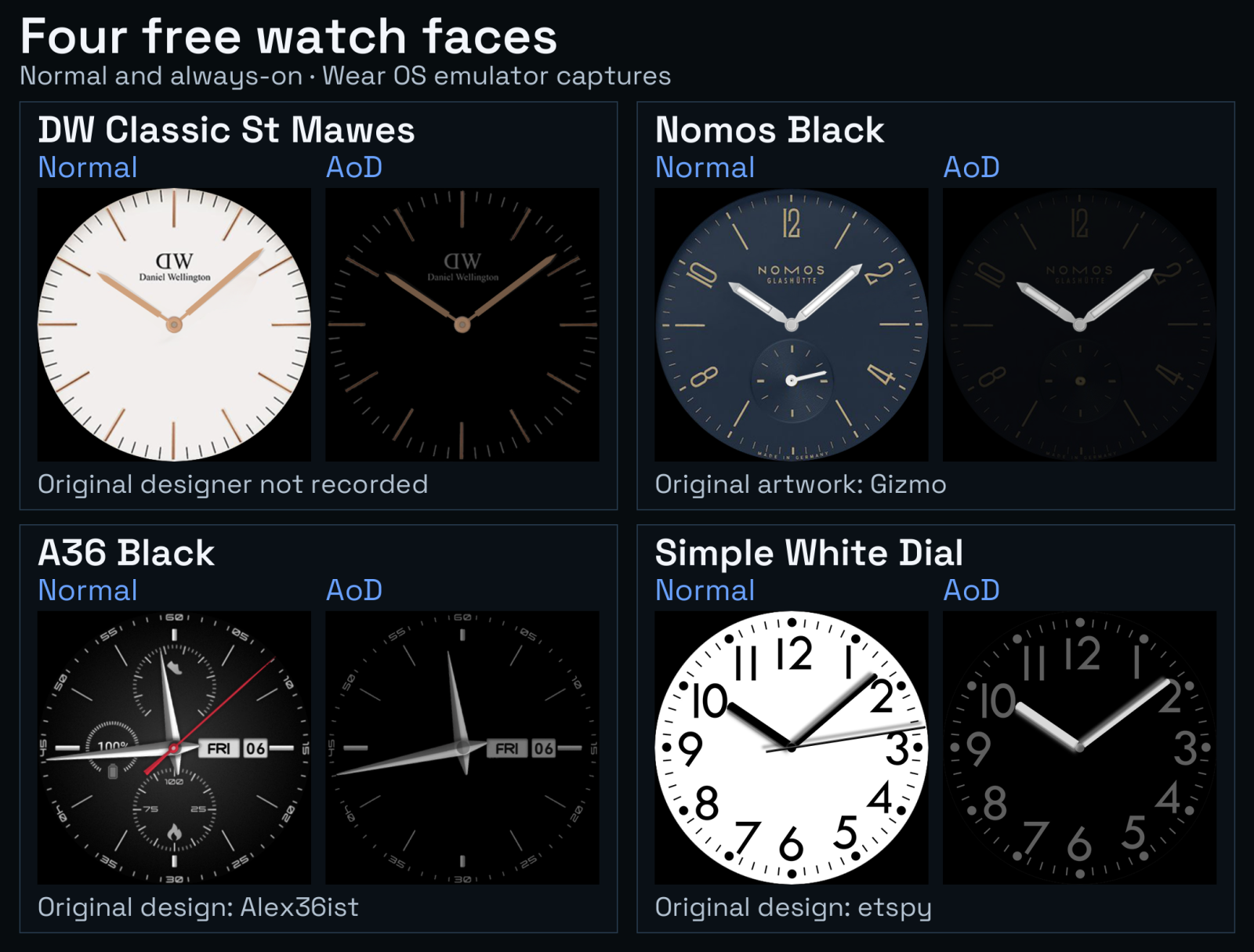
Wear OS build 2: Normal (left) and always-on (right), captured on an API 33 emulator. Original design credits appear beneath each pair.
DW Classic St Mawes has a light dial, slim hands and warm hour markers. The Wear OS version includes an optional short-text complication. It starts empty, so you can leave the dial uncluttered or choose a provider.
For a darker dial, Nomos Black has a slate-blue background, broad silver hands and a small seconds display. Compare its subdued always-on preview if you plan to read it with your wrist down.
A36 Black has a dark textured dial, a calendar and three native Wear OS complication regions. The separate Huawei HWT has model-rule matches in the Huawei hub. The Wear OS screenshots apply to the APK, while the HWT needs its own compatibility and installation checks.
Simple White Dial has bold black numerals on white and an optional short-text complication in its Wear OS version. Open the always-on preview before choosing it for the bright background; the dim view changes what stays visible.
The emulator captures show the reviewed Wear OS build. Physical testing on your particular Galaxy or Pixel watch, sensor accuracy and battery life are separate questions.
Look at the dim view before installing
Open Normal and Always-on (AOD) on the listing, and read the platform and build in each caption. Zoom in on the time, date and data you expect to read. This is especially useful when a busy normal dial becomes much simpler in always-on mode.
For direct Wear OS APKs, the Wi-Fi installation guide uses a computer, Android platform tools and the watch's debugging controls. A file downloaded onto your phone still needs transferring and installing. For Huawei, read the HWT installation routes to see whether your setup supports local import.
The Face-Off editor lets guests keep a browser draft, save an editable .faceoff.json master and export a PNG preview. Guests can also open supported public catalog sources through a listing's Studio action. Sign in to import native project files from your computer or export native formats. Account projects and APK build requests also require sign-in, with builds depending on builder availability. To use the design on a watch, choose or build its installation package; the PNG is a preview.
If you get stuck
Start with source project or install package? if you can't tell what you downloaded. If an APK installs but the face doesn't appear, open the full watch-face picker.
There are also guides for an HWT rejection or missing import button, a redeemed coupon that won't install, and a blank or stuck always-on display.


Discussion
0 comments. Share feedback or ask a question.
Sign in to comment.
No comments yet.