Use a photo face to put your own picture on an Apple Watch or Galaxy Watch.
Apple Watch: choose a picture in Face Gallery
- On the paired iPhone, open Apple Watch app → Face Gallery → Photos and choose a style.
- Tap Choose Photos, select a picture, then Done. You can select up to 24; start with one while checking the layout.
- Scroll down to the layout options, make your choices and tap Add at the top.
Apple’s Photos guide also covers Shuffle for a library or collection. If photos are missing, check the synced album.
Already viewing a picture in Photos on the watch? Its action button offers Create Watch Face → Photos.
Galaxy Watch: find the photo background control
Open Galaxy Wearable → Watch faces on the connected phone. Samsung’s Colombian photo guide lists Watch4, Watch5, Watch6, Watch7, Watch Ultra and Watch8. It uses Images → edit icon → Background → + → Gallery. Choose the picture, finish the selection, adjust its framing and finish again to apply it. Brightness and contrast are among the controls shown there.
Samsung’s older My Photo+ instructions use Customize. Look for the photo background controls in the version you have.
No Gallery or Add photo option? Check which face you selected. Samsung’s customization guide explains that options depend on the face. Some offer colors or clock styles without a personal-photo background. Choose a photo-capable face from the list before looking for the image picker again.
If the watch’s photo picker is empty
The English Watch7/Ultra Wear OS 6 manual gives this transfer path on the phone: Galaxy Wearable → Watch settings → Manage content → Images on watch → +. Select the picture and tap Done. For file syncing, the manual requires more than 15% watch battery and power saving off.
For on-watch editing on those models and software, hold the face, tap Add watch face, choose one under Photos, then Customise. Swipe to Background or Photo, select the picture and confirm. Double-tap or pinch to change its size. When zoomed in, swipe to adjust the framing. Confirm again and return to the face.
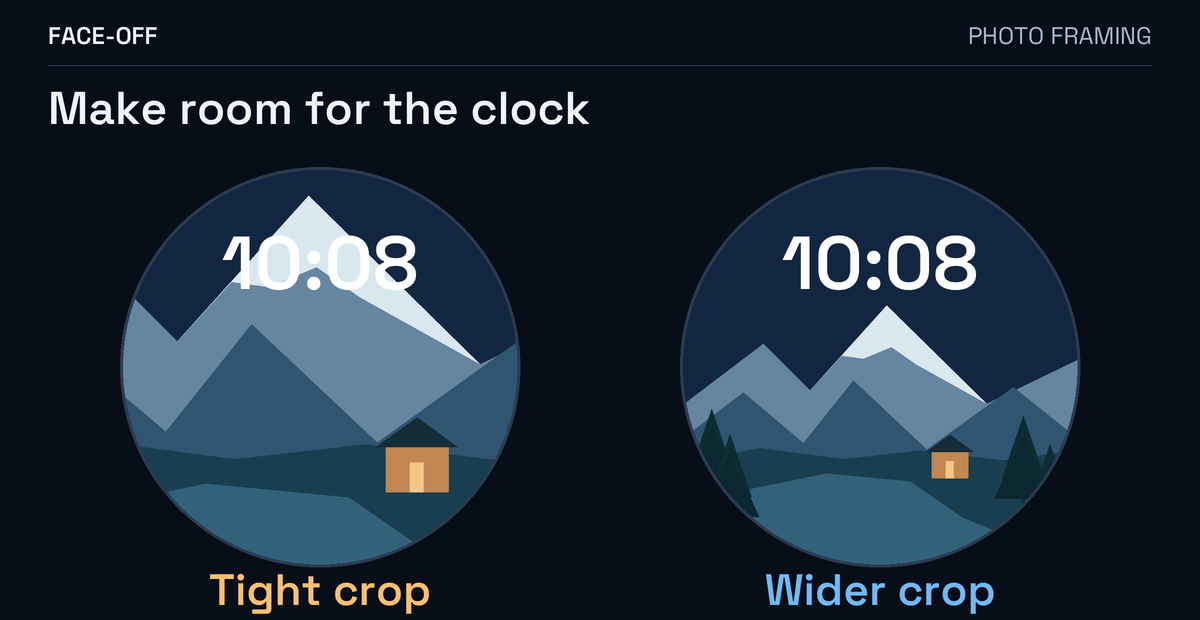
Leave some room around the subject
A close-up can look good on the phone and lose an ear or part of a face on the watch. A round screen also cuts off the corners of a square image. Start with a wider view and check the watch-face preview before committing to the crop.
Look at the clock as well as the picture. White digits can disappear against bright clouds; small writing in the photo competes with the date and complications. Try a quieter area behind the time, or another clock color if the face offers it.
Pick the data fields after framing the photo
Use the complication positions offered by the selected face. Apple’s face guide lets you choose an available complication or Off for a position. The Watch7/Ultra manual also describes changing other items, such as complications, after selecting the photo.
The background and those editable items belong to an existing design. Replacing its picture does not provide a freeform layout editor. For the data fields on Wear OS, see changing colors and complications. For a downloaded Clockology design, use the separate native-face versus app-clock guide.
After saving, compare the watch with the preview. If a change fails to apply, send support the model, installed software, photo-face name and the specific difference: “The preview shows a wider crop, but the watch still cuts off the top of the picture.”


Discussion
0 comments. Share feedback or ask a question.
Sign in to comment.
No comments yet.