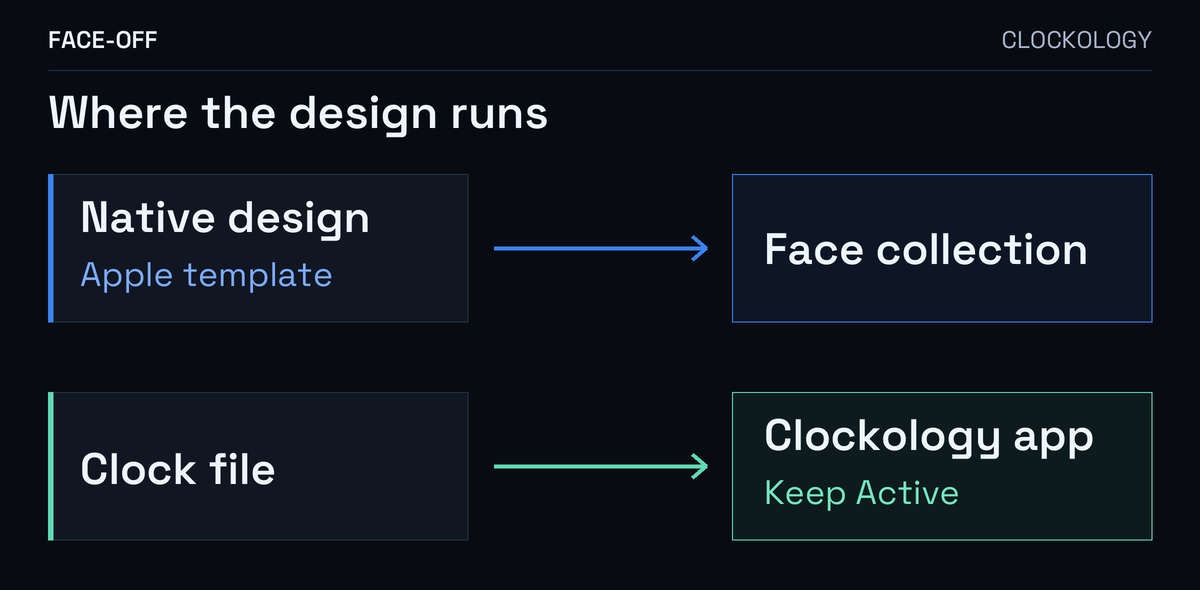
If Sync shows your design inside Clockology but the Apple Watch app has no new face, check whether that design has a native edition. Clockology offers app clocks as well as native-face options. Keep Active helps you stay in the app; the native route adds a face to Apple’s collection.
Start with the creator’s native edition
Clockology’s FAQ directs native-face users to the Complications filter. Read the design’s description or ask its creator which route it uses:
- A native face is selectable alongside your other Apple watch faces.
- An app clock is the design you see after opening Clockology on the watch.
The FAQ also describes a Clockology complication that launches the app. Adding that shortcut to a supported complication position gives you a way back into Clockology. The clock it opens still runs in the app.
Add a shared native face
For a shared Apple face, Apple’s instructions say to open the shared face on your iPhone and tap Add. If you downloaded its file on another device, send it to the iPhone, open it in the Apple Watch app and use Add to My Faces.
Apple may ask you to download an app supplying a complication. Continue Without This App adds the face without that complication, so part of the creator’s layout can be missing. Read that prompt before treating a blank area as a failed installation.
If the creator only offers an app clock, ask whether a native edition exists. A picture of the same dial does not establish that both editions are available.
Use the current Keep Active controls
Clockology introduced Keep Active in version 4.0.6 on 12 October 2026. Its release notice says the feature keeps Clockology open instead of automatically returning to the native face.
- Keep Active is enabled by default.
- Its toggle can be turned off in Settings.
- Press the Digital Crown twice within three seconds to exit.
The FAQ still describes selecting After 1 hour and waking Clockology at least once an hour. Its last-updated line is 5 October 2026, before the Keep Active announcement. Check your installed version before applying that older routine.
Apple’s Settings → General → Return to Clock menu controls when an open app returns to the face. Its Always choice means returning to the clock face, not keeping Clockology permanently in the foreground. Apple’s display-settings guide explains those choices.
If always-on behavior matters to you, compare the wrist-down view and battery use separately from whether the app stays open.
Match the watch and the native template
The current App Store listing requires iOS 16.2 or later and watchOS 10 or later. The Apple template also has its own model and software limits.
For example, Apple’s watchOS 27 face guide lists Modular Duo as unavailable on Apple Watch SE. Check the template named by the creator against your model and software.
Native designs can include animation. Clockology’s 3.3.7 announcement describes eight- or sixteen-frame image-strip animations in native faces. Ask which native edition the creator provides for an animated design, and check its requirements. The FAQ lists image strips among Clockology+ features.
If a native version still won’t add
If another design does offer Add, compare its description with the one that only offers Sync. Look for a different Apple template or a required complication app.
Save the design link, watch model, installed watchOS and Clockology version. Note whether you see Add, Sync, a request for another app, or an error.
Send the creator a screenshot of the buttons or prompt and ask: “Which Apple template does this design use, and should it join the face collection or open inside Clockology?”


Discussion
0 comments. Share feedback or ask a question.
Sign in to comment.
No comments yet.