Requirements
- A Huawei or Honor smartwatch
- An Android phone (iOS is not supported for this workflow)
- A watch face file in
.hwtformat - Internet connection
Important: Huawei and Honor phones ship with Huawei Mobile Services, so the installation path differs from most other Android devices.
Do not keep your .hwt files in the default Downloads folder. Move them to another folder before importing.
Method 1: Non-Huawei/Honor Android devices
Install Huawei Health (compatible APK) after uninstalling the original Huawei Health app. Then pair your watch and open:
Devices > Your watch > Watch faces > 3 dots > Upload watch faces
Select your .hwt file and install it.
Method 2: Non-Huawei/Honor fallback (advanced)
If Method 1 fails, start from a clean state by uninstalling previous attempts, then follow these steps:
- Install Tai Chi.
- Install Huawei Health 10.0.3.511.
- Install Huawei Mobile Services.
- Install Multi Face.
- Open Tai Chi, enable Multi Face as a module, then enable Compatibility Engine.
- Use Tai Chi to recreate Huawei Mobile Services and Huawei Health in its environment.
- Set up Huawei Health, pair your watch, and open the watch face section.
- If needed, disconnect the watch from the old device first (Settings > System > Disconnect on the watch).
- Import your watch face file from a folder other than
Downloads.
Method 3: Huawei/Honor devices
- Create a Chinese Huawei ID via Huawei Account registration.
- Install Huawei Health 10.0.1.021 (remove current Health app first).
- Do not update the Huawei Health app.
- Pair your watch and go to Watch Faces.
- Disable Themes service, then re-enable it and upload your custom face.
Important: repeat the disable/enable Themes service step each time you install a new custom face.
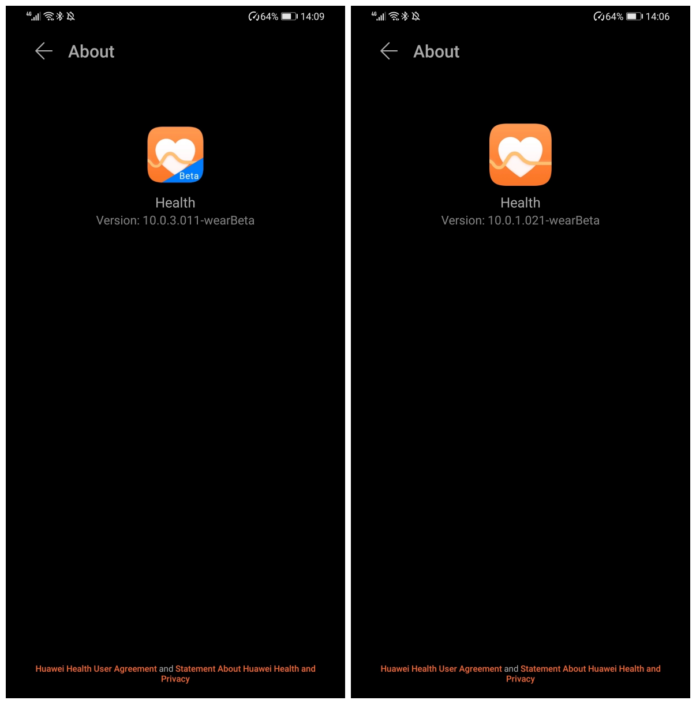
Use the app version shown above as a reference when troubleshooting.
Discussion
Share feedback, ask questions, and upvote/downvote comments.
Sign in to comment.
No comments yet. Start the conversation!