A watch face that becomes simpler when your wrist drops can be working normally. A clock that stays on the wrong minute needs a different investigation. Before changing the design or resetting the watch, identify whether the problem is a blank display, a frozen clock, a stale complication or an always-on style you did not expect.
Use the same installed face throughout the first checks. Note its release version and compare the watch against another clock. If the problem started after a software update, record that build as well.
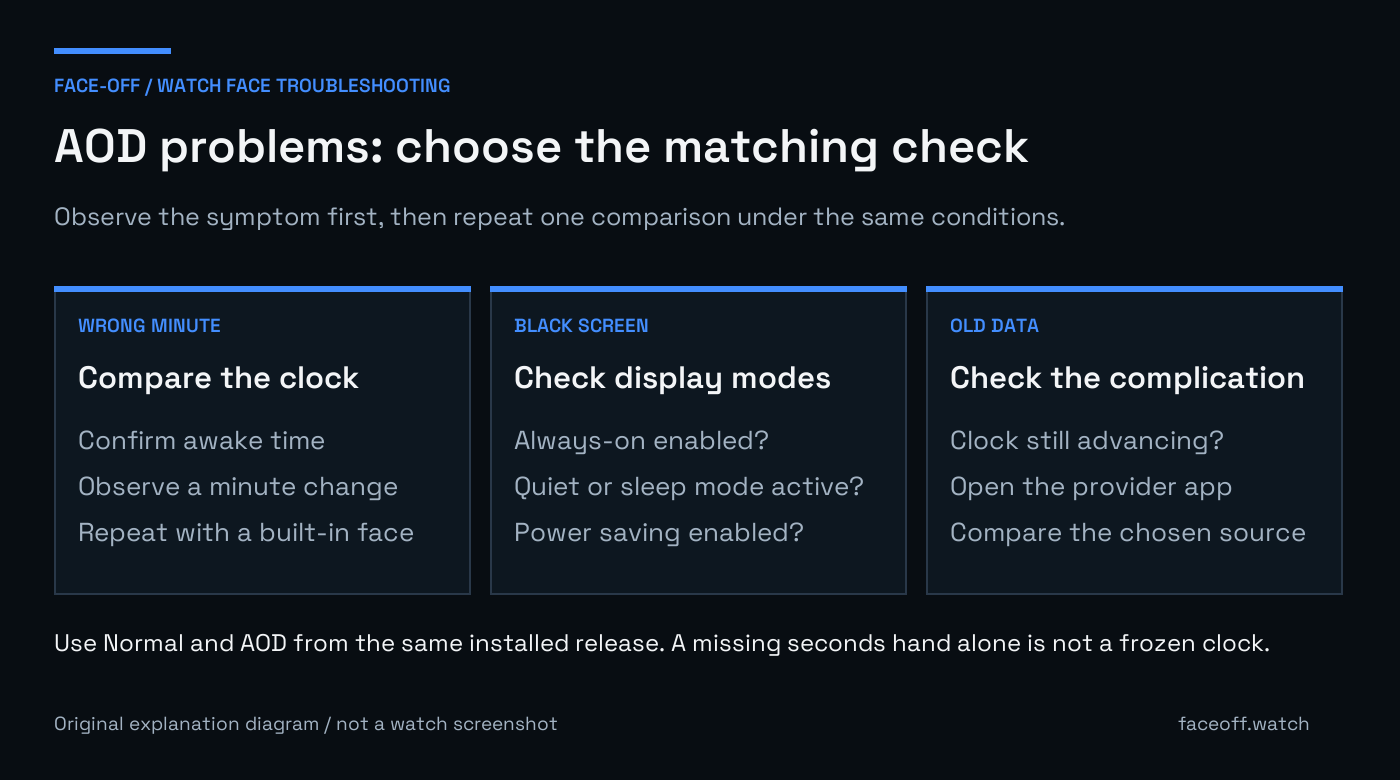
A frozen minute, a disabled display and stale complication data call for different checks. Original explanatory diagram, not a watch screenshot.
Check the time, not the seconds hand
Wake the watch and confirm that its normal time is correct. Let it return to the dim always-on display, then watch across a minute change without waking it. Write down the displayed time and the reference time. A short video can show a frozen minute more clearly than a single screenshot.
A stationary or missing seconds hand is not enough to establish a fault. Samsung’s Watch Face Studio FAQ says that the second hand is not supported in its ambient mode and tells designers to hide it. Check the hour and minute display before reporting that the clock has stopped.
If the whole watch shows the wrong time while awake, investigate its time settings first. If awake time is correct but the dim display keeps an earlier minute, keep that distinction in your report. It narrows the problem to behavior that occurs after the face enters its always-on state.
For a black screen, check the display modes
Make sure the watch’s Always-on Display setting is enabled. The exact menu name varies, but it is usually under the watch’s Display settings. Google’s screen and brightness instructions also explain that Theater mode can temporarily turn the screen off.
Check the quick-settings indicators and your watch’s Bedtime settings. On Pixel Watch, Google’s battery and display guidance explains that Bedtime mode turns the screen off. Automatic entry and exit depend on the model and its settings; check the Bedtime controls your watch actually offers. Seeing the screen go dark overnight can therefore have a different cause from a dim clock freezing during the day.
Power saving is worth checking separately. Samsung’s Galaxy Watch power-saving guidance lists Always-On Display among the features that the mode can disable. For one controlled comparison, turn off the relevant power-saving or quiet mode, keep the AOD setting enabled and repeat the test. Restore your preferred mode afterward.
Keep the watch in the same wearing and lighting conditions for the comparison. Changing the face, brightness, mode and wrist position together leaves you with several possible explanations when the screen behaves differently.
Compare another installed face
Choose a built-in face that has an always-on display, keep the same watch settings and observe another minute change. Then repeat with the affected face.
If both faces go dark under the same conditions, investigate the active mode and the watch’s system behavior. If one face advances correctly and the other keeps an old minute, send the affected face’s publisher that comparison. It is evidence of a difference between the two faces on your setup, even though it does not by itself identify the underlying software bug.
If a normal restart is part of your watch manufacturer’s troubleshooting instructions, repeat the same comparison afterward. Record whether it changes the result. Repeatedly reinstalling the face or clearing everything before documenting the symptom makes a reproducible failure harder to report.
Compare the expected always-on design
An always-on scene can omit artwork, color, animation and information shown in normal mode. Samsung’s always-on design guide explains that Watch Face Studio generates an ambient version and lets the designer modify it. The installed package’s always-on scene can therefore differ substantially from the bright marketing preview.
Check the listing’s labeled Normal and AOD images for the selected release. On Face-Off, read the capture caption and its matching-package label. An image from a different platform, an older release or an editable project is not a reliable picture of the exact APK now installed on your watch.
A dimmer dial or missing background is a design question when the clock still advances correctly. A missing minute digit, unreadable hands or artwork covering the time is useful feedback for the publisher. Include both awake and dim images so they can see which state needs attention.
Designers working on that scene can use Face-Off’s guide to building AOD from luminous details. It covers the creative work; these checks help readers identify whether the installed result has a functional problem.
Treat a stale complication separately
If the time advances but weather, steps or another value stays old, the clock is not the part that is frozen. Wake the watch, open the source app and compare its value. Then check the selected complication provider and whether the face displays that data in its ambient scene.
The app supplies complication data and the face renders it, as Google’s data-source documentation explains. Google also notes that update requests arrive less often in ambient mode or when the watch is not being worn. A complication can therefore need a provider or rendering investigation while the underlying watch face time remains correct. Face-Off’s weather troubleshooting guide covers the provider checks without mixing them with clock behavior.
For a useful bug report, include the watch model, software build, face release, active display modes, normal time and dim time across a minute change. Add the result from the comparison face. Those details let the publisher or watch manufacturer investigate the failure you actually observed before you consider a reset that removes your current setup.


Discussion
0 comments. Share feedback or ask a question.
Sign in to comment.
No comments yet.