This tutorial explains how to install a .gwd watch face on Samsung watches with Galaxy Watch Studio.
Prefer video? Jump to the YouTube walkthrough.
Requirements
- Samsung watch
- Computer
- Phone
- Watch face in
.gwdformat - Internet connection
Install and open the .gwd file
- Install Galaxy Watch Studio.
- Open Galaxy Watch Studio, close the New Project dialog, then use File > Open (Ctrl+O).
- Select your
.gwdfile to load it in the workspace.
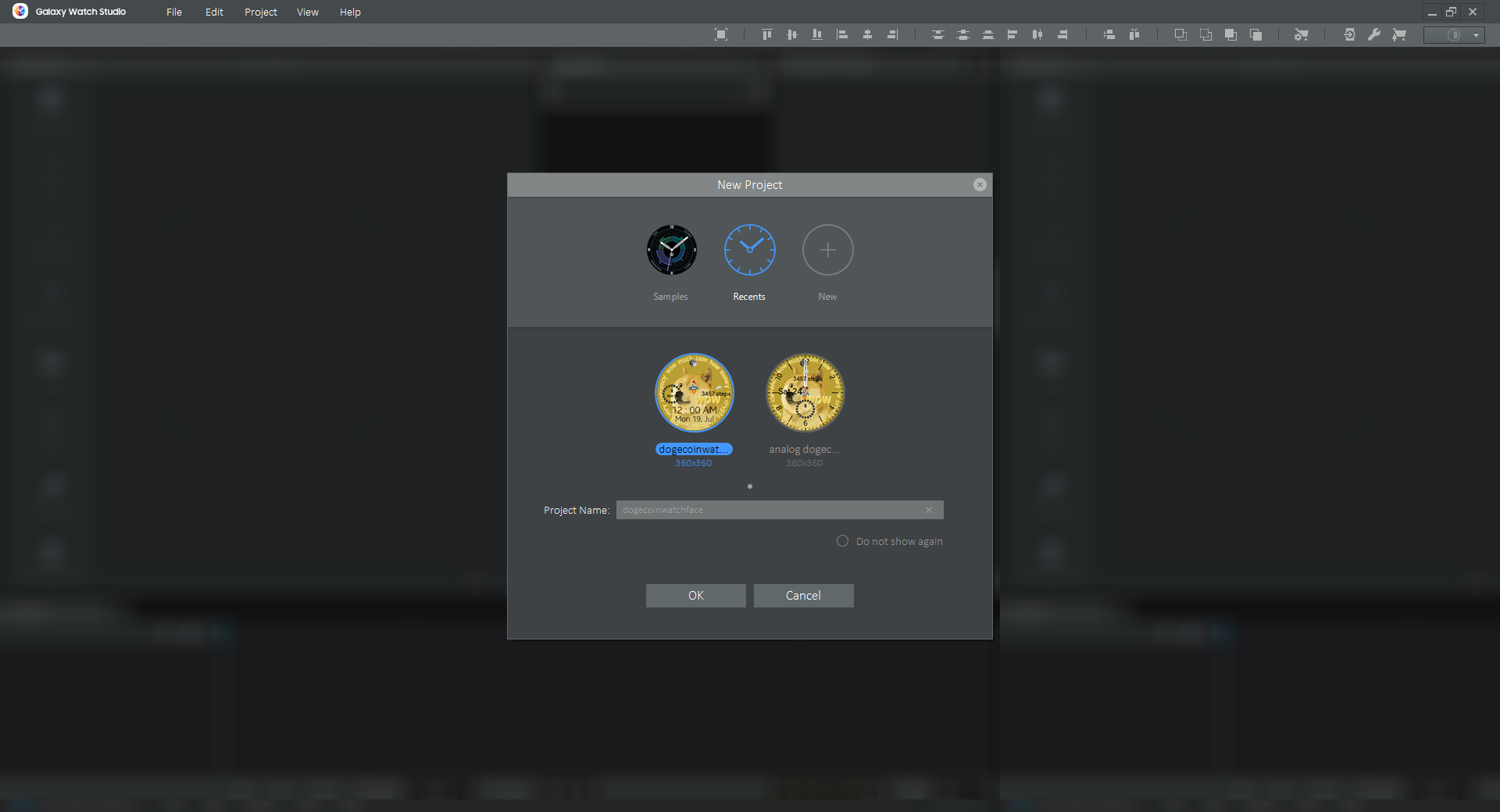
Galaxy Watch Studio startup screen.
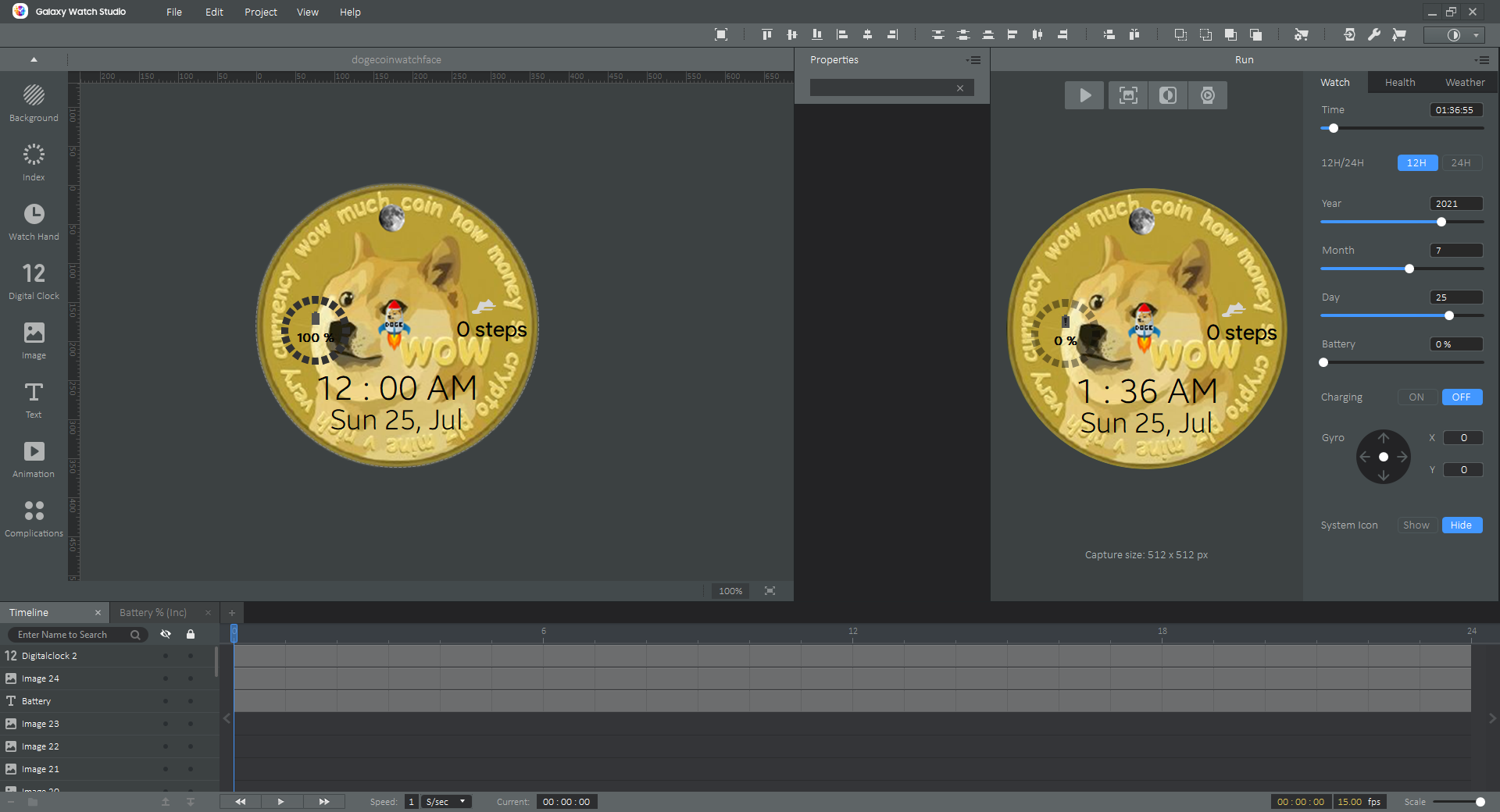
Loaded project in the editor workspace.
Run the watch face on your Samsung watch
Choose one connection method:
- Method A: SDB over Bluetooth (Android phone + USB cable)
- Method B: Wi-Fi connection (same network as host PC)
Method A: Connect via SDB over Bluetooth
Host PC setup
- Connect your phone to the host PC with a USB cable.
Watch setup
- Enable Bluetooth.
- Enable debugging on the watch:
- Gear watches: Settings > Gear info > Debugging
- Galaxy Watch: Settings > About watch > Debugging
- Reboot the watch if needed.
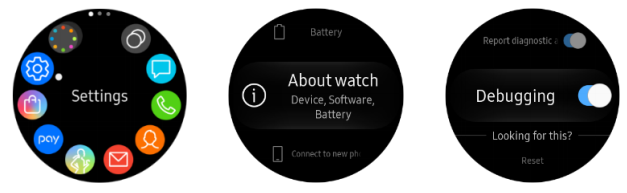
Debugging options on the watch.
Phone setup
- Enable USB debugging in Developer options.
- Install SDB over BT if it is not already installed.
- Open SDB over BT, tap Select device for debugging, and choose your watch.
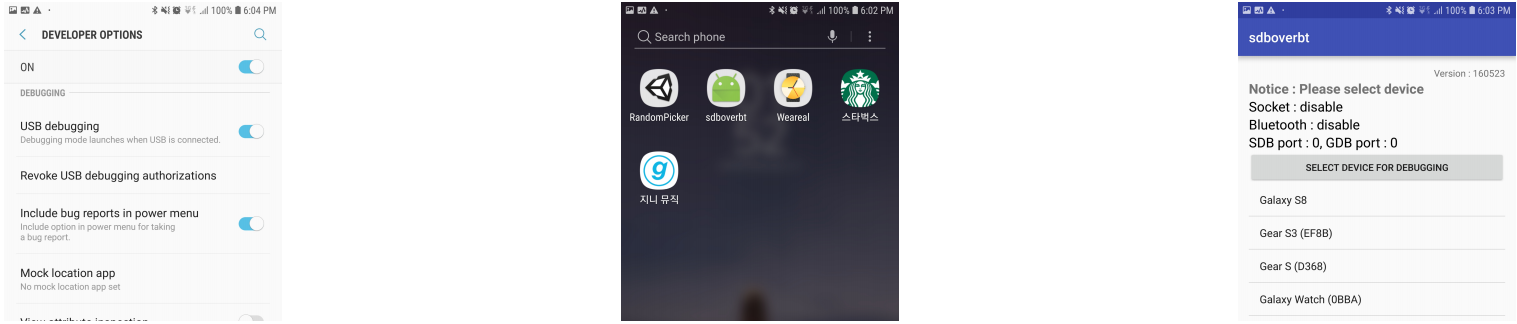
SDB over BT connection from phone to watch.
Deploy from Galaxy Watch Studio
- Click Run on Device in Galaxy Watch Studio.
- Select your phone and wait for watch discovery.
- Accept the security prompt on the watch (first connection only).
- Select the watch and start deployment.
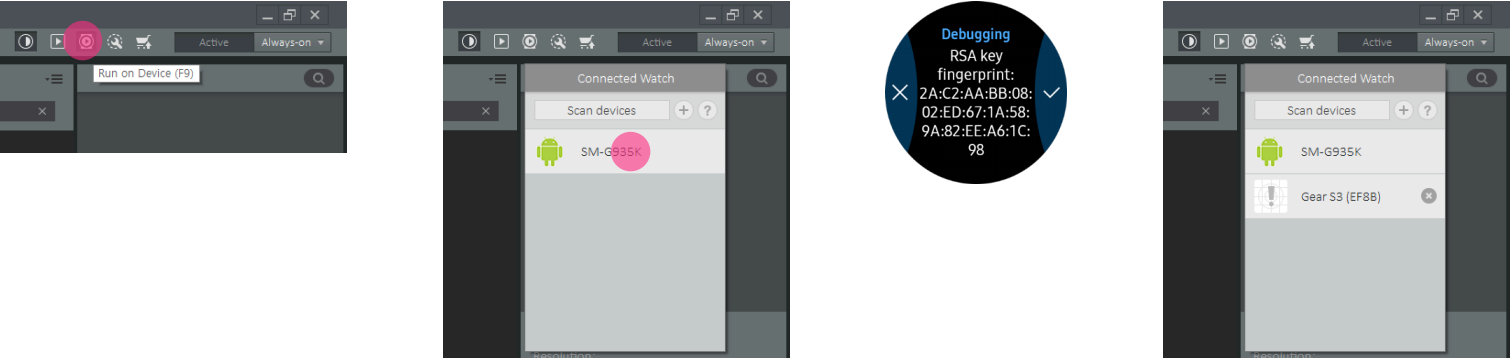
Galaxy Watch Studio deployment dialog.
Method B: Connect via Wi-Fi
Host PC setup
- Connect the host PC to the same wireless access point as the watch.
Watch setup
- Enable Wi-Fi.
- Enable debugging in watch settings.
- Connect the watch to your access point.
- Locate the watch IP address from Wi-Fi details.

Watch connected to Wi-Fi.
Deploy from Galaxy Watch Studio
- Click Run on Device.
- Click + and enter the watch IP address.
- Accept the first-time security prompt on the watch.
- Select the watch and deploy.
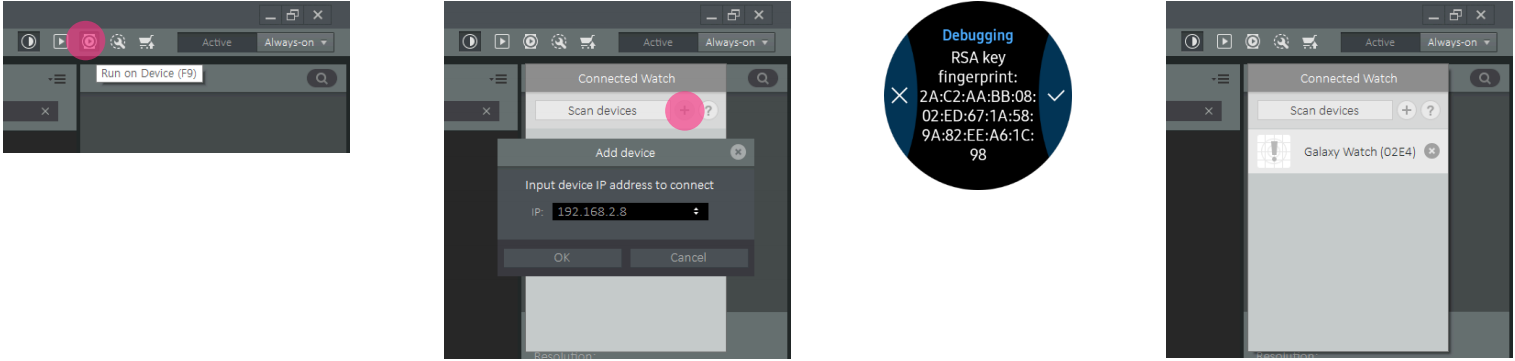
Manual IP connection flow in Galaxy Watch Studio.
Troubleshooting
- Confirm debugging is still enabled.
- Wake the watch and retry scan.
- Reboot the watch and retry.
- Confirm watch and host PC are on the same access point.
Reference: Samsung documentation from this PDF file.
Discussion
Share feedback, ask questions, and upvote/downvote comments.
Sign in to comment.
No comments yet. Start the conversation!