Your installation command reports Success, but the new watch face seems missing. Open the watch's full add-face catalogue before installing the APK again. The first picker view can show only your existing favorites, with another control for browsing available faces.
For pairing, connection errors or an installation failure, use the Wear OS installation walkthrough.
Quick check — open the full add-face catalogue
- Wake the watch, then touch and hold its current face to open the picker.
- Swipe through the favorites until you reach Add new, Add watch face or the equivalent control on your watch. Open it.
- Find the installed design by its displayed label, select it, then check the active result.
Samsung documents this add-face route for supported Galaxy Watch models. Menu wording and layout depend on the watch's software. Samsung's watch-face selection instructions
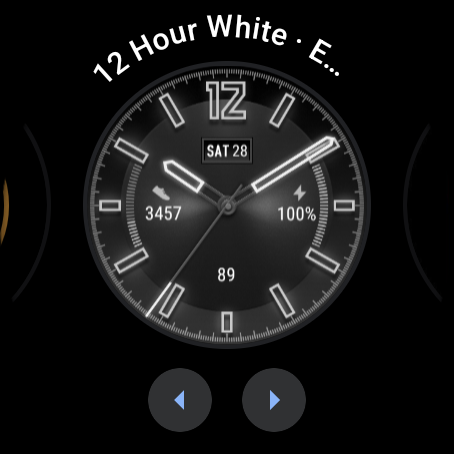
An API 33 Wear OS emulator showing its existing favorites. 12 Hour White · English is centered in this view.
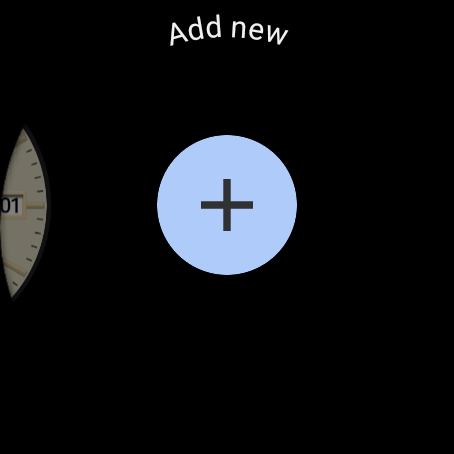
Swiping through that carousel reaches Add new. Its plus button opens the full catalogue.
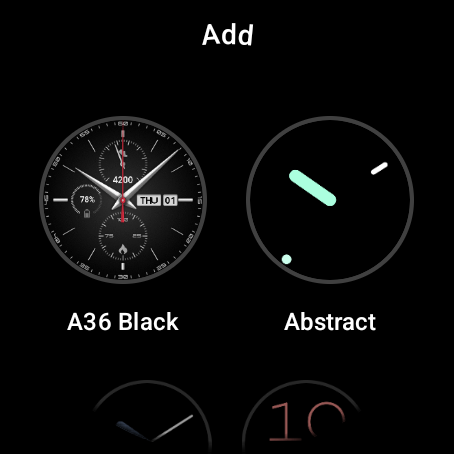
The full Add catalogue lists the installed A36 Black face. The example uses the A36 Black download.
Once the face is active, use its Edit, Customize or equivalent control when available. The customization guide explains compatible complication providers and settings.
If the face is still missing
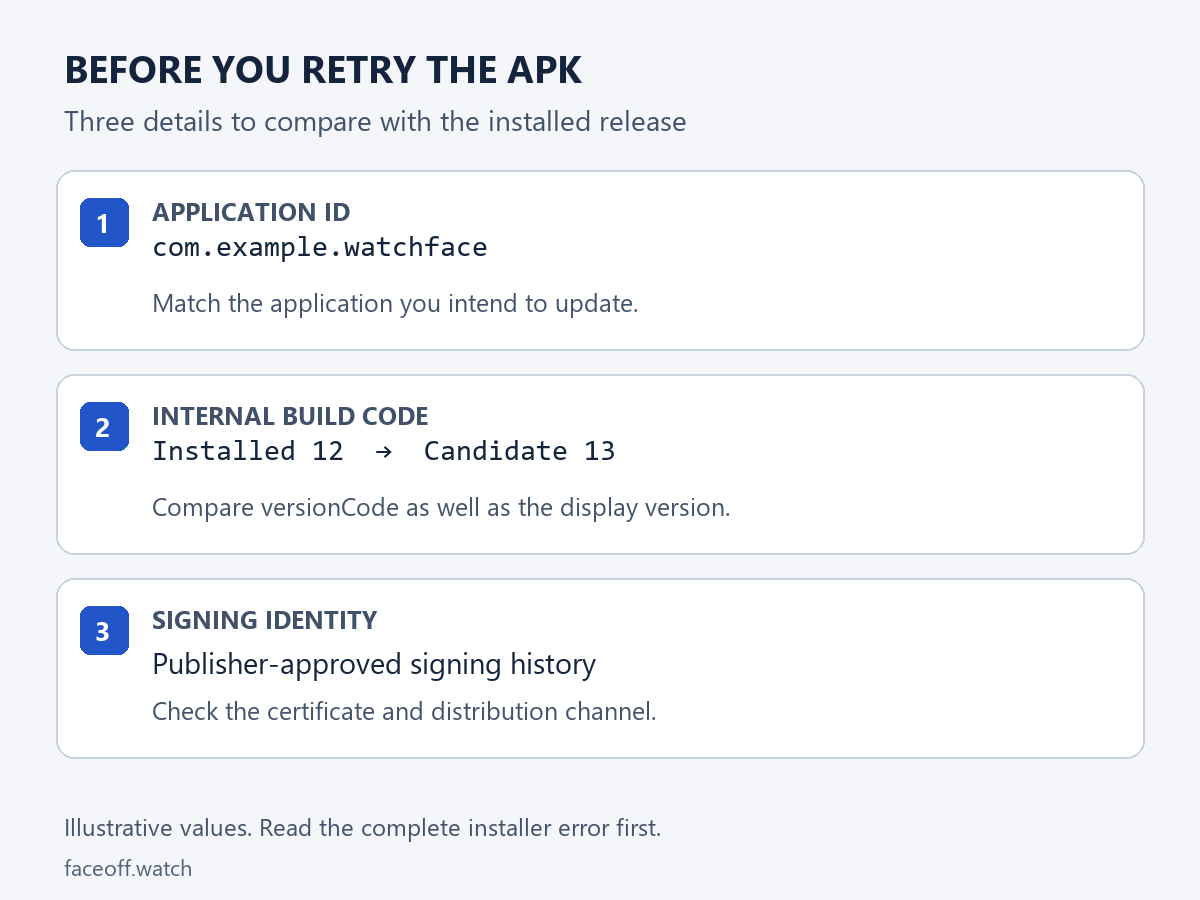
Continue with the device, package and compatibility checks below. Keep the selected filename, version and displayed face label together so you can identify the same build throughout.
Keep the filename, package ID and face name together
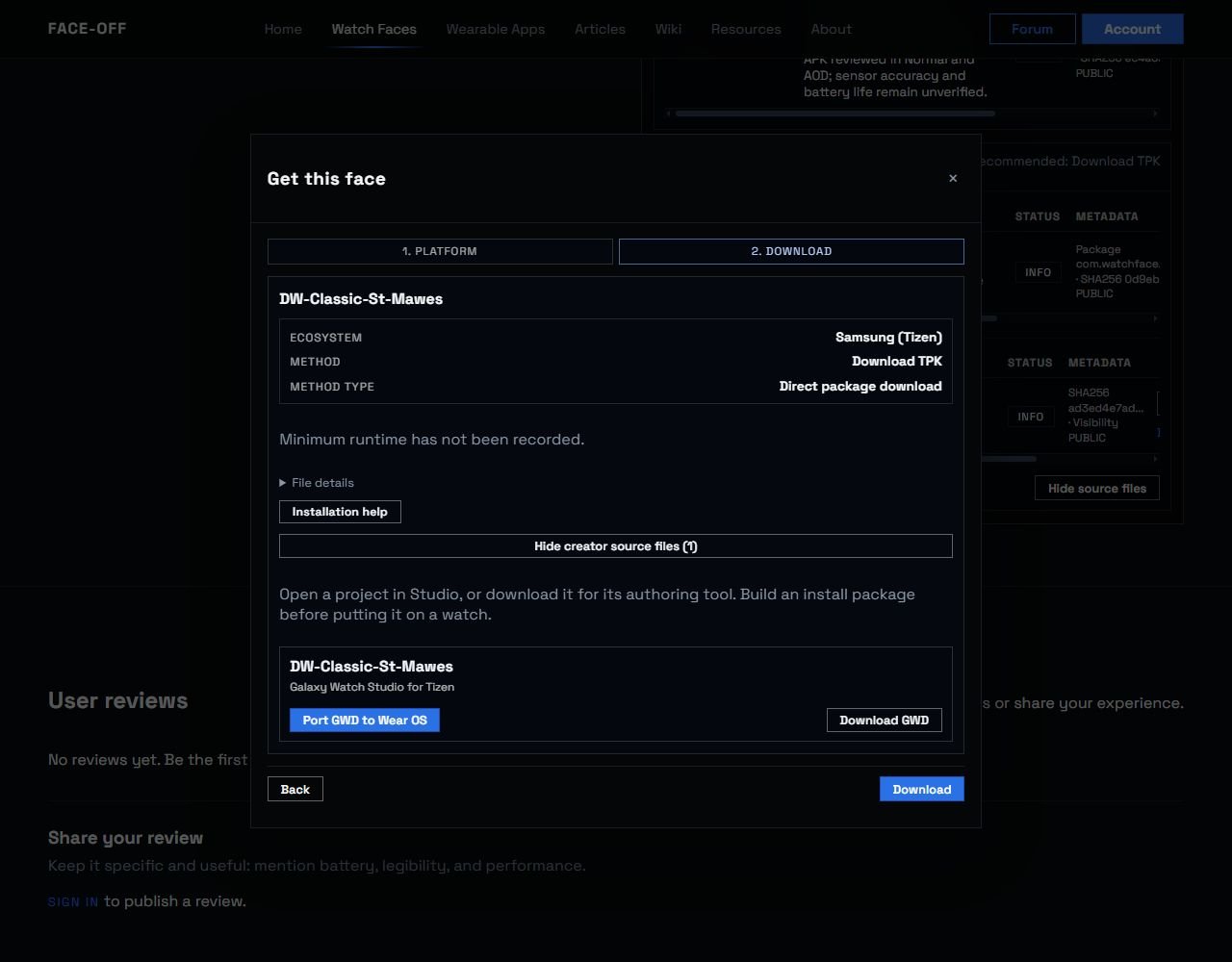
Open the download’s File details and record the package ID when it is provided. Keep the selected filename and version beside it. The file-format guide shows where those details appear in Face-Off.
These identifiers answer different questions.
| Detail | Use it for |
|---|---|
| Downloaded filename | Identify the file you sent to the watch. |
| Package ID | Query that specific installed Android package. |
| Watch-face label | Find the design in the watch’s picker. |
The publisher controls the face’s displayed label through the package’s application metadata. It can differ from the filename. A phone companion and a WFF face also have separate packaging, so keep the identity of the face you intended to install. Google’s WFF setup guide
1. Confirm which device you are querying
Use the same computer and Platform-Tools folder as the installation walkthrough. In PowerShell, list the connected targets.
.\adb.exe devices -lMatch the complete device entry with your watch. If the entry identifies your phone or a different emulator, select the watch’s entry before continuing. The uppercase WATCH_DEVICE below represents that complete identifier, such as the watch’s current connection address.
.\adb.exe -s WATCH_DEVICE shell pm path PACKAGE_IDReplace PACKAGE_ID with the package ID from the selected face’s file details. Keep -s WATCH_DEVICE on the command when more than one target is connected. On macOS or Linux, use ./adb in place of .\adb.exe.
The pm path command asks the selected device for the APK path of that package. Treat a returned package: path as evidence for its presence on this device, then continue to the format check. For an empty result or an error, retain the exact output and recheck the device and package ID first. Android’s ADB reference
2. Check whether this build fits the watch
Read the watch’s software information and compare it with the selected release’s requirements. Keep its Wear OS version alongside any API level reported by the file details. The name of the watch alone leaves the installed software version unresolved.
Google’s Watch Face Format documentation includes a minimum platform for each WFF generation. For example, WFF 4 requires Wear OS 6/API 36. Compare the exact build with that version table and the platform requirements described in the documentation. Watch Face Format overview and version table
If the package is present but the listing leaves its WFF version or compatibility unclear, send that question to the publisher with the exact package ID and version. A minimum-API number gives part of the compatibility information. Keep the format generation and the features used by the face in the same check.
For a source you are adapting, return to the HWT porting guide for the build-and-device review stage. Importing artwork, building a package and selecting its resulting face are separate checkpoints in that workflow.
Inspect the built package when you own the project
If you already have Android Studio, open Build → Analyze APK and select the exact APK you installed. Its APK Analyzer reconstructs the compiled manifest, exposing the final package metadata. Android Studio’s APK Analyzer guide
Check the package ID, application label, declared minimum SDK and the application property com.google.wear.watchface.format.version. For a WFF build, review its resource-only application declaration and packaged face resources against the current setup instructions. Include the preview metadata in that review. Compare those final package fields with the intended project settings. Google’s WFF setup guide
If you received a finished download, the publisher can perform this package inspection. Keep your original file available so both sides can identify the same build.
3. Report the checkpoint you reached
Keep a short record that lets the publisher reproduce the same case.
- The listing URL, selected filename and available SHA-256 value.
- Package ID and version from that file.
- Watch model and installed Wear OS version.
- Installation result and the result of querying that package on the selected watch.
- Whether the face appears in the add-face catalogue, plus the label you searched for.
- A current screenshot of that picker when the entry remains missing.
A report with the selected device, installed package, format requirements and actual catalogue screenshot gives the publisher a reproducible starting point.
Primary instructions reviewed on 7 November 2026. The three original screenshots show an API 33 Wear OS emulator.

Discussion
0 comments. Share feedback or ask a question.
Sign in to comment.
No comments yet.