Read the charging message when your Apple Watch stops near 80%. If it warns about temperature, deal with that first.
If the watch reports a temperature problem
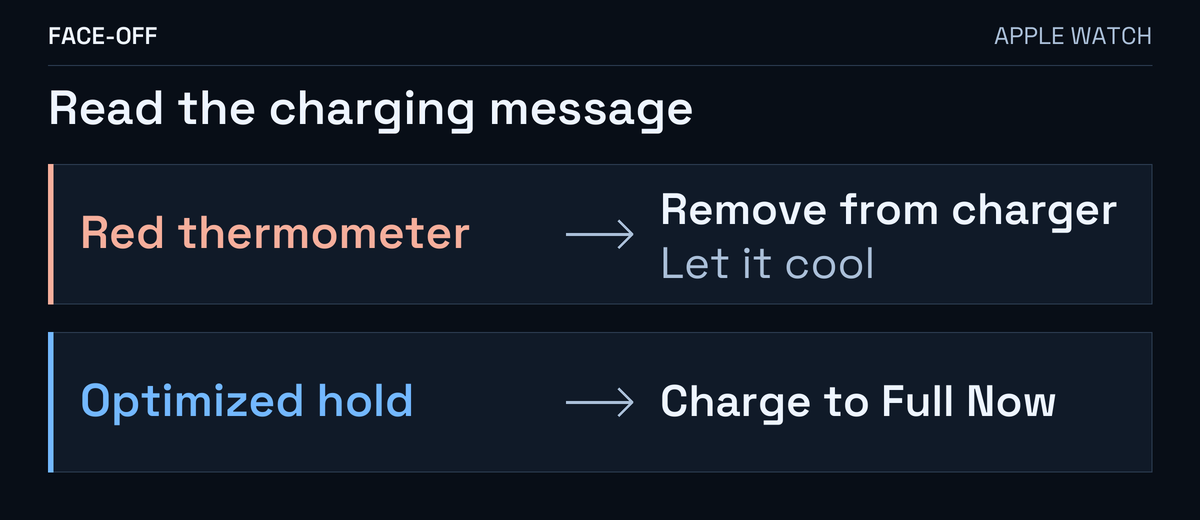
Apple’s temperature guidance says charging can slow or stop while the watch manages its temperature. A red thermometer with the time calls for these steps:
- Remove the watch from your wrist or its charger.
- Move it to a cooler place.
- Let it cool before wearing it or continuing to charge.
Keep the watch, charger and power adapter uncovered in a ventilated area. If a temperature warning returns, tell Apple what it says and what happens after the watch cools. A Battery Health reading does not explain a repeated temperature warning.
If charging is optimized
Optimized Battery Charging can hold at 75 to 80%. It stays on for Series 9 or later and all Ultra models.
Optimized Charge Limit varies with daily use and may allow 100%. Its open ring identifies the feature. It needs watchOS 10 or later on an SE, Series 6 or later, or Ultra. Its control is under Settings → Battery → Battery Health.
For a full charge today, stay on the charger. Tap the screen, charging circle, then Charge to Full Now.
Battery Health shows a different measurement
Settings → Battery shows the charge remaining and recent charging history. On current watchOS, the side button opens Control Center with the current percentage. In Battery Health, Maximum Capacity compares the battery’s capacity with when it was new. Apple’s health-screen guide explains where to find those readings.
Record them separately. “The charging screen stayed at 80%; Maximum Capacity is 87%” describes two observations. Neither number, on its own, explains why charging paused. If a capacity-related service alert appears, use the service options offered by Apple.
Notice the icon as well as the message
A yellow charging symbol means Low Power Mode, according to Apple’s charging guide. Read the charging-status text alongside the icon.
For a useful comparison, note the time, starting percentage and exact message while using the same compatible charger. Follow Apple’s setup with the watch’s back aligned on the charger. Record what changes next instead of assuming how many minutes a full charge should take.
If the full-charge choice is missing
A Series 9 owner using watchOS 27 reported an optimization message with no full-charge option. That missing control is worth including in a support request.
Save a picture of the screen for Apple support and give the watch model, installed watchOS and charger details. Say whether the message mentions optimization or temperature, whether it happens on every charge, and which control you expected to see.
If charging resumes after cooling, include that result. If the same warning keeps returning, describe how often it happens.


Discussion
0 comments. Share feedback or ask a question.
Sign in to comment.
No comments yet.