An HWT installation can fail before the watch has seen the file. You might have the wrong download, a phone app without a local-import route, a package the watch rejects, or a transfer that stops halfway. Find that point first: each needs a different fix.
This guide starts with a file downloaded from Face-Off. The screenshots show the Face-Off website on 6 November 2026. They do not show Huawei Health or prove that a particular Huawei watch accepts the example file. For installation routes and their requirements, keep the Huawei installation guide open alongside it.
1. Make sure you chose the Huawei file
Open the watch-face listing, select Choose a download, and choose Huawei under OS ecosystem. Then continue to the file step. A listing may offer the same design for more than one platform; its Wear OS APK is a different package.
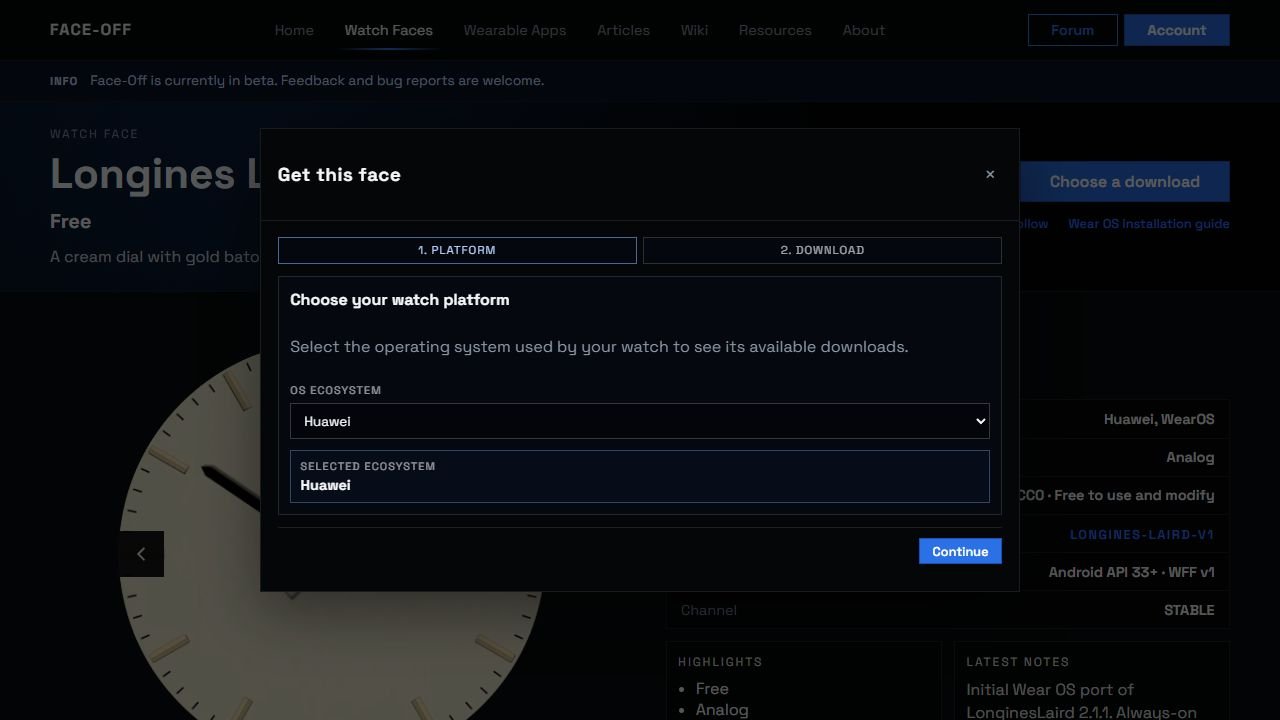
Choose the ecosystem of the watch you want to use. The example listing also has a separate Wear OS option.
Expand File details and check the actual format and filename. In this example, the Huawei choice is LonginesLaird.hwt. If you downloaded an APK, GWD project or editable WFF project instead, return to the chooser. The file-format guide explains those choices.
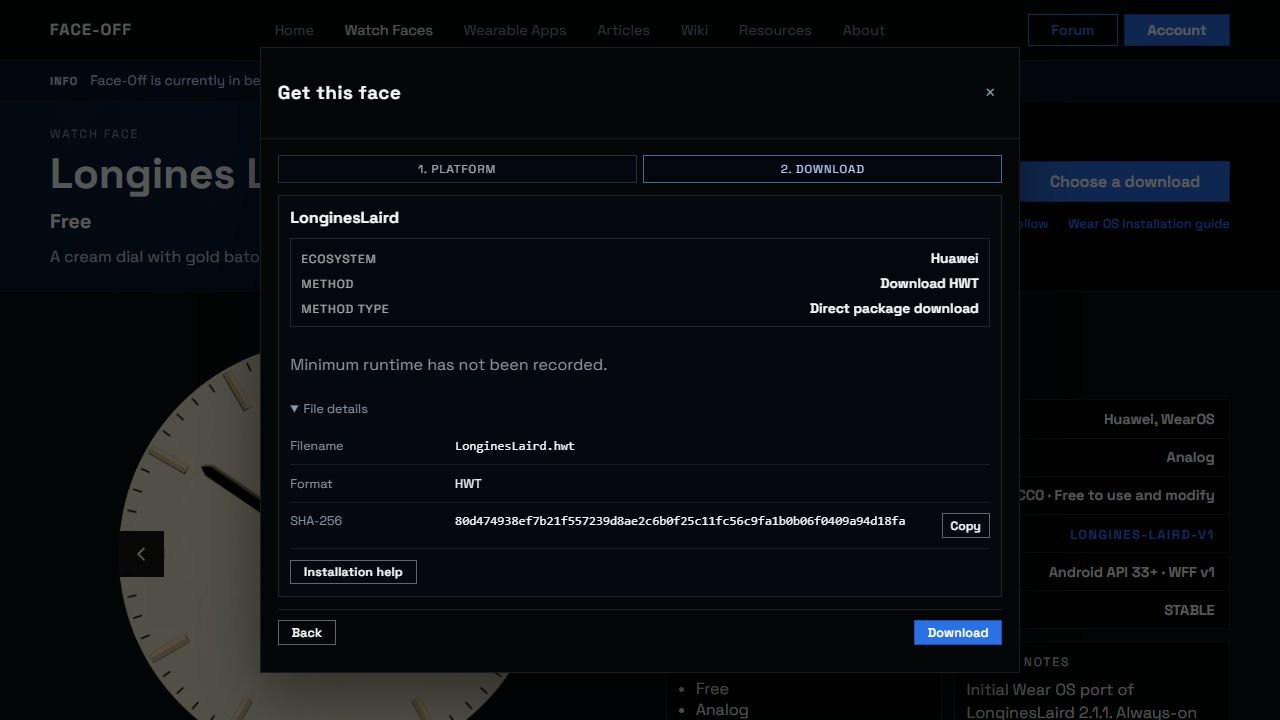
File details identifies the exact download. “Minimum runtime: Not recorded” means this listing does not supply that compatibility detail; it does not mean every Huawei model is supported.
Keep the original filename and extension. Renaming .hwt to .apk cannot convert the design. If the download is a separate ZIP containing several files, inspect its contents and the listing instructions before choosing a member. An HWT file itself can be an archive internally: that alone is not a reason to unpack it for installation.
2. Find the first step that fails
| What happens? | What it tells you | Next check |
|---|---|---|
| You cannot find a local-file or import button | Your current phone-app route has not reached file selection. The HWT has not been tested yet. | Identify the app and version, then use the matching route in the installation guide. |
| The file is absent or greyed out in the picker | The picker cannot select that file in its current location or filter. | Check the filename, extension, download completion and the folder shown by the picker. |
| The app selects it, then reports an invalid or unsupported file | The package reached validation. | Save the exact error; check the intended watch model and whether the downloaded bytes match the listed checksum. |
| Progress starts but the transfer stops | File selection succeeded; the failure occurs later. | Record the percentage and error, confirm the watch is connected in the app, and follow that tool's transfer instructions. |
| Transfer completes but the face is not active | Installation and selection may be separate steps. | Check the installed-face list or the watch's face selector before downloading again. |
| The face opens but its labels or always-on view are wrong | You have a rendering or content problem to investigate. | Capture the normal and ambient views and report the exact file, model and firmware. |
Do not switch installation tools at every row. Record one attempt from file choice to its first error so you can tell which change makes a difference.
3. If there is no import button
Huawei's official support instructions describe selecting a design in Huawei Health's Watch Face Store and installing or activating it there. That route does not establish that your app version can browse an arbitrary local HWT file.
The installation guide separates the official store, Huawei's developer testing workflow, and version-specific community tools. Choose the route that matches your watch, phone and account. Do not uninstall a working Health setup just to make a button from an unrelated tutorial appear.
Face-Off's Installation help button links to that guide. Its short modal is a starting point; the detailed guide contains the route-specific conditions.
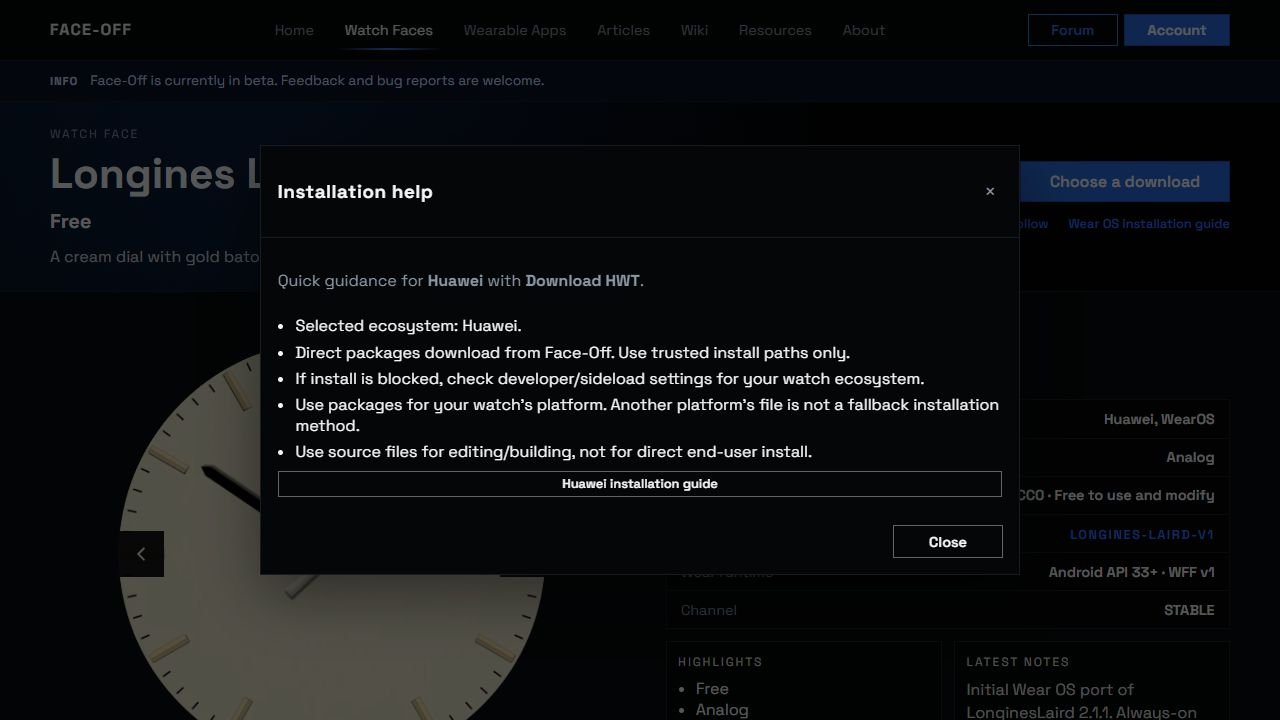
This is Face-Off's help dialog, not a Huawei Health import screen. Menu names in another app can differ.
4. If the app rejects the file
Write down your watch's full model name, including its size or edition when relevant, its firmware version, the phone OS, and the installation app's exact version. “Huawei watch” is too broad to establish compatibility. Compare these with the listing and the tool's supported devices. Similar-looking watches or matching screen shapes are not enough.
Next, check the download itself. If the listing supplies a SHA-256 value, compare it with the file on your computer. On Windows PowerShell:
Get-FileHash -LiteralPath 'C:\Users\YOUR_NAME\Downloads\LonginesLaird.hwt' -Algorithm SHA256Replace the path with your actual download. Compare the complete hexadecimal value with File details for the same selected file. Letter case does not matter. A match shows that you have the listed bytes; it does not prove the watch supports them. A mismatch is a reason to download that file again and recheck before investigating the watch.
If the bytes match and the tool still rejects the HWT, keep the original error message. Repeatedly changing its extension or repacking it makes the evidence harder to compare. A creator can use the exact package, target model and error to investigate the package structure or rebuild for the intended device. Huawei's Theme Studio codelab is a developer workflow with specific account and device prerequisites, rather than a universal consumer import shortcut.
5. If it installs but looks wrong
Activate the face and check the time, date, weekday, data fields and ambient view separately. For a face that remains in the installed list, use the watch's face selector or the app's activation control before assuming the transfer failed. Huawei's support page documents these selection routes and notes that some menu paths vary by model.
If the calendar stays in another language, the words may be images inside the design. Changing the watch language does not redraw those pixels. A corrected design needs the appropriate artwork and a new reviewed package. For supported editable projects, the English calendar guide explains that distinction.
For an ambient problem, include a photo of the watch after it enters always-on mode, alongside the normal view. A screenshot of the listing's preview alone cannot show what your particular watch rendered.
Send a report someone can reproduce
Use the listing's discussion area or its available contact route. Include the stage that failed and the exact wording of the error. This template keeps the useful details together:
Listing URL:
Selected ecosystem and download filename:
Watch model / size:
Watch firmware:
Phone OS:
Installation app and exact version:
First failing step:
Exact error text / transfer percentage:
SHA-256 match, mismatch, or not checked:
Screenshot or photo of that step:
Remove account identifiers from screenshots. With the file and first failing step identified, the next person can investigate the right part of the process instead of guessing from “it doesn't work.”
Discussion
0 comments. Share feedback or ask a question.
Sign in to comment.
No comments yet.