An old watch face can disappear after an update because its original format or installation route no longer matches the software on the watch. Before removing the app or buying the design again, find out which version of the face you own and how it was installed. A missing picker entry, a failed marketplace sync and an unsupported legacy face need different fixes.
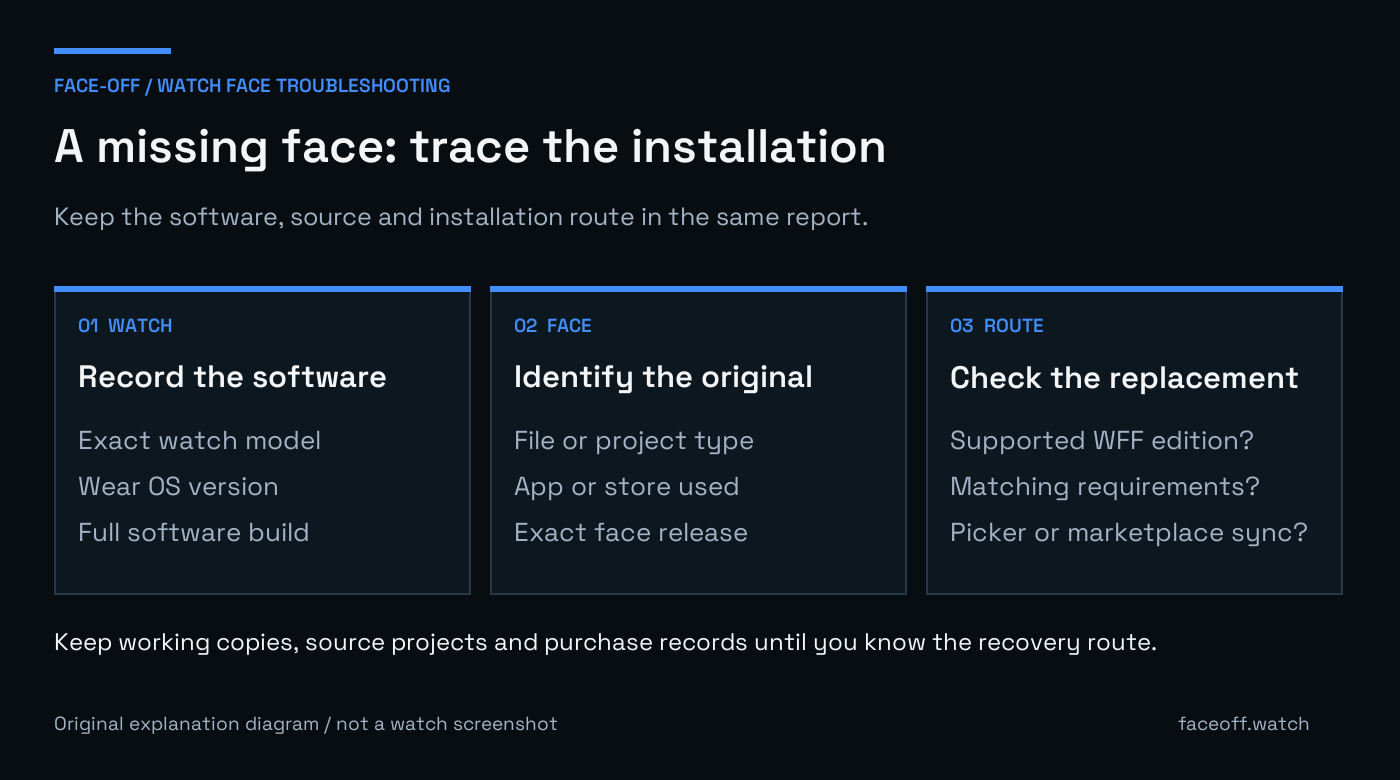
Keep the watch software, original face and current installation route together when investigating a missing design. Original explanatory diagram, not a watch screenshot.
Record the watch’s current software
Write down the exact watch model, its Wear OS version and the full software build. On a Galaxy Watch, look in Settings under About watch and Software information; the names vary by model. Samsung’s guide to finding watch information explains where the model and software details live.
A product name by itself is insufficient. Two people with the same Galaxy Watch model can have different software installed. When asking a designer for help, include the version actually shown on your watch, rather than saying it has the latest update.
Keep the face’s name, original store link and purchase record. If you still have an editable project, export or copy it somewhere you can find again. Record any working configuration before uninstalling its app. Being able to download an old file again is a separate question from whether the installed copy still works.
Identify the file and the app that used it
Look at the original download and instructions. An APK is an Android package, but that extension alone does not establish whether it contains a modern watch face or an older watch face engine. A .watch design belongs to its supporting application. A .wfs project is source material for Watch Face Studio. Huawei HWT and Samsung Tizen GWD/TPK files follow other workflows.
Face-Off’s source-versus-package guide helps identify what you have. If the file is a .watch project, use the WatchMaker import guide to check the import route and editing access. Renaming an extension does not convert the contents into another platform’s watch face.
Also record the app that handled the design: Google Play, a marketplace phone/watch pair, WatchMaker, Facer or a direct APK installation. That tells you where to look for the replacement release and whose account holds the purchase.
Check whether the face has a WFF release
Google’s current Watch Face Format documentation says that WFF is required for installing watch faces on Wear OS devices from January 2026. An older design’s screenshots or a successful installation several years ago do not establish that its original package meets the present requirements.
Look for a release that explicitly identifies the current supported format and software requirements. A designer may have published an updated package, a rebuilt edition or an adaptation with differences from the original. Read its release notes before assuming that the old interactive features, data sources and editing controls carried over unchanged.
Check the selected package’s requirements against the watch you recorded. Minimum API and target API mean different things; a store policy number and the minimum Android version needed to run a package answer different questions. A supported format still needs a compatible build.
Marketplace apps have a newer installation route
The statement that Facer or WatchMaker can never work on newer Wear OS watches is too broad. Google introduced Watch Face Push in Wear OS 6, allowing marketplace apps to manage WFF faces. The marketplace and chosen design need to support that route. The API does not make every older project compatible automatically.
Watch Face Push also changes expectations about the picker. Google’s marketplace implementation guide specifies one slot per marketplace app on Wear OS 6. Replacing the face in that slot is different from installing a collection of independent packages. That limit should not be read as a limit of one watch face across the entire device.
Facer’s transition FAQ describes converted designs, differences in older features and the loss of its former triple-tap switcher. Use the current instructions for your app and software version. An old video showing a different engine or picker can send you to controls that no longer exist.
Separate installation from selection
If a current compatible APK installed successfully, open the watch’s full add-watch-face picker. The recently used row in a phone companion is not always the complete installed list. Follow Face-Off’s installed-but-missing picker checks before repeating the installation.
If the install itself failed, keep the exact error. A signature or package-update conflict needs the APK update checks. A marketplace sync error belongs with that marketplace’s device selection, supported release and sync instructions. Reinstalling repeatedly without identifying the failing step makes it harder to tell what changed.
Once the face is selected, check its normal display and always-on behavior. Then restore complication choices individually. Successful selection confirms that you reached the face; it does not confirm that every old data provider or customization option is present in the rebuilt edition.
Ask for the correct replacement or purchase review
Send the original publisher the design link, current watch software, app version and the step that fails. Ask whether there is a supported release for that combination. For a paid design, include the purchase reference privately through the store or publisher’s support channel.
Facer says that purchases remain associated with the account while availability and functionality can depend on the software and supported edition. Its support team handles affected purchases; a public discussion cannot determine your entitlement to a rebuilt design. Check the publisher’s current policy before purchasing it again.
Keep any working installed copy and your source files until you understand the recovery route. A factory reset is a substantial change, and it does not convert an unsupported watch face into WFF.


Discussion
0 comments. Share feedback or ask a question.
Sign in to comment.
No comments yet.