If the weather app on your watch shows a current forecast while the watch face keeps an older temperature, compare the app, the selected data source and the face’s editable slot separately. That gives you a useful next step before reinstalling a face or changing several settings at once.
This guide covers an installed, active Wear OS watch face. If you still need to find its customization controls, start with changing colors and complications.
1. Open the same weather app on the watch
Wake the watch and open the app that supplies the weather you selected for the face. Look at its location, temperature unit and update time, where available. A phone widget or another weather app can use a different location or forecast service, so use the same watch app for this comparison.
If that app is also blank or out of date, begin with its connection, location and refresh settings. If the app looks current, return to the face and note what it shows. Keep the watch awake for this first comparison. Check its always-on appearance separately.
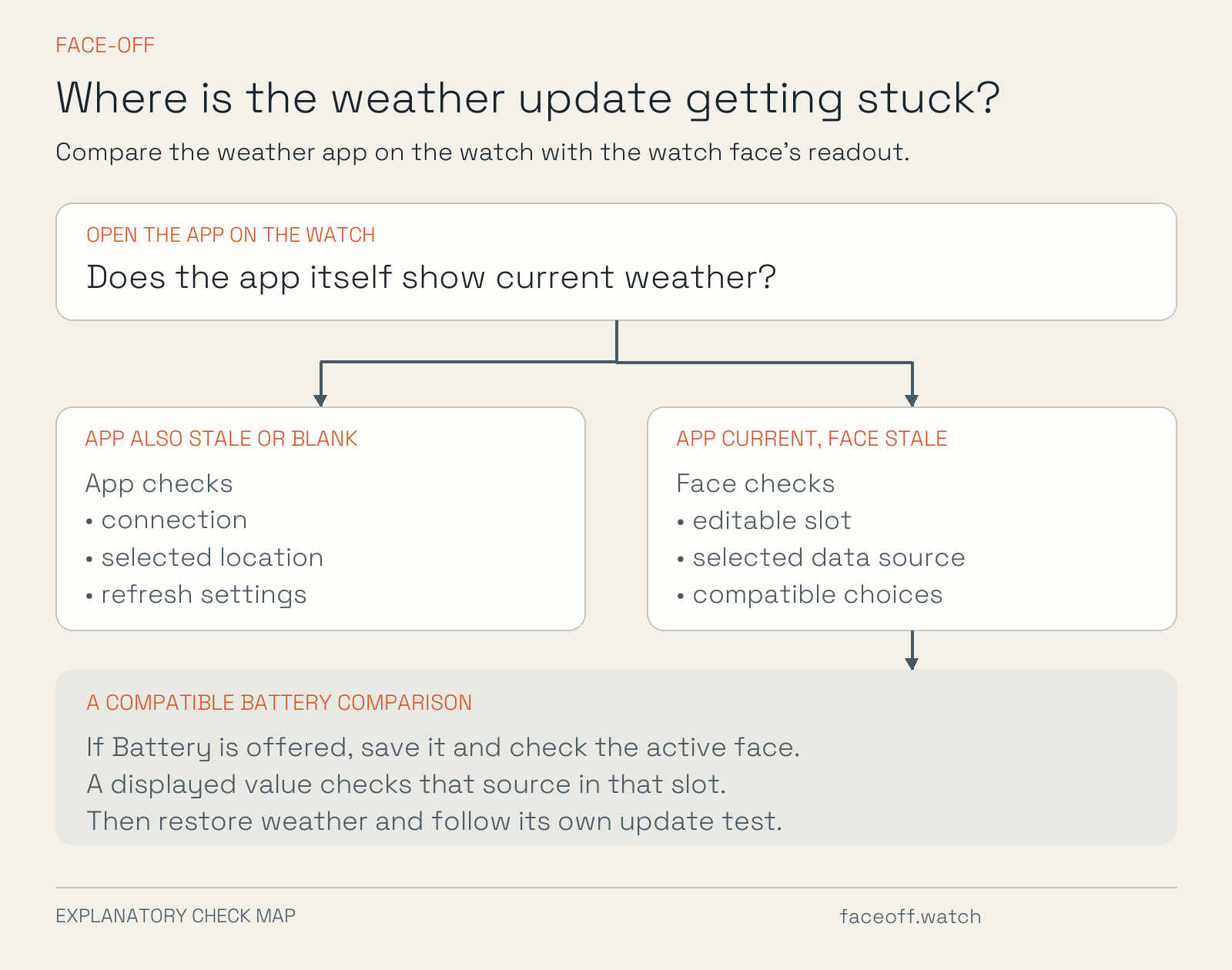
An original explanatory diagram of checks for the app, source and slot.
2. Check which source the face actually uses
Open the face’s Edit, Customize or Data controls, then select the affected area. Read the source’s name before changing it. Names and gestures vary by watch. Google describes the common editor controls. Watch-face instructions.
A slot can offer only the kinds of data its creator supports. An installed weather app therefore might appear for one slot and be absent from another. Google documents how data sources and slot types work together. Data sources, supported types and watch faces.
Some weather artwork is part of the design and has no changeable source. For example, Watch Face Studio can use weather tags with an availability check. If the editor offers no weather slot, check the face’s listing or ask its creator which source that area uses. Samsung’s weather-data example.
3. Try Battery if this slot offers it
Before changing the slot, note its current source so you can restore it. If Battery is available in its picker, select it, finish the editor’s save or apply step and return to the active face. Choose a different compatible local source only if you understand what it should display.
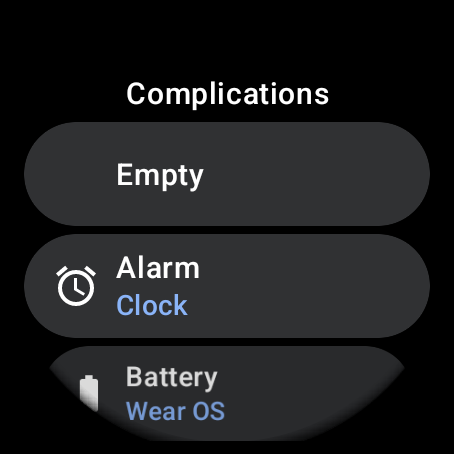
Battery appears in the Wear OS complication picker for the selected slot.
A displayed Battery value confirms that this slot can display that source in this state. Weather delivery can use another supported type, app configuration or update schedule, so check it separately.
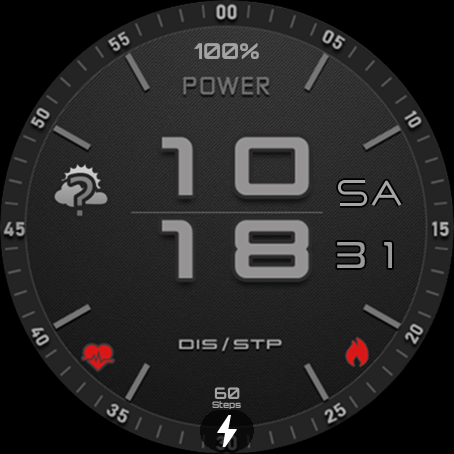
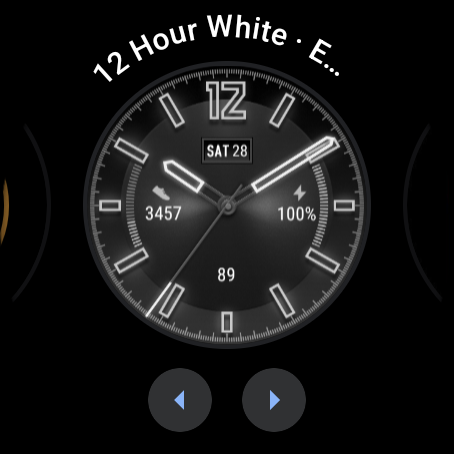
The top slot shows 100% after saving Battery in this controlled emulator test.
Restore your original source after the comparison. If Battery is absent from this slot, continue with a source that the slot offers.
4. Follow what you observed
| What you observed | Useful next check |
|---|---|
| The watch’s weather app is also stale or blank. | Check that app’s connection, selected location and refresh settings first. |
| The weather app is current, Battery displays, but weather stays stale. | Confirm the selected weather source and its configuration. Record the app-versus-face difference for the provider or face creator. |
| A source is absent from one slot’s picker. | Check whether the app provides a compatible complication for that slot. Another slot can support different types. |
| The saved Battery source is also blank. | Reopen the same slot, confirm the selection was saved and inspect any applicable data-access permission. |
| The value lags only while the face is dim or the watch is unworn. | Wake it and compare active-mode behavior over the source’s documented update interval. |
5. Use the settings for your weather app
For Samsung Weather on a Galaxy watch, Samsung says to connect the watch and phone through Galaxy Wearable, then open Watch settings → Apps → Weather → App settings → Settings → Auto refresh. Review the interval and the location you actually want. Samsung also covers locations, units and location options. Menus can vary with the app version. Samsung’s weather-update guide.
For a Pixel Watch or another weather app, follow its own setup instructions. Google distinguishes the device’s location switch from individual app permissions. Check the access the selected app needs. Pixel Watch location guide.
Some watches also expose a Receive complication data permission for the face. Inspect it if your device provides that setting and a supported source cannot supply data. Google’s complication data permission instructions.
6. Test the update, then send useful details
Return to the active face after changing one setting. Use the provider’s documented refresh interval when judging the result. Google describes scheduled and requested updates, with less frequent requests possible in ambient or unworn states. There is no single refresh interval that every complication follows. Data-source update documentation.
If the difference persists, send the watch model and Wear OS version, the face and weather-app names and versions, the exact slot and source, and when you compared them. Include an app screenshot and a face screenshot taken close together. Hide precise locations or account details before sharing. Those observations help the provider or creator distinguish stale app data from delivery or display behavior.

Discussion
0 comments. Share feedback or ask a question.
Sign in to comment.
No comments yet.