A replacement watch face can have the right name and still fail to update the copy on your watch. Start with the complete installer error, then compare the application ID, internal build code and signing identity. Those details let you choose the right download and give the publisher a report they can act on.
This walkthrough covers an APK replacement that Android rejects. If the transfer never reaches the watch, use the connection and installation guide first. If installation succeeds, open the full watch-face picker.
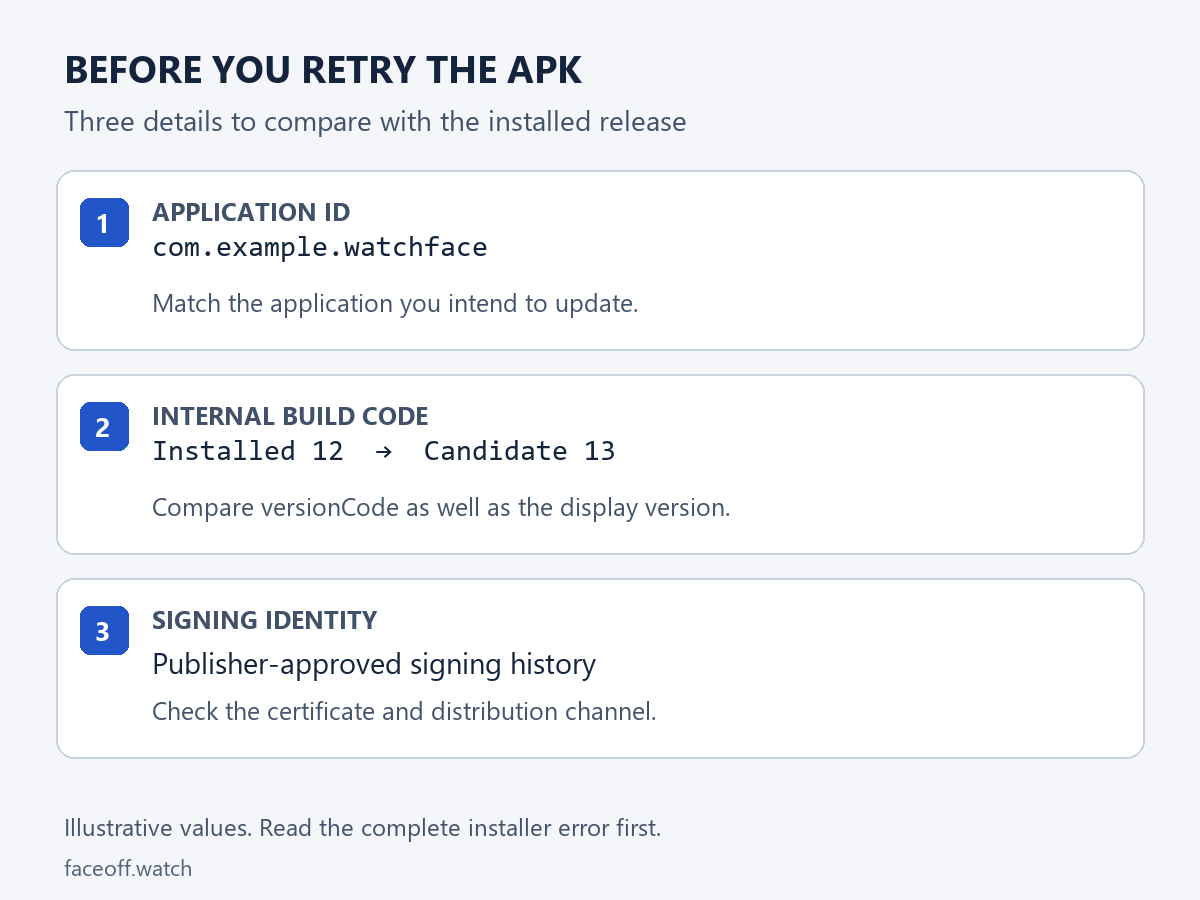
Three details to compare with the installed release. The application ID and build numbers in this diagram are examples.
Start with the file and the error
Keep the exact error text or a screenshot, the downloaded filename and its listing URL. Record your watch model and software version. A message about an older build calls for a different check from a message about an incompatible signature.
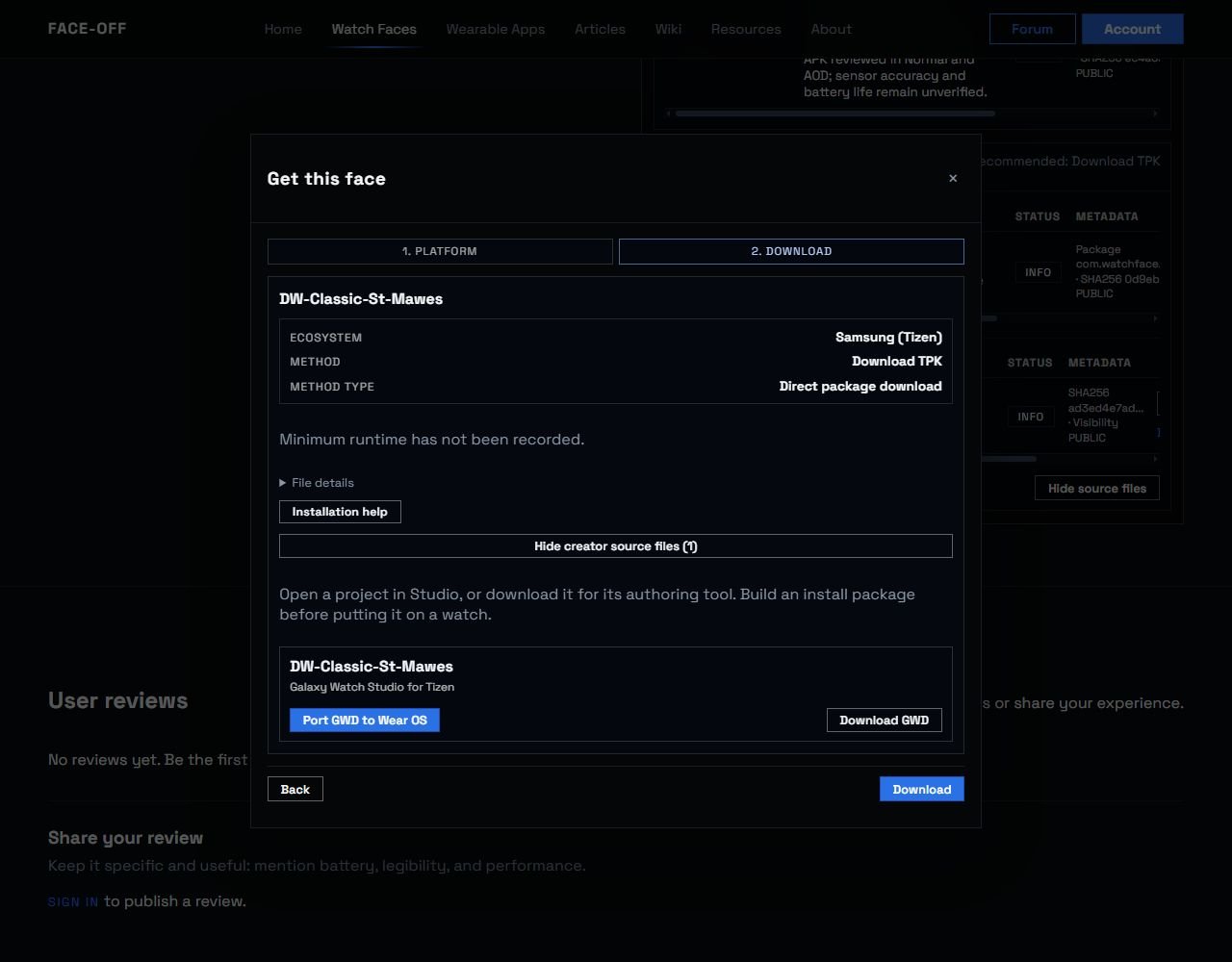
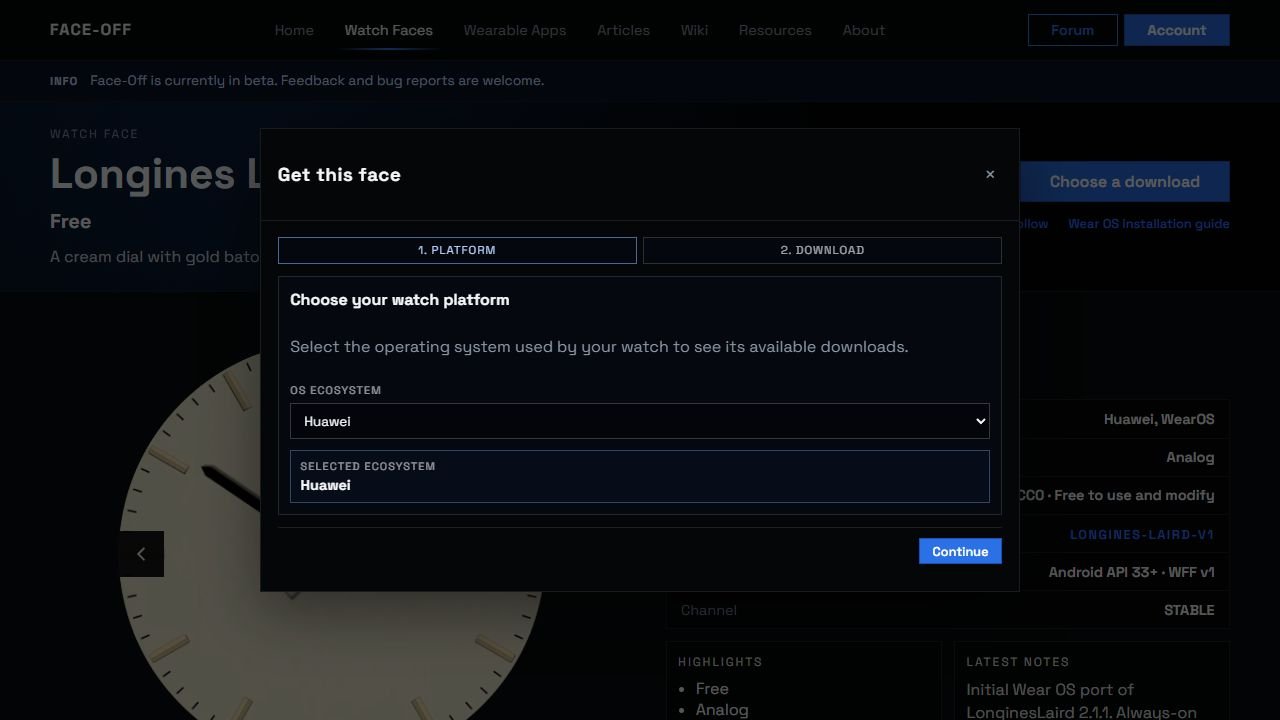
On Face-Off, choose the Wear OS download and read its package, version and compatibility details. A listing may also offer an editable source or a file for another watch platform. The selected download determines what you can install. The file-format guide explains the source and install-package choices.
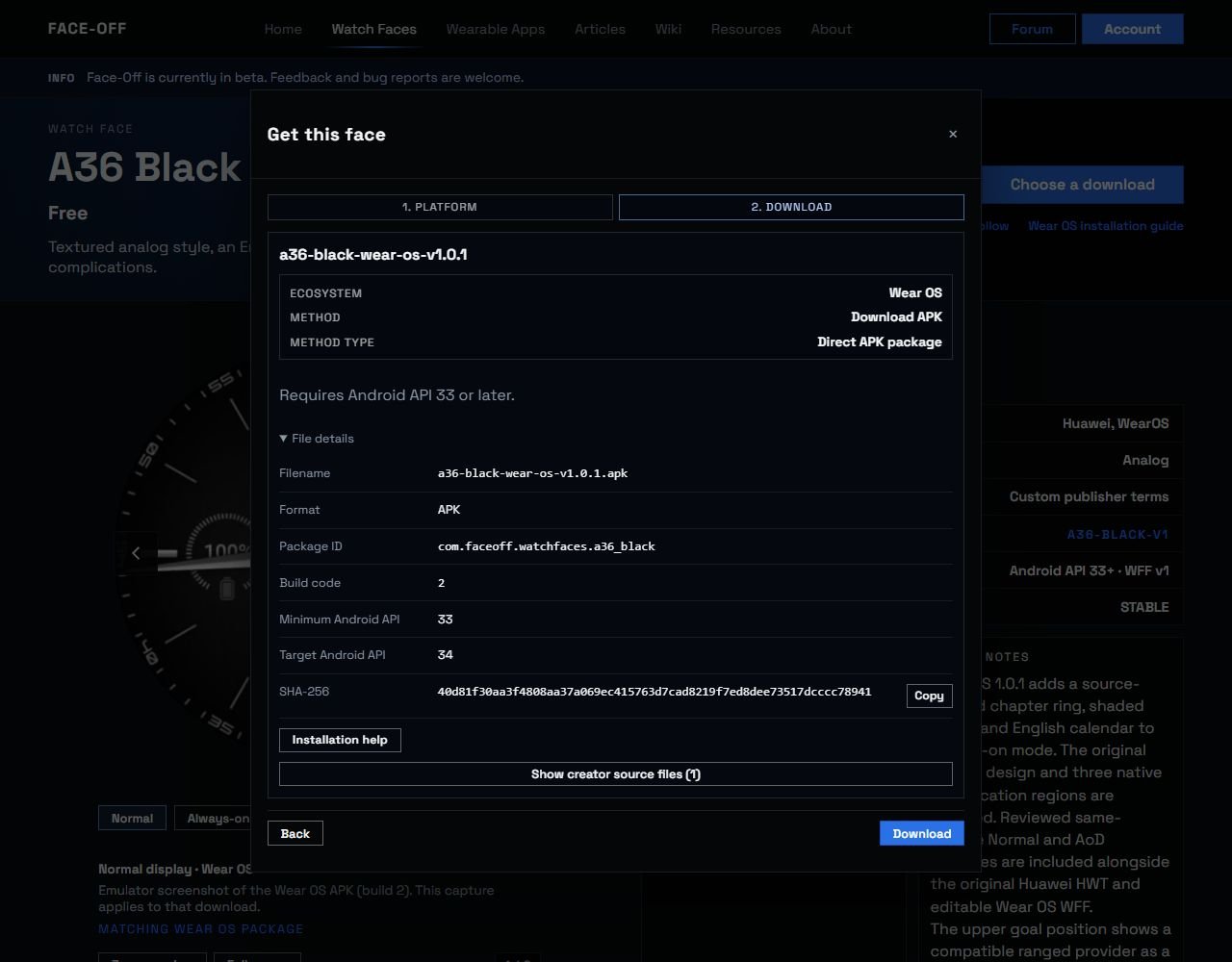
The A36 Black listing shows the selected APK’s package ID, build code 2, Android API requirements and SHA-256 in File details.
Run the tools from their SDK folders
The commands below run on your computer. apkanalyzer comes with Android SDK Command-Line Tools, while apksigner comes with Android SDK Build Tools. Use the installed tools or ask the publisher to provide the same package details. APK Analyzer reference, apksigner reference
If your terminal cannot find a command, open that tool's SDK folder or invoke its full path. In Windows PowerShell, a program in the current folder needs a .\ prefix. For example, run an apksigner.bat file in that folder as .\apksigner.bat. Keep the APK path quoted and replace it with your downloaded file's full path.
The ADB example uses Android Platform-Tools. From that folder in Windows PowerShell, use .\adb.exe in place of adb. The installation walkthrough explains how to connect to the watch. ADB reference
1. Read the candidate APK's identity
Android's official APK Analyzer command reports three useful values. With Android SDK Command-Line Tools installed, run this on your computer, replacing the quoted path with your downloaded APK.
apkanalyzer apk summary "path/to/watch-face.apk"The output contains the application ID, build code and display version, in that order. Two files with similar filenames can contain different application IDs. Compare the reported ID with the publisher's details for the installed face. APK Analyzer reference
An illustrative output might look like this.
com.example.watchface 8 1.2.0Here, com.example.watchface identifies the application, 8 is its internal build code and 1.2.0 is its display version. These example values are placeholders.
You can also inspect the candidate's minimum Android API requirement.
apkanalyzer manifest min-sdk "path/to/watch-face.apk"Compare that requirement with the watch's software and the listing's compatibility information. Android enforces the application's minimum system API. Android versioning reference
2. Compare the internal build codes
Android uses versionCode to identify older builds. A candidate with a lower code than the installed application is a downgrade and normally gets refused. The user-facing versionName can follow a different numbering scheme, so a familiar version label or a filename ending in “latest” tells you little about update order. Android versioning reference
For example, an installed code of 12 and a candidate code of 8 explain an older-build rejection even if the candidate's filename looks newer. Obtain the intended release from the publisher and compare its actual code.
If you already have an ADB connection to the watch, a package-specific diagnostic can help you read the installed application's version fields.
adb -s WATCH_SERIAL shell dumpsys package com.example.watchfaceReplace WATCH_SERIAL with the watch's device identifier and the example package with the actual installed ID. Look for versionCode and versionName. A result for another package or another connected device would answer a different question. ADB reference, dumpsys reference
3. Check signing compatibility
Android also checks signing certificates when applying an update. A build from a different signing identity can be refused even when its application ID matches and its build code is newer. The publishing channel matters because Google Play App Signing distinguishes the developer's upload key from the key used on distributed APKs. Android app signing
Android SDK Build Tools includes a read-only verification command that prints the candidate's signing certificate information.
apksigner verify --verbose --print-certs "path/to/watch-face.apk"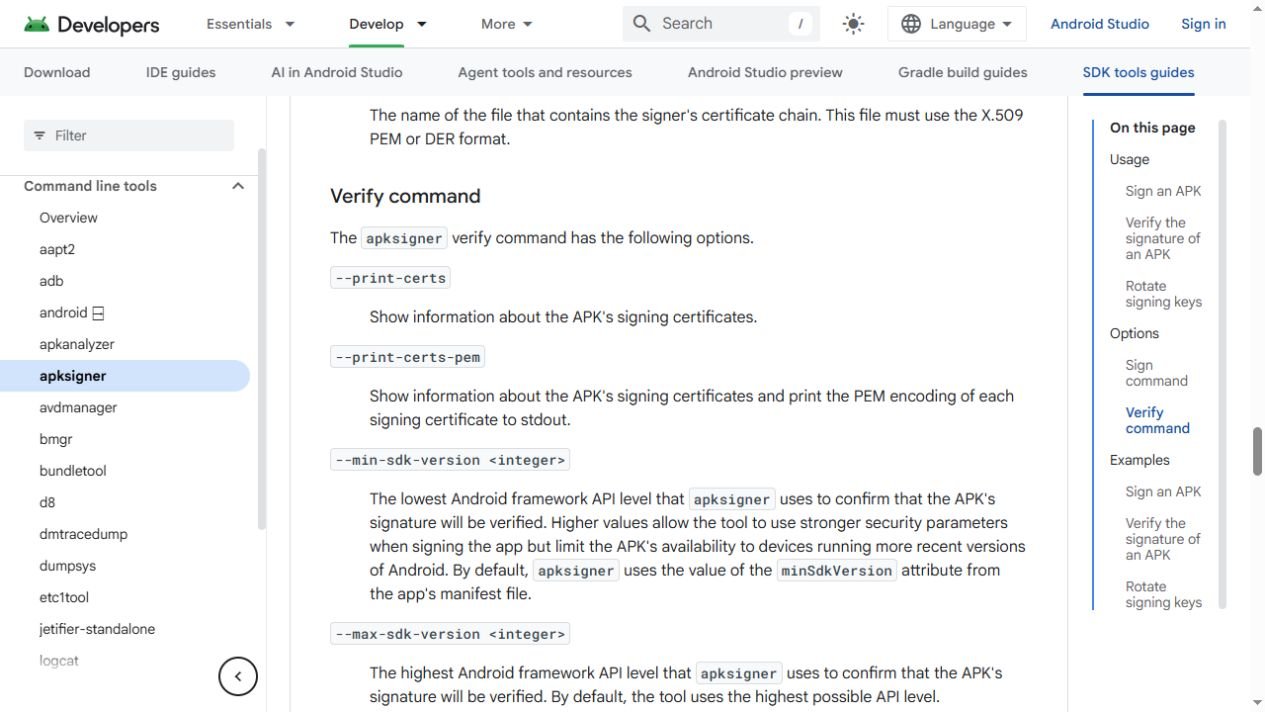
Android Developers documents the verify command and its --print-certs option.
A successful result confirms the candidate's signature verification. To assess update compatibility, compare its certificate details with the publisher's evidence for the installed release. Supported signing-key rotation adds signing-history and Android-version considerations, so ask the publisher to confirm an unexpected difference. apksigner reference, Android app signing
Send a useful report and choose the matching release
Include these details when contacting the publisher.
- The exact installer error and watch model/software.
- The installed application ID and build code, when available.
- The candidate application ID, build code, display version and filename.
- The download URL and whether the existing installation came from that publisher or Google Play.
- Candidate certificate information if the error concerns signing.
Ask for the compatible update for your existing installation. If you deliberately choose to remove and replace the application, first check what face settings or other application data you need to preserve. Uninstalling an app removes its app-specific data. After a successful installation, find and select the face in the full picker. ADB package-manager reference
Primary instructions reviewed on 7 November 2026.

Discussion
0 comments. Share feedback or ask a question.
Sign in to comment.
No comments yet.