A phone battery complication needs a working Android phone app, its Wear OS component and a watch face slot that can display the result. A battery-shaped icon on the dial does not prove that those pieces are connected.
Start by deciding which problem you have. If Phone Battery never appears in the picker, investigate installation and slot support. If it appears but shows an old percentage, investigate the connection and data source. Repeatedly downloading the watch face mixes those two problems together.
This guide uses amoledwatchfaces’ Phone Battery Complication as a concrete example. Other providers can have different setup screens and supported data types.
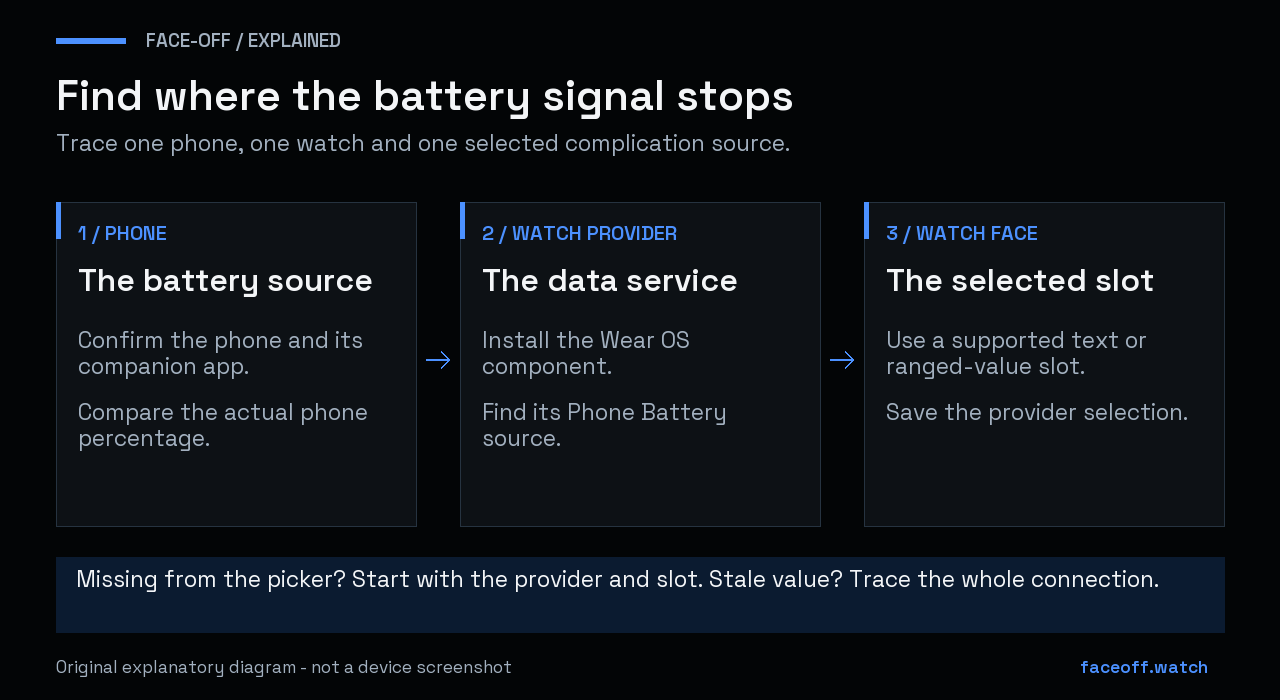
Phone battery data depends on the phone, its watch provider and the selected face slot. Original explanatory diagram, not a device screenshot.
Identify the value you are looking at
Compare the dial with the battery shown by the phone itself and the battery shown by the watch. Write down all three values before changing anything. If the phone and watch happen to have the same percentage, repeat the comparison when they differ.
| What you see | Where to start |
|---|---|
| No Phone Battery choice in the editor | The watch component and the selected slot |
| A value that follows the watch’s charge | The selected provider; it may be Watch Battery |
| A phone value that stays unchanged after the phone changes | The provider and phone/watch connection |
| A phone icon that cannot be selected | The face’s customization options; it may be artwork |
The example app supplies separate Phone Battery and Watch Battery services. Its current service list is more useful here than the shape of the icon.
Install the provider on both devices
Use the developer’s linked Play listing and check the installation target. The project documents a phone app and a Wear OS app; installing only the phone side does not install the watch provider. Open the companion and complete its documented setup. Check that the watch component is installed too. Developer installation information
When installing from Google Play on a phone, the menu beside the install button can select another device. In a computer browser, choose the app, select Install and use the device dropdown to select the watch. Inspect the selected device rather than assuming the phone’s install button also covered it. Google’s multiple-device instructions
If you have several watches or phones, note which pair you are testing. A screenshot of an installed phone app is not evidence that the active watch has its matching component.
Choose a slot that supports the data
On the watch, hold the current face and enter its customization screen. Open the complications or data section, select a slot and look for the provider’s Phone Battery entry. Menu names vary by watch. Save the face after making your selection. Google’s customization instructions
If the entry is missing, try another editable slot on that face. The example provider currently offers phone battery data as SHORT_TEXT, LONG_TEXT and RANGED_VALUE. An image-only slot may therefore show other services from the same app while omitting Phone Battery. That is a data-type mismatch, not proof that the whole app failed.
Wear OS lets a face declare the complication types each slot can render. Those declarations determine which sources the picker offers. Two circles that look identical on the dial can support different data. How complication slots work
For a quick comparison, use a face with an ordinary editable text complication. If Phone Battery appears there, return to the first face’s documentation and check its slot restrictions. A fixed battery graphic cannot be turned into a provider slot through the picker.
Trace a stale percentage without changing everything
Keep the same face and slot while you investigate the connection:
- Check whether the watch’s companion app reports the watch as connected.
- Bring the phone and watch close together and check that Bluetooth is enabled on the phone.
- Check that the watch is not in airplane mode.
- Open the phone battery provider’s companion and review any setup or connection message it presents.
- Compare the phone’s current percentage with the dial again. Record whether opening the companion changes the result.
The connection checks come from Google’s Wear OS troubleshooting guide, which also notes that manufacturers and software versions can differ. They do not require forgetting the watch or resetting it.
The developer describes this provider’s communication as local between the devices, without a cloud account. A working internet connection on the watch is therefore not, by itself, a successful test of this particular phone-to-watch data path. Provider description
Do not judge synchronization by expecting a new number every second. A battery percentage can remain the same while the phone is working normally. Compare after the phone’s displayed value actually changes. This procedure does not establish a guaranteed refresh interval.
Separate a provider problem from a rendering problem
Try the same Phone Battery source on a second compatible face while keeping the device pair unchanged. If both show the same stale reading, you have a useful result to report to the provider’s developer. If one updates and the other does not, record both face names and the exact slots you selected. The difference helps the face creator investigate its rendering.
Check complication-data permission if your watch exposes that setting. Google documents a permission for allowing a face to receive complication data; the location and wording can vary. Follow the watch’s available controls and the provider’s instructions rather than granting unrelated permissions. Permission guidance
Before contacting support, collect the phone and watch models, their software versions, provider version, face name, selected slot, actual phone percentage and displayed value. Say whether the provider was absent from the picker or selected but stale. Avoid posting account details or a full diagnostic log publicly.
For the general editing workflow, see changing colors and complications on a Wear OS watch face. To choose another design, browse the Wear OS library and check the customization notes on its selected release.


Discussion
0 comments. Share feedback or ask a question.
Sign in to comment.
No comments yet.