A .watch download belongs to a WatchMaker workflow. Importing it, editing it and getting it onto your watch are separate steps. If one fails, identify which step stopped before changing the file or reinstalling apps.
This guide uses two real Face-Off files to explain the difference between a protected face and an editable project. Their original downloads have been checked, but their installation and dim-mode behavior on a particular watch have not been verified.
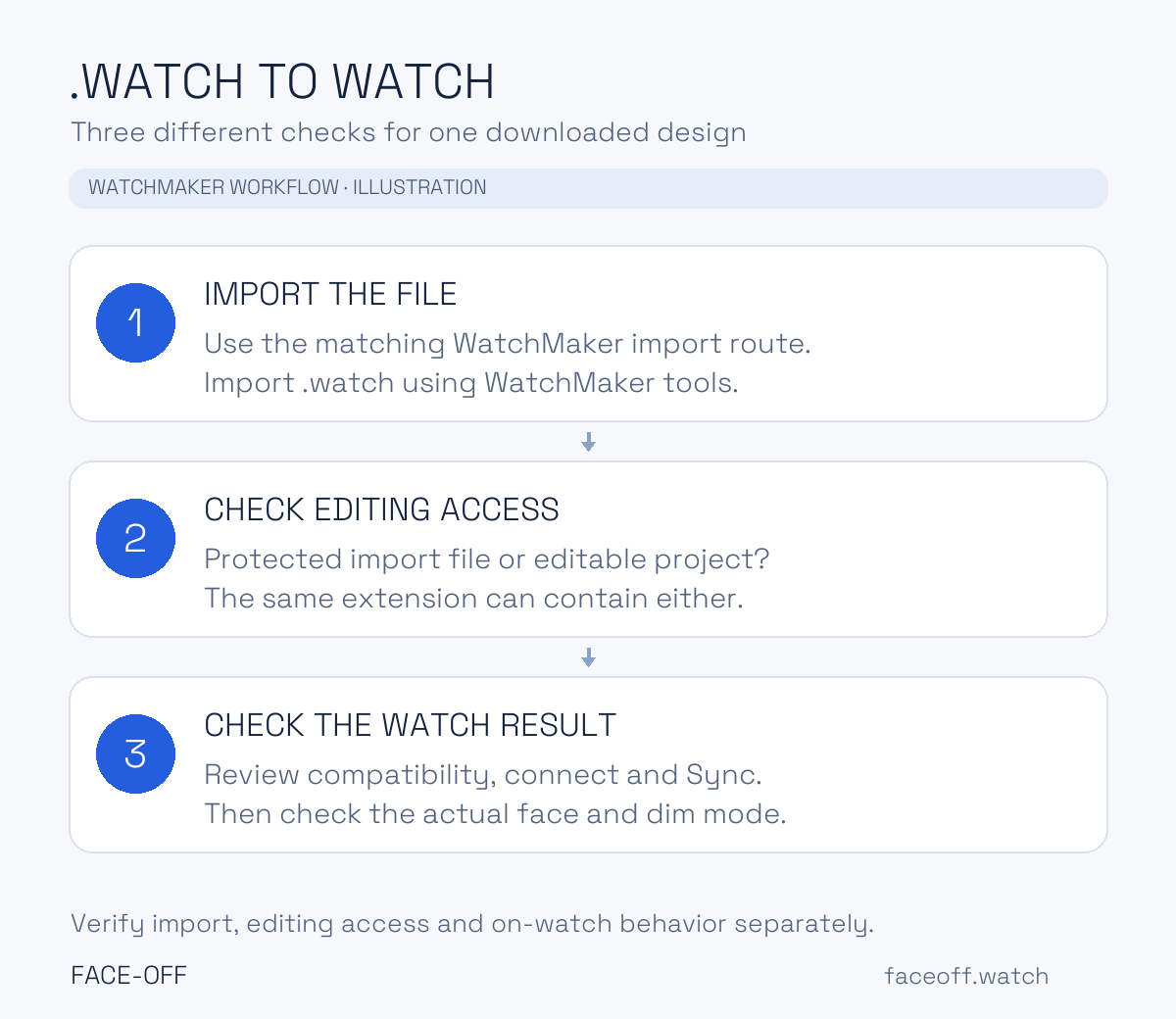
Original Face-Off illustration of the three checks. App controls depend on the WatchMaker version.
First check what you downloaded
Keep an unchanged copy, then inspect the filename and the selected download’s details. Open a .watch file with WatchMaker’s import tools. Android package installers handle APK packages. Keep the original extension while troubleshooting so the importer can identify the file.
On Face-Off, open the listing, choose a download and select WatchMaker when that ecosystem is available. Read File details and the notes attached to that particular file. If the listing offers a creator project separately, expand the source section to check the included editable layers.
| What you have | The next useful step |
|---|---|
A WatchMaker .watch file |
Use the matching WatchMaker import route |
A separate .apk |
Check what app or watch-face package it actually contains |
| A ZIP supplied by the creator | Read the contents and instructions before extracting anything |
| A preview PNG or JPG | Return to the listing for the actual file |
For other formats, use our guide to source files and installation packages.
Use the import route for your version
WatchMaker Studio is WatchMaker’s browser editor. It is separate from Samsung’s Watch Face Studio, despite the similar names.
For Studio, use its Import control. WatchMaker’s official forum also documents opening New Design, then Tools → Import inside the editor. Select the original .watch file and inspect the result before saving changes. That developer answer specifically cautions that heavily scripted older faces may lose features during import. WatchMaker’s import instructions.
Older Android WatchMaker instructions describe opening a downloaded file with WatchMaker or using the app’s import button and browsing to Downloads. Those instructions describe the earlier phone workflow. If your current app opens Studio, follow its current import controls. WatchMaker’s earlier Android import guide.
If tapping the download opens the wrong app, use WatchMaker’s own import control and browse to the saved file. If that also fails, record the error and your WatchMaker version. Keep the original file for comparison. Repeatedly renaming or repacking it makes that comparison harder.
A protected file is different from an editable project
The Panzera TimeMaster 42 listing supplies an original protected .watch file. Face-Off identifies it as requiring WatchMaker import. Its protection restricts editing access. Use its file notes to check which capabilities the download provides.
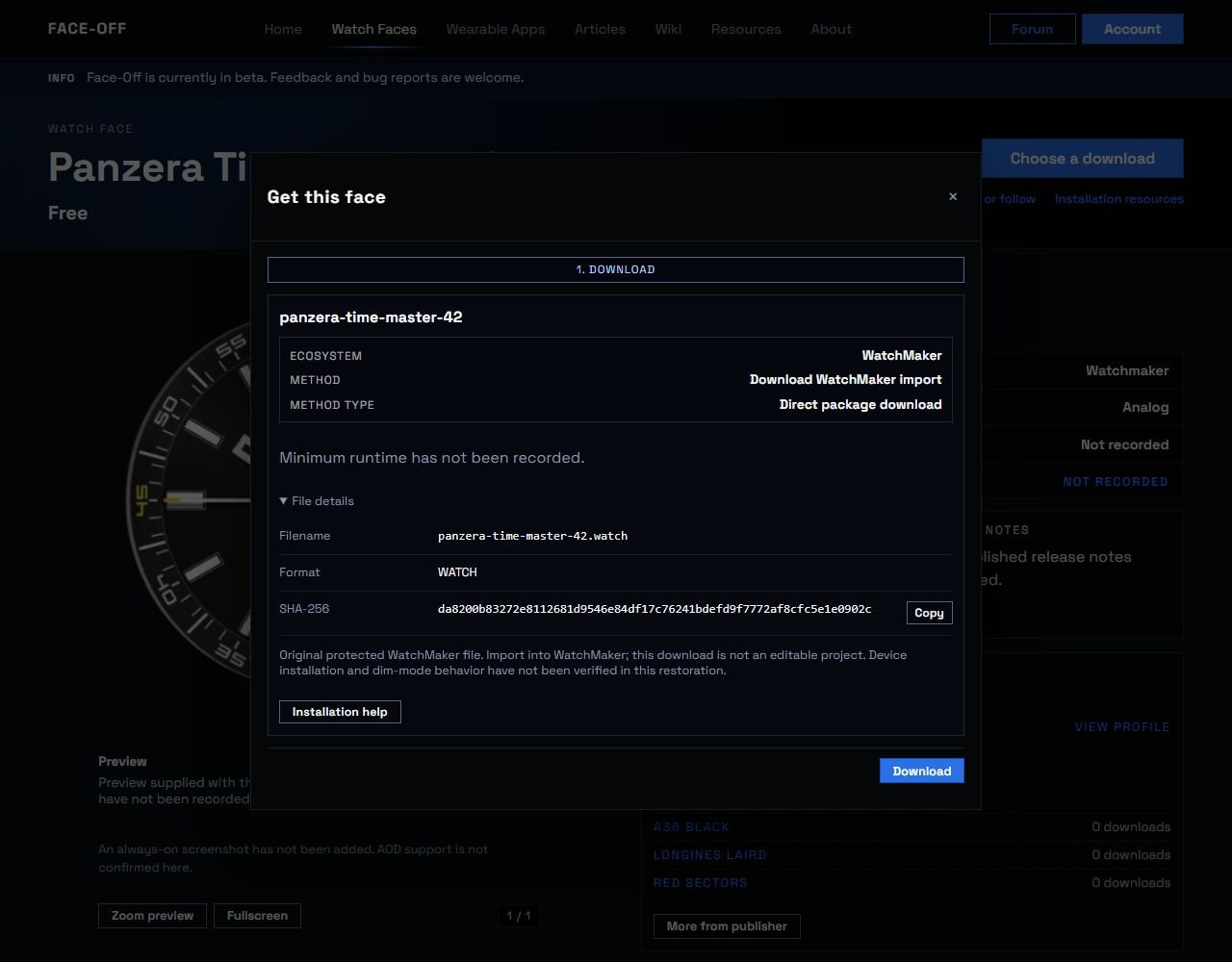
Panzera TimeMaster 42’s file details identify a protected WatchMaker import and show its .watch filename and SHA-256.
The Montblanc Automatic Black listing supplies an original editable .watch project by Spider ka. Its inspected file contains 22 editable layers. Choose that project when you want to inspect or change its design in a compatible WatchMaker editor. Keep the author attribution with your working copy.
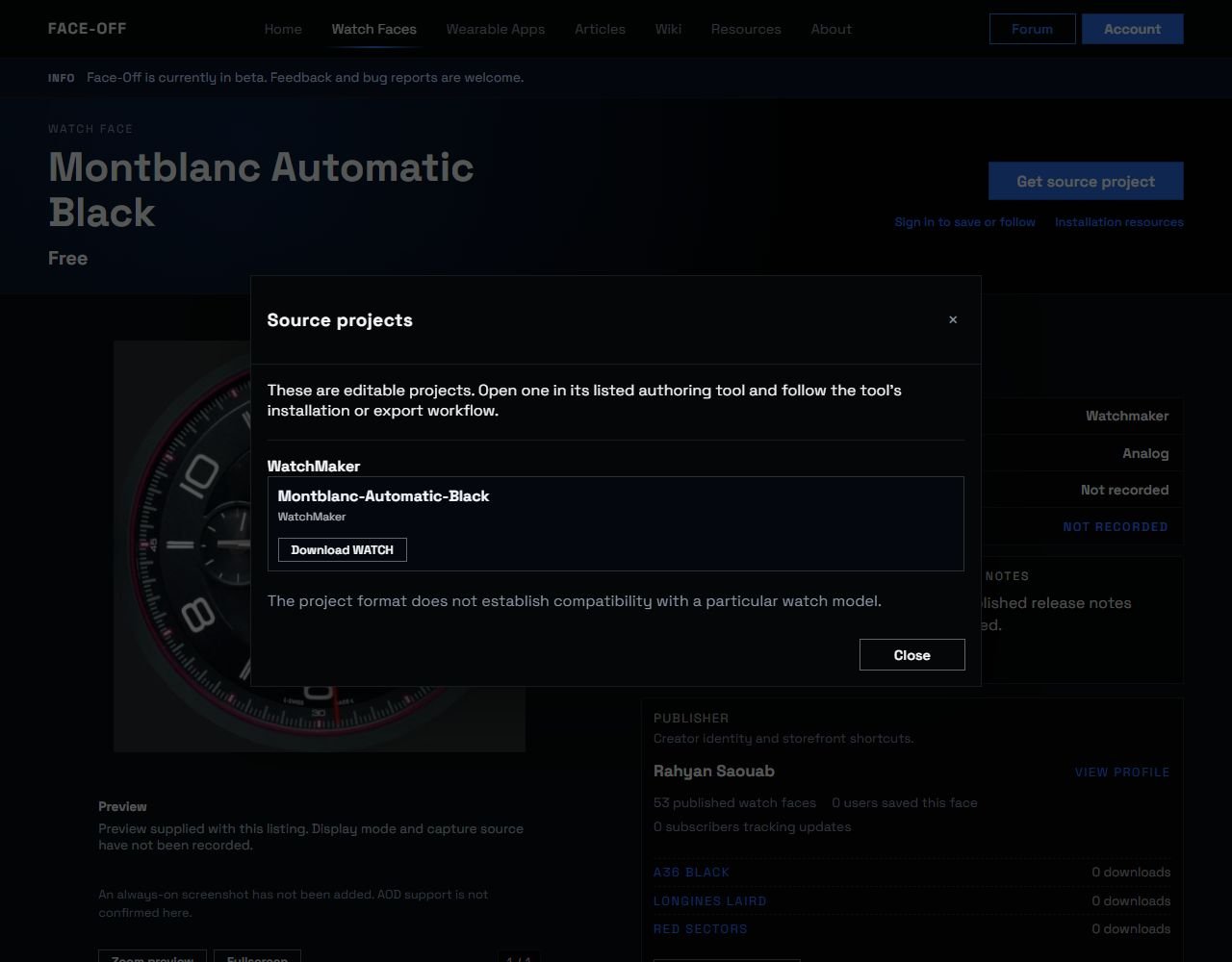
The Montblanc Automatic Black source-project card offers an editable WatchMaker project through Download WATCH.
Both filenames end in .watch, so the extension alone cannot tell you which editing access is present. Use the listing’s exact file notes. If you need editable work for a protected face, ask its creator for an editable release. Check watch compatibility separately from editing access.
When it imports but does not reach the watch
After reviewing the phone or browser preview, check the phone-to-watch connection, the WatchMaker software on each device and the selected watch model.
For the current Studio route, WatchMaker documents connecting the watch through its phone companion, choosing Sync from the dashboard or editor, and checking the transferred result on the watch. Its guide also provides a Compatibility control for platform warnings. Check those warnings before treating an imported design as ready to wear. WatchMaker Studio’s user guide.
Avoid uninstalling the current phone app as an import troubleshooting shortcut. WatchMaker’s current legacy-editor instructions explain that the old and new apps have different signatures and storage, and replacing the phone app can remove the watch companion. The developer recommends contacting support about the specific Studio issue before switching editors. WatchMaker’s legacy-editor guidance.
When the watch looks different from the original
Check the watch’s Wear OS version, then compare the features that actually transferred. Pay particular attention to scripted elements, tap behavior, gauges and always-on presentation. Keep a short list of what works and what differs so support can identify the affected features.
WatchMaker’s current compatibility guidance says older designs may need updates for Wear OS 6 and the newer Watch Face Format workflow. It also identifies limitations affecting some older advanced features. An imported face with a missing function may need a design update. Compare the feature with the documented limitations before downloading the same file again. WatchMaker’s Wear OS compatibility guidance.
Google documents Watch Face Push as a Wear OS 6 installation route for compatible marketplace apps, and the faces it installs must use Watch Face Format. That explains why a modern app can manage installation while a downloaded .watch file still needs an import and conversion workflow. The extension does not identify the final on-watch format. Google’s Watch Face Push overview.
Keep the details that help solve the failure
When asking the creator or WatchMaker support for help, include the listing URL, downloaded filename, WatchMaker version, watch model, Wear OS version and the first error message. Say whether the failure happens during import, editing, Sync or selection on the watch. For a visual difference, add a screenshot of the affected element and say whether it occurs in normal or dim mode.

Discussion
0 comments. Share feedback or ask a question.
Sign in to comment.
No comments yet.