Tap the song title in SimpMusic's watch player to open Up next. Pull up the bottom handle, or hold the title row, to open the player drawer with its extra controls and queue editor.
These controls describe beta.2. Start a song with Search on watch if the player is empty.
Play, pause and skip
Tap the middle button to play or pause. The buttons to either side move to the previous or next track when that action is available in the current queue. A dimmed button means the action is unavailable; a loading indicator can temporarily replace the middle control.
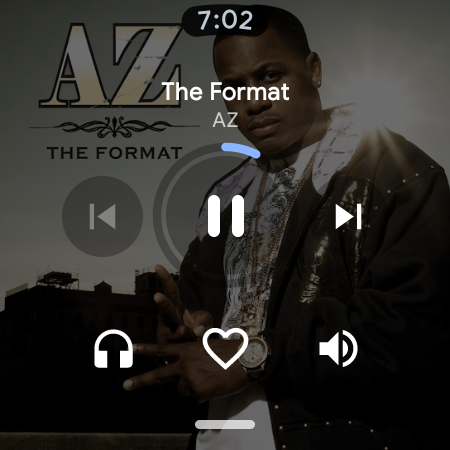
Player on a Galaxy Watch4 Classic, captured on beta.1 (41) before final signing. Beta.2 did not redesign this watch interface.
The headphones icon opens the watch's audio-output choice where the system provides one. The speaker icon opens volume controls. Check the watch's output and media volume if the track is progressing silently. The Android companion controls this watch player; pressing Play there does not automatically move the sound to the phone.
Jump to another point in a song
- Press and hold the middle play/pause button when seeking is available.
- On the Seek screen, tap the position bar or use the minus and plus buttons to move back or forward ten seconds. Rotary input can also change the target position on this screen.
- Tap Apply to move playback to that position, or Cancel to leave it unchanged.
The app needs a known track duration to offer this control. It also disables this watch-seek action in the Phone controls state. An unavailable seek action does not by itself identify a playback failure.
Open the extra player controls
Pull up the handle at the bottom of the player, tap that handle, or hold the title row. Choose the Controls tab in the drawer.
Use shuffle for the current queue. The repeat options are off, one track and all tracks. The download action applies to the current song; when the file is already downloaded, the action can remove that download.
To close the drawer, tap its top handle or pull it down after scrolling back to the top. Small displays and large text can put the player itself in a scrolling layout, so some controls may be below the first screen.
Choose what plays next
Tapping the player title opens the separate Up next list. Tap a track to play it, or use its bin button to remove it from that queue.
For ordering controls, open the player drawer and choose its Queue tab. Each track has Move up, Move down and Remove actions. Move up is disabled for the first item and Move down for the last.
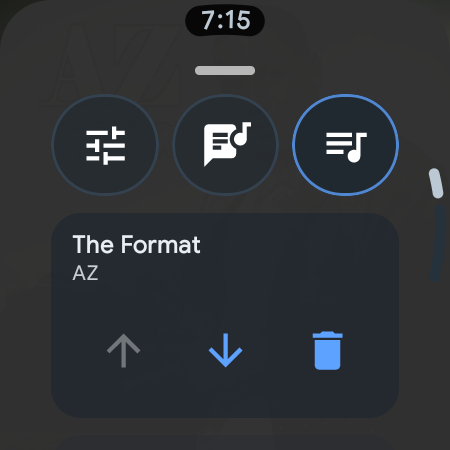
Queue editor on Galaxy Watch4 Classic, beta.1 (41), captured before final signing. The disabled up arrow marks the first item.
When choosing another song, Play next inserts it after the current track. When available, Add to queue appends it to the end. If a radio queue keeps extending, the app directs you to Play next; with endless queue enabled, its message offers Play next or turning endless queue off.
Removing a queue entry and deleting downloaded audio are separate actions. Manage saved files in Downloads, where you can check which offline collection still needs a track.
Use the bezel for volume or scrolling
On watches that send rotary input, the normal player uses the bezel or crown to adjust the watch's media volume. A percentage briefly replaces the middle control. Each change follows Android's native volume steps, so it is not a one-percent volume dial.
Lists keep their normal rotary scrolling. Close the drawer to return to the player before trying to change volume there. If the player is using a scrolling layout, open its Volume control instead. On the Seek screen, rotary input adjusts the selected playback position.
Save the selection for later
Once the order is right, open Up next and choose Keep queue offline. Beta.2 accepts up to 100 tracks for this saved queue. With the default policy, downloads wait for unmetered connectivity and charging, shown as Wi-Fi + charging.
A song's download button saves that one track. The saved queue has its own ready count in Downloads. Follow the offline-queue guide to check that the selection has finished, or the waiting-downloads checks if it is unfinished.
For a playlist you want to maintain over time, read kept-offline playlists, refreshes and cleanup. That experimental system has different controls from saving the queue you just arranged.

Discussion
0 comments. Share feedback or ask a question.
Sign in to comment.
No comments yet.