In SimpMusic Wear OS, choose Search on watch, enter a song or artist, then submit the query using the watch keyboard. You can search and try playback as a guest. There is no need to build a playlist on your phone first.
If you have not installed it yet, use the watch APK setup guide. Music plays on the watch, so it needs a working internet connection for search and streaming.
Enter the song and submit the query
- Open SimpMusic on the watch and choose Search on watch.
- Enter the artist and song title. For example, use AZ The Format to narrow the result.
- Press the keyboard’s confirmation or search control. Finishing the text without submitting it will not request results.
- Open the result you want. Check its title and artist before starting playback or adding it to the queue.
The input screen uses your watch’s installed keyboard. If that keyboard offers dictation, you can use it there. SimpMusic does not add a separate voice assistant. The confirmation icon and keyboard layout depend on the watch software.
Choose the result type
The released search screen has All, Songs, Playlists, Artists and Podcasts filters. Albums appear within All results; beta.2 has no separate Albums filter chip.
Try Songs when a broad result mixes performers, playlists and individual recordings. Open an artist, album or playlist when you want to browse a collection. A result’s presence does not guarantee every item can play: country, account and source restrictions still apply.
Play it now or put it next in the queue
Song details offers playback and queue actions. Play next places a track after the current one. Add to queue appends it when that playback mode allows additions. These actions do not both mean “replace the current song.” Some radio or endless modes restrict queue editing.
Tap the title or artwork in the player to inspect the queue. The queue controls let you move entries up or down, remove one, or select another track. Check the order there before leaving for a longer session.
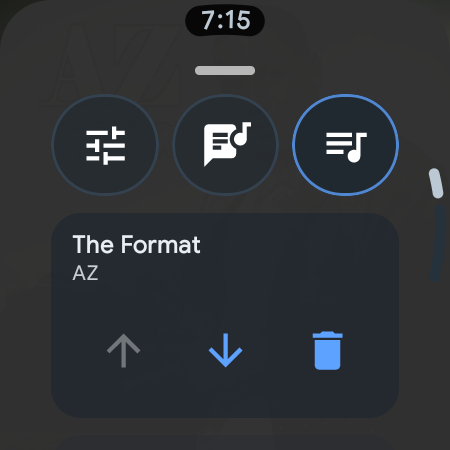
Queue controls on a Galaxy Watch4 Classic, captured on beta.1.
Save it for later
A song’s download action saves that individual track. To prepare a particular listening session, arrange the queue and select Keep queue offline. The saved pack then has its own count in Downloads.
Wait for the tracks to finish; the default download policy requires Wi-Fi + charging. Follow the offline queue guide if you want to leave the phone behind. A completed song download does not automatically create an Offline queue card.
If nothing appears
First check that you submitted the query using the keyboard. Then confirm the watch can reach the internet and try a short, familiar artist or title. Testing another query helps distinguish a particular unavailable result from a general connection or service problem.
If results appear but a selected song will not play, note whether another song works and whether the player is buffering or progressing silently. Check the watch’s audio output and media volume for silent playback. Reinstalling the app or clearing its data is not a useful first step for an unsubmitted query.
For an unresolved problem, send the watch model, Wear OS version, app version, search and exact failing step. Use a public song example when needed, and remove account details from screenshots.
The control names here describe the released beta.2 search screen and song actions. Phone-side catalogue search is not part of this release’s lightweight companion.

Discussion
0 comments. Share feedback or ask a question.
Sign in to comment.
No comments yet.