Add the SimpMusic Tile for playback buttons a swipe away from your watch face. For a smaller control on the dial itself, choose SimpMusic in a compatible complication slot. In the beta.2 watch app, that provider supports SHORT_TEXT slots.
Install the watch APK first and open SimpMusic on the watch. The Android phone companion is a separate app; installing it alone will not add a watch Tile or complication. Use the SimpMusic installer if you still need the watch app, or the watch and companion guide to check which APK belongs on each device.
Add the Tile
- Return to your watch face and swipe left into the Tile carousel.
- Touch and hold a Tile, then move to the end and choose Add tile or Add widget.
- Choose SimpMusic Wear.
- Return to the watch face and swipe left to reach it.
Menu names and ordering controls vary by watch software. Google's Tile help covers the on-watch flow.
On a Galaxy Watch, Samsung also documents swiping to the end of the carousel and choosing Add tiles. From the phone, open Galaxy Wearable, choose Tiles, add the available SimpMusic Tile and save. If the watch has reached its Tile limit, remove an unused one first. See Samsung's Tile controls for the current screens.
Use its playback buttons
The released Tile shows the playback state and track title, with previous, play/pause and next buttons. Tap the title to open SimpMusic. With no track title, it shows Open on watch.
The Offline queue button asks SimpMusic to play its saved offline queue. Prepare that queue and finish its downloads in the app before relying on it away from a connection. The offline music guide covers that preparation.
These buttons launch the watch app to handle their action, so seeing SimpMusic open after a tap is expected. The activity's action handler sends the playback command to the watch player.
Add a control to your watch face
- Touch and hold your current watch face.
- Open its edit, settings or customization control.
- Find the complications or data section and select the slot you want to change.
- Choose SimpMusic Wear from the available providers.
- Save or exit the editor, then return to the active dial to use the control.
Google describes this under watch-face customization. On a Wear OS Galaxy Watch, start by holding the face and choosing Customize; Samsung calls the editable data areas complications. Samsung's watch-face instructions also cover editing from Galaxy Wearable.
The selected slot must accept SHORT_TEXT. A face can have several slots with different accepted types, so a provider missing from one slot may appear in another. The editor may not display that technical type name; check the face's description or try another text-capable slot. Google's complication documentation explains how types match. The watch face decides how the text is drawn and how much of the title fits.
What a tap does
The beta.2 complication provider changes its action with the player state:
- With no track title, it shows App and opens SimpMusic.
- With a track playing, it supplies a pause symbol. Tapping sends play/pause.
- With a track paused, it supplies a play symbol. Tapping sends the same play/pause action.
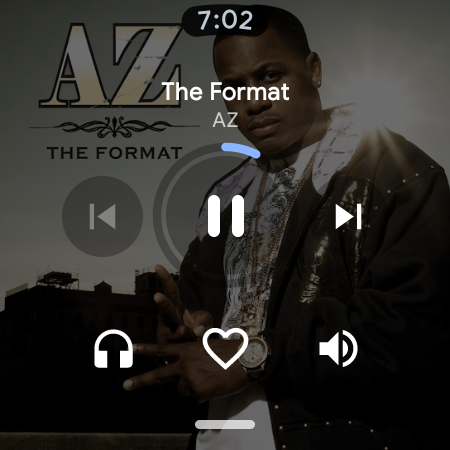
Full player on Galaxy Watch4 Classic, captured on beta.1.
If SimpMusic is missing or the state looks wrong
First check that you can open the watch app from the watch's app list. A phone-only installation cannot supply these controls. For a missing complication, try a slot that accepts short text; installing the app again will not change a slot's supported types.
If the Tile or dial still shows an older state, open SimpMusic and check the full player before sending another command. Choose a track there if the player is empty. For queue, seek and bezel controls inside the app, continue with the SimpMusic player guide.

Discussion
0 comments. Share feedback or ask a question.
Sign in to comment.
No comments yet.