SimpMusic watch downloads normally wait for an unmetered network and charging. Saving a queue schedules its downloads; it does not bypass that policy. Open Downloads → Offline playlists and check whether the control says Wi-Fi + charging or Any connection.
The policy applies to all watch downloads. Start by checking its requirements rather than clearing app data or reinstalling.
Check the charger and connection
- Put the watch on its charger and confirm it is charging.
- Connect it to a working unmetered network. Android can treat a Wi-Fi connection as metered, so the Wi-Fi icon alone does not prove the policy is satisfied.
- Return to Downloads and inspect the track or saved collection you requested.
- For an unfinished saved queue, use Retry downloads after the requirements are met.
Scheduling is background work. A watch vendor’s restrictions, an unavailable track or a service failure can still affect it after the requirements are met; changing the policy is not a guaranteed fix for every failed download.
Check which ready count you are reading
The Offline queue card counts tracks in a queue saved with Keep queue offline. Its ready count is not a total of every downloaded song. If you only used Download in a song’s details, check the individual item instead.
A kept-offline playlist has its own ready count under Offline playlists. A partially ready queue offers Play ready tracks; it will not play the unfinished part. See the prepared queue walkthrough or playlist sync for the collection you are using.
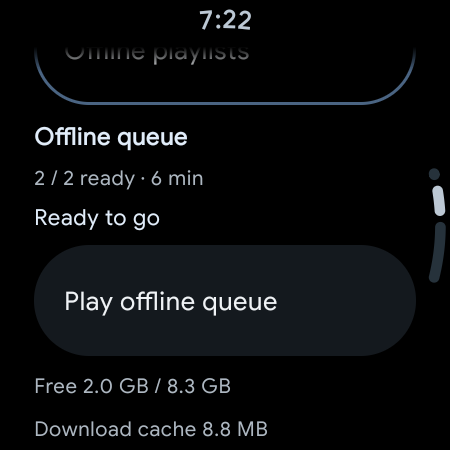
The completed queue state on a Galaxy Watch4 Classic, captured on beta.1.
What Any connection changes
In Downloads → Offline playlists, the policy control switches between Wi-Fi + charging and Any connection. The latter allows scheduling without the default unmetered/charging requirements. It can use metered data and battery away from the charger.
This is a global watch download policy. Changing it for one playlist also affects other download requests. Restore Wi-Fi + charging if that is how you want future downloads to run.
If the download stays unfinished
Check available watch storage and whether the selected track plays online. Try one small, known track so you can tell whether a particular item is failing or every request is affected. A source restriction or changed service response will not be solved by repeatedly saving the same queue.
Keep the existing app installed while checking the current release and known reports. Uninstalling or clearing Android app storage can remove downloads and account state together.
If you need to report a problem, include the watch model/software, app version, active download policy, charger/network state and whether this was an individual song, saved queue or kept playlist. Add the exact visible message and the smallest repeatable example. Remove account details from captures; do not send cookies, session backups or unreviewed logs.
The policy labels and scope come from the released Offline playlists screen and watch download implementation.

Discussion
0 comments. Share feedback or ask a question.
Sign in to comment.
No comments yet.