Before a run, build your listening queue in SimpMusic Wear OS, choose Keep queue offline, then wait for the saved queue’s ready count in Downloads. Check that the tracks you want actually start on the watch before leaving.
Saving a queue schedules work; it does not mean the audio has finished downloading. With the default policy, the watch waits for an unmetered network and charging. The screen calls this Wi-Fi + charging.
Build the queue you want
If you need the app first, follow the SimpMusic installer. Open Search on watch, find a song and start playback. Use Play next or Add to queue for the other tracks, then inspect their order in the player’s queue.
Tap the player title or artwork to open the queue. The drawer’s queue controls can move or remove entries. Some radio/endless playback modes do not allow adding songs, so start with a small queue you can inspect. How to find a particular song.
Choose Keep queue offline
- Open the queue and select Keep queue offline.
- Keep the watch on its charger with unmetered connectivity under the default policy.
- Open Downloads and find the Offline queue card.
- Wait for the required tracks to be ready. Two out of two ready describes the two tracks in that saved pack, not every downloaded song on the watch.
- Choose Play offline queue when complete. If it offers Play ready tracks, only the completed part will play.
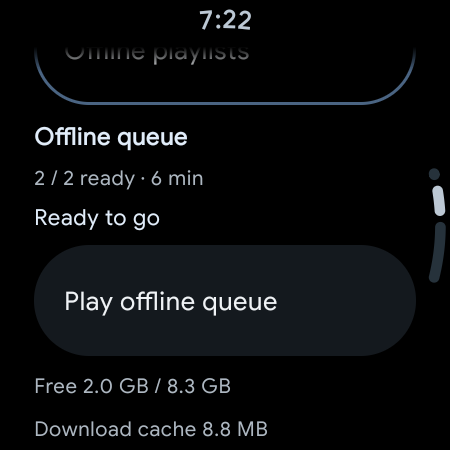
A prepared queue on a Galaxy Watch4 Classic, captured on beta.1: two of two tracks ready.
Beta.2 allows a queue of up to 100 tracks and an estimated 512 MiB pack plan. Actual downloaded sizes and available storage still matter. The estimate is a planning limit, not a promise that every queue of that length will fit.
A downloaded song, a saved queue or a kept playlist?
- Individual song
The download action in Song details saves that track. It does not create the separate saved queue or increment its ready count.
- Prepared queue
Keep queue offline saves the selected queue as a pack. Use its Offline queue card to check readiness and play the finished selection.
- Kept-offline playlist
Keep offline on a playlist maintains a saved playlist through the experimental sync system. Its ready count, refresh policy and cleanup settings are separate concerns. Start with the one-time queue if that is all you need.
For playlists you want to refresh, read kept-offline playlists, limits and cleanup.
If downloads wait
Open Downloads → Offline playlists and read the policy. Wi-Fi + charging waits for both conditions. Android can classify a Wi-Fi network as metered, so simply seeing the Wi-Fi icon may not satisfy it.
Any connection changes the policy for all watch downloads. It can allow mobile or metered data and downloads away from the charger. Choose it deliberately, then restore your preferred policy afterwards. Check waiting downloads step by step.
Check playback before leaving
Choose the intended watch audio output and check media volume. Pair headphones to the watch when you plan to listen through them. The Android companion controls watch playback; sound does not move to the phone because you pressed Play there.
Start one of the downloaded tracks from the saved queue and try another. If you want to prove that your setup works without internet, briefly disconnect the phone and the watch’s Wi-Fi/mobile data, keeping Bluetooth for the headphones. Start a different downloaded track, then restore your usual connections.
A ready count describes downloaded items. It does not establish a radios-off test, battery life, headphone reconnect reliability or playback coverage on every watch model. Leave time to try the music you actually intend to use.
Manage the music taking up space
Inspect the Downloads list before deleting files. Individual downloads, the saved queue and kept playlists can need the same track. A kept playlist can download a removed track again at refresh if it still needs it.
Stop syncing a playlist retains its existing files. Experimental cleanup starts off and has protection rules for manually downloaded music and other saved/current selections. A playlist budget is an estimate used to plan requests, not a hard cap on all music stored on the watch.
Use the app’s download controls for this task. Clearing all Android app storage or uninstalling can remove account state and downloads together. For a release update, keep the existing install and use the update guide.
The workflow and limits describe the current beta.2 release, including its saved-queue controls and pack limits.

Discussion
0 comments. Share feedback or ask a question.
Sign in to comment.
No comments yet.