You can search and play music in SimpMusic Wear OS without signing in. Add an account when you want account-specific browsing, using the optional Android companion to complete the login on your phone.
These steps describe beta.2. If you still need the apps, check which APK goes on the watch and phone, then follow the installer.
Try a song before adding an account
Open Search on watch, enter an artist or song, then open a result and play it. The watch needs an internet connection for this search and stream. The on-watch search guide shows the input and result controls.
Guest playback lets you check the player and audio output before adding an account. Account-restricted items can still be unavailable.
Sign in using the Android companion
- Keep your watch paired to your Android phone through its normal manufacturer app. Open SimpMusic on both devices.
- In the companion, check the connected watch. If it lists more than one, select the watch you want to use.
- Under Your account, tap Sign in and complete the provided Google login page. If the app asks you to Sign in again, use that flow to refresh its saved session.
- Keep the devices connected while the app sends the session. If the phone saves it without reaching the watch, return to the dashboard and use Sync to watch.
The companion can send the session automatically after login. Check the watch before repeating the process: a saved phone session and an applied watch session are separate states.
Check the account state on the watch
On Discover, tap the person icon beside search, labelled Account and settings. The page it opens is headed Settings.
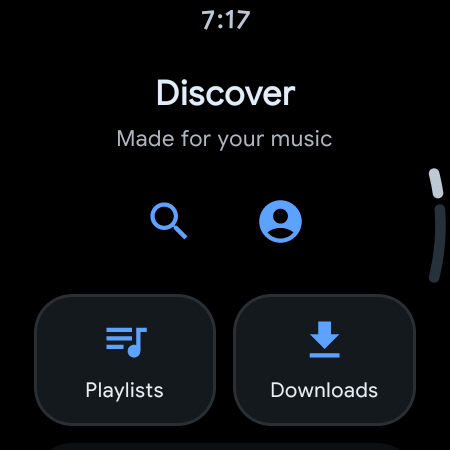
Galaxy Watch4 Classic, beta.1 (41), captured before final signing. The person icon beside search opens account and settings.
Look for Signed in or Guest. If the phone has a session but the watch still shows Guest, tap Sync session from phone. Keep the companion open and the devices connected, then check the account state again.
Requested phone session sync confirms that the watch sent a request. Wait for the account state to change before treating the transfer as complete. If several accounts appear, the selected entry is marked In use; tap another entry to switch.
Check the stage that failed
- No connected phone means the watch could not find a connected phone for the request. Check normal phone/watch pairing and open both apps.
- Session saved on the phone means a phone copy exists. Use Sync to watch when connected, then inspect the watch's Signed in state.
- Sign in again means the companion needs a refreshed login. Complete its login flow before sending the session again.
If the companion keeps showing CONNECTING or disabling its controls, check the beta.2 companion update and connection checks. Signing into Google is not the fix for the known connection-state timing issue. Keep the existing installation while checking the version and connection.
Sign out on the device you intend
On the watch's Settings page, Sign out clears the account sessions stored by SimpMusic on that watch. If you have several saved accounts, this action signs them all out.
When the companion is connected, its action is labelled Sign out on phone & watch. Confirm it for the selected watch. Without a connected watch, Clear saved phone session clears the phone copy; sign out on the watch itself if you also want to clear its session.
The companion's confirmation says downloaded music stays on the watch. Clearing all Android app storage or uninstalling can remove that local data. Use the app's sign-out controls for an account change, and the in-place update route when updating.
Account privacy and reports
SimpMusic Wear is an unofficial client. Read its privacy notice for stored session data, external services and deletion choices before adding an account.
If you send a problem report, include the app release, watch model and the step that failed. Remove account names and addresses from screenshots, and keep cookies, authorisation values and session backups out of public reports.
Once the watch has the account state you want, try the same song again. For listening without your phone's connection, prepare an offline queue and check its ready count before leaving.

Discussion
0 comments. Share feedback or ask a question.
Sign in to comment.
No comments yet.