A curved bar can look finished while showing the wrong fraction. Start with one step-goal bar, a known goal and a few predictable counts. Add color choices and provider replacement after the numbers agree.
This is a maker workflow for Samsung Watch Face Studio (WFS). If you want to change a complication on an installed face, use the watch-face customization guide.
Choose what owns the data
For a bar that always measures steps, use WFS’s built-in health tags:
| Tag | Meaning | Example |
|---|---|---|
[SC] |
Measured step count | 2,500 steps |
[SC_GOAL] |
The goal used by the design | 10,000 steps |
[SC_PER] |
Percentage of that goal achieved | 25% |
Samsung documents these as different quantities. A tag-driven step bar does not become a replaceable complication because you put it beside a selectable text slot. Both elements must use the intended data path. WFS FAQ, Q7.
Build the percentage bar first
- Add a Progress bar component and select its circular type. Size and center it within the dial.
- Use its range preset, or set Start point, Angular distance and direction. For this example, choose a 270-degree track. These settings determine geometry, not the step goal.
- Set the numeric range to 0–100. Set the base Value to 0, then select Tags beside that value and choose
[SC_PER]. - Add a separate data-text label using
[SC]if you want the actual count visible. Name the bar and label clearly.
Samsung’s design guide explains circular geometry; its tag-expression Code Lab demonstrates the zero-base value and [SC_PER] binding. Keeping the base at zero avoids adding an unintended offset to the tag result.
Decide which goal to use
Open File → Project → Settings → Health. For a controlled example, define a positive goal of 10,000, or choose Sync to device to use a supported device health application’s goal. Change one choice at a time so a test result has an identifiable cause. Project Health settings.
Samsung’s FAQ scopes device-goal synchronization to API 33 / Wear OS 4 and later. Its Wear OS 3 fallback description uses 6,000; that is historical compatibility guidance, not a reason to hard-code every current design to 6,000. FAQ Q11.
Record your actual editor/build versions. The release notes list WFS 1.9.9, August 3, 2026; WFS 1.8 raised the minimum API to 33, and selecting newer complication types can raise it further. Use Diagnosis and the exported package’s requirements instead of confusing target SDK with minimum SDK. WFS release notes and API requirements guide.
Keep percentage and raw-range math separate
At 2,500/10,000 steps, the desired fill is 25%. That covers 67.5 degrees of a 270-degree track. A raw count of 2,500 needs a 0–10,000 range; a percentage of 25 needs a 0–100 range. Feeding 2,500 into 0–100 saturates early. Feeding 25 into 0–10,000 barely moves it.
For your own percentage calculation in the Value tag expression, with base 0:
[SC_GOAL] > 0 ? clamp(100.0 * [SC] / [SC_GOAL], 0, 100) : 0
Samsung documents clamp and conditional expressions in its tag reference. Zero is a defensive invalid-goal fixture, not a valid project Health setting: hide the indicator or show “Goal unavailable” if your custom input has no positive goal. The expression’s zero is a drawing fallback, not evidence that the user achieved 0%.
When inspecting WFF, Google’s source names are STEP_COUNT, STEP_GOAL and STEP_PERCENT. The last is a rounded integer from 0–100; do not infer sub-percent precision from it. WFF source reference.
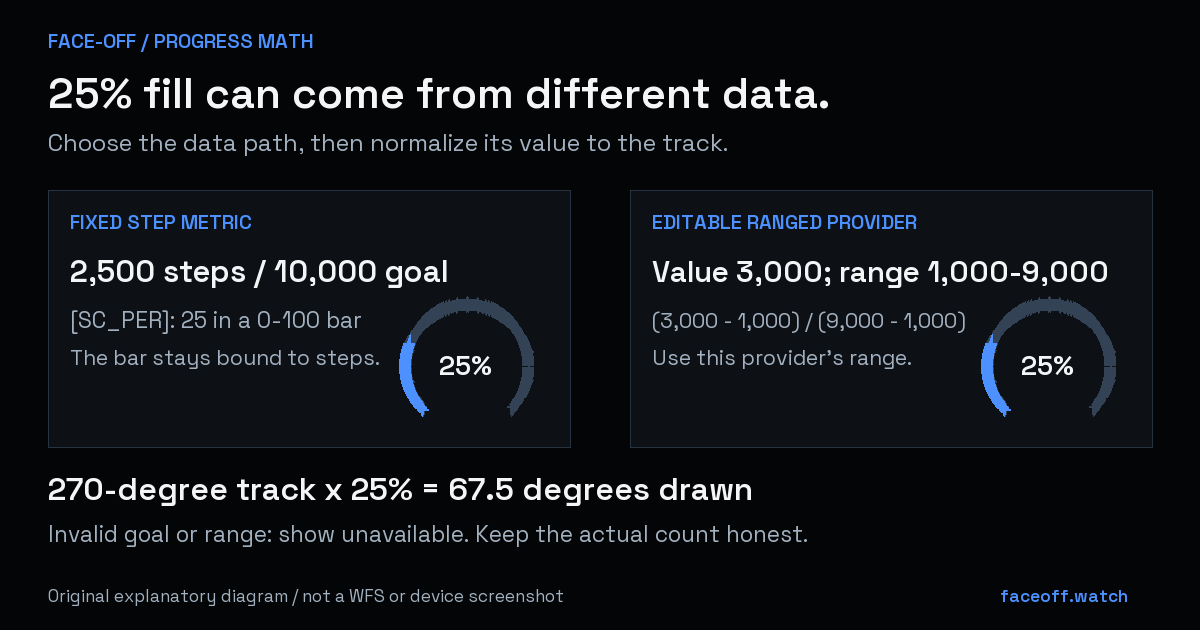
Original explanatory diagram. A fixed step percentage and a replaceable ranged provider can both draw25%, but they use different inputs. These are arithmetic examples, not WFS or device screenshots.
Make it replaceable only if you render provider data
For user-selectable progress, create a native complication slot and choose Editable. A Fixed slot keeps the provider you chose. Prioritize the numeric layout you intend to draw; WFS can choose Short text first when a provider offers both text and ranged data. Supply a text-only fallback without a fabricated gauge. WFS complication settings.
In exported WFF, a RANGED_VALUE layout uses COMPLICATION.RANGED_VALUE_VALUE, COMPLICATION.RANGED_VALUE_MIN and COMPLICATION.RANGED_VALUE_MAX. Its fraction is (value − min)/(max − min), not automatically value/100. For example, value 3,000 with min 1,000 and max 9,000 is 25%. An invalid or zero-width range needs an unavailable state.
GOAL_PROGRESS instead supplies COMPLICATION.GOAL_PROGRESS_VALUE and COMPLICATION.GOAL_PROGRESS_TARGET_VALUE. Its count may exceed the target. You can cap the drawn arc while retaining an honest numeric count. These are WFF provider fields, not replacements for WFS’s [SC] tag names. WFF complication reference.
Google added Goal Progress in WFF 2, whose runtime floor is Wear OS 5 / API 34. Check the actual slot types and package. Use a provider icon/title or neutral artwork so a replaceable battery value does not inherit a misleading fixed footsteps logo. WFF release notes and version table.
Check Normal, AOD and the exact download
Use the fixed 10,000 project goal for preview, then try 0, 2,500, 5,000, 10,000 and 12,000 steps. Expect an empty, quarter, half and full bar, with a deliberate over-goal presentation. Check the count label too. Test invalid denominators separately in your custom math fixtures; do not force an invalid goal into the editor’s Health field.
Switch to the Always-On tab and deliberately retain, simplify or hide the bar. Inspect its visibility and on-pixel analysis rather than assuming Normal carries over. WFS always-on guidance.
Restore your intended Health setting before building. Install the exact signed APK intended for download and compare its displayed step count and goal. If using Sync to device, change the goal in a supported health app and recheck it. For an editable slot, try another compatible provider or Empty where offered. Capture Normal/AOD from that package. Preview values and arithmetic examples cannot establish physical-watch synchronization or a completed native test.


Discussion
0 comments. Share feedback or ask a question.
Sign in to comment.
No comments yet.