You can listen to your own MP3 files without keeping your phone nearby, provided the files are on the watch and the watch is playing them. A music controller showing a song title does not establish either of those things.
This walkthrough uses Samsung’s documented Android-phone transfer route for Galaxy Watches. Start with one small audio file you created or lawfully obtained. Other Wear OS brands need their own documented transfer and player combination; Galaxy Wearable’s menus are not a universal Wear OS feature. Samsung’s Wear OS watch guide.
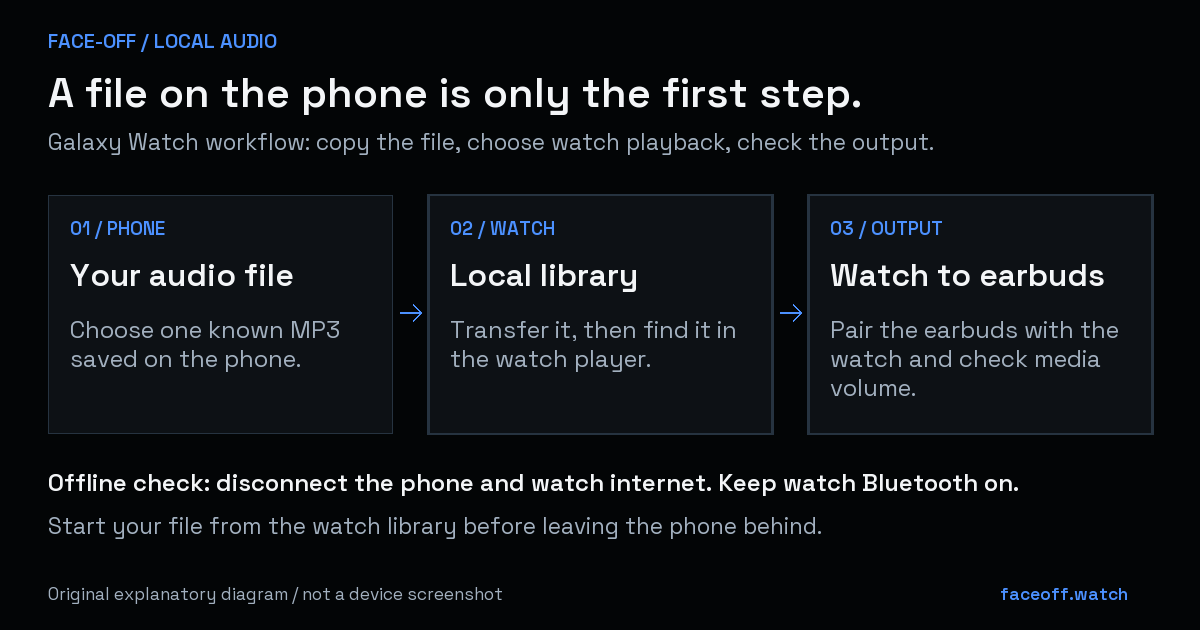
Original explanatory diagram. Copy the file, find it in the watch library, pair the earbuds directly to the watch, and check playback with the phone and internet disconnected.
First, identify what you are trying to play
| Your audio | Where it needs to be | What to check |
|---|---|---|
| Your own MP3 or other supported file | Copied onto the watch | The watch’s local library contains the file. |
| A music service’s offline download | Inside that service’s watch app | Its download has completed and your account meets that service’s rules. |
| Music playing on your phone | Still on the phone | The watch may only be a remote control. |
Google documents streaming and watch downloads as separate YouTube Music workflows. A download in a phone app is not evidence of a download on the watch. Use the service’s own instructions for that route. Google’s watch music guide.
Copy one file with Galaxy Wearable
Keep the original audio on your phone. Samsung lists MP3, M4A, AAC, OGG and WMA for its transfer/player route, and warns that encrypted streaming-service downloads cannot be exported this way. Renaming a cached download to .mp3 does not turn it into an ordinary audio file. Samsung’s transfer instructions.
- Open Galaxy Wearable on the Android phone paired with your watch.
- Open Watch settings, then Manage content or Add content to your watch.
- Choose Add tracks, select your test file and tap Done.
- Accept any transfer-permission prompt on the watch. After the transfer, open its Music app and find that file.
Samsung documents those controls, but labels and screens vary with the device and software. If your app presents Tracks on watch, inspect that list and its add controls. Do not follow an old Gear Music Manager/iPhone walkthrough as though it were the same Wear OS workflow. Samsung’s music guidance and Watch7/Ultra content settings.
Pair the earbuds to the watch
Put the earbuds into their own pairing mode. On the watch, open Settings → Connections → Bluetooth → Available devices and select them; menu wording depends on the Wear OS version. Pairing them to the phone alone does not establish the watch’s audio output. Google’s Bluetooth instructions.
Check the music player’s device/source control and select the watch’s library. Samsung’s player can switch between phone and watch playback. Look for your copied file, rather than assuming the currently displayed phone track is stored locally. Samsung’s player controls.
Check offline playback before relying on it
Try this short check with your chosen file:
- Disconnect the phone, then switch off the watch’s Wi-Fi and mobile data if present. Leave watch Bluetooth on for the earbuds.
- Open the file from the watch’s local library and start it there.
- Seek to a later point. When that works, transfer a second file and repeat the check before copying a larger collection.
Restore your usual connections afterwards. Record which files played and whether sound came from the expected device before copying the rest of your collection.
Find the first failed stage
The file is missing before transfer: check that it is an actual audio file saved on the phone, not merely available inside another app. Recheck the selected watch and permissions. Try the small known MP3 before changing your whole collection.
The transfer finished but the library is empty: check the watch’s local playback source and the chosen player’s library. A transfer destination and a player are separate parts of the workflow.
Playback appears active but is silent: check the watch’s headphone connection, selected output and media volume. Google’s sound settings guide distinguishes media volume from alarms and ringtones.
Using another Wear OS player?
Follow that player’s import documentation. For an existing Wear Casts installation, its developer documents /sdcard/Music among the folders for custom audio. Accept the watch’s Read Audio permission and check the Files playlist. Its tutorial also warns that large phone-to-watch transfers can take time. These are that app’s documented choices, not a promise about every player. Wear Casts custom-file tutorial.
Using SimpMusic instead? The versioned SimpMusic setup guide covers that player’s separate installation and download workflow.


Discussion
0 comments. Share feedback or ask a question.
Sign in to comment.
No comments yet.