A blank weather field does not tell you whether your Garmin watch has lost its weather connection or whether one downloaded face has a problem. Start by comparing the watch’s built-in Weather glance with the selected face. Those observations give you a better next step than changing several settings at once.
This guide follows the ordinary Garmin Connect-fed weather route and Connect IQ watch faces. Record your watch model, phone operating system, Garmin Connect version and face name before testing. Use your model’s manual for its controls and any separate weather-connectivity feature.
Compare the glance and the face
Open the built-in Weather glance and inspect the selected location, temperature and forecast where shown. Then return to your face and note exactly what is missing: the whole field, its location label, an icon or a particular forecast value. For example, the fēnix 7 family’s manual distinguishes its Weather glance from its internal-sensor Temperature glance. Garmin’s fēnix 7 glance descriptions.
| What you observe | Start here |
|---|---|
| Weather glance and face are both empty | Check the shared Connect, data and location route. |
| Weather glance works, downloaded face is empty | Identify that face’s weather service and supported device configuration. |
| Both show values, but they disagree | Compare location, units, observation time and provider. |
| Only one label or forecast field is absent | Report that exact field rather than describing all weather as broken. |
Keep the two observations close together. A comparison with an old screenshot can hide which part of the route has changed.
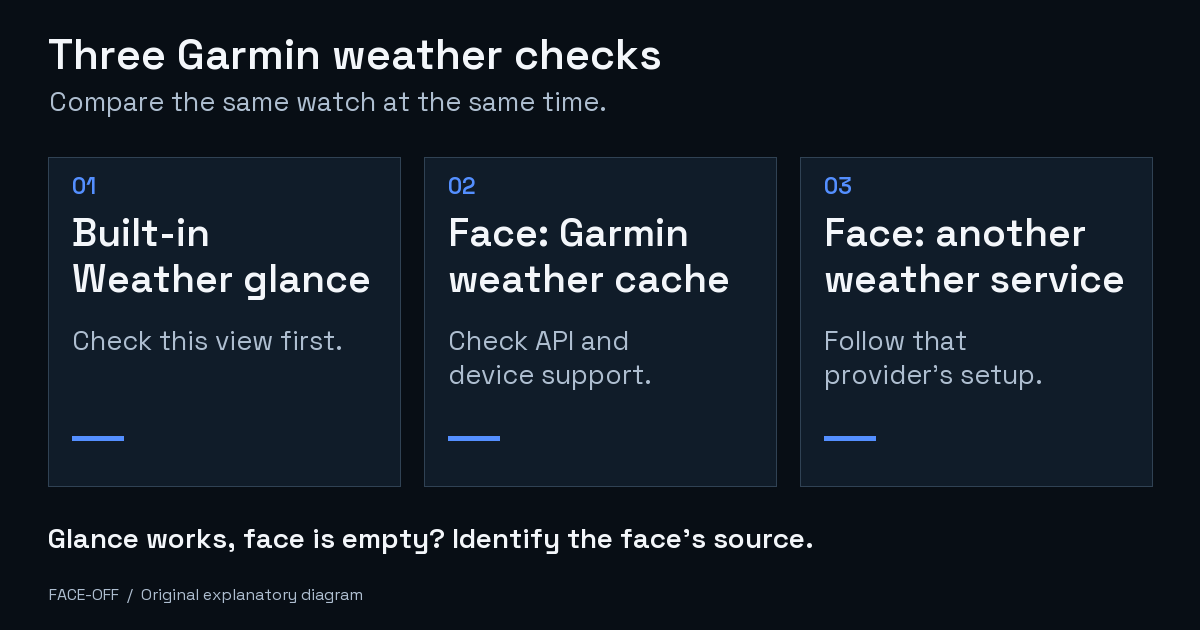
Original Face-Off diagram of three comparison points. These cards are explanatory, not app screens or a tested forecast.
If the built-in Weather glance is also empty
Check that Garmin Connect shows the watch as Connected and that the phone has internet access. Sync, inspect Weather, and note the result before another change. Garmin’s connection checks.
Open More → Settings → Phone Permissions → Manage Permissions in Connect. Review location access; Garmin documents Always or Allow all the time, depending on the phone. On GPS-capable watches, follow its satellite-location check using your model’s outdoor-activity controls. Garmin’s permission and location checks.
Garmin’s Italian support FAQ includes an iPhone background-app note for Connect 5.20 or earlier. Use guidance matching your installed version. Garmin’s version-scoped guidance.
Change one setting, sync, and compare again. If the glance still has no usable data, keep this result for Garmin support before troubleshooting a face’s artwork.
Find out where the downloaded face gets weather
Open the exact face’s listing, settings and developer instructions. Look for the named weather source. A field labelled “temperature” is not enough to identify it.
A Connect IQ face can read Garmin’s cached weather through Toybox.Weather where the target supports that interface. Garmin documents this module from Connect IQ API 3.2.0, and its current-conditions call can return no data. That is a developer API level, not the Connect phone-app version. Check the face’s supported devices and requirements; the presence of a stock Weather glance alone does not establish support for that particular third-party implementation. Garmin’s Weather API reference.
Other faces use an external service. For a concrete example, Crystal’s author lists OpenWeatherMap weather among its supported data fields. That identifies Crystal’s documented provider, not a setup rule for every fork, version or downloaded face. Read the instructions for the one actually installed. Crystal’s developer documentation.
Note any source selector’s current setting before changing it. Another weather widget can use a different provider. Ask the face developer about its configuration. Connect IQ app guidance.
A moving clock does not prove fresh weather
Garmin’s developer documentation describes weather as cached information obtained through a data connection, primarily a paired smartphone. It also warns that a chosen weather location can differ from your current position. Keep those two questions separate: where is this forecast for, and when was it observed? Garmin’s weather data overview.
Where the face exposes a timestamp, include it in the comparison. Garmin’s current-conditions object has a distinct observation-time field, but each face chooses what to display. A seconds hand continuing to move is not evidence that a weather request completed. The separate Garmin seconds guide covers clock-update behavior. Current-conditions fields.
When the temperature looks wrong
Compare the same measurement. Garmin distinguishes weather-service information from the Temperature glance’s internal sensor reading, which can be affected by body heat. The phone’s weather app can also use another source. Comparing those numbers alone cannot establish a broken watch face. Garmin’s temperature and weather explanation.
Check units, selected location and whether the field shows current temperature or a daily high/low. Use your model’s documented controls. Garmin’s model-dependent weather settings.
Send a report that separates the failure
Include the watch model/software, phone OS, Connect version, face name/version, configured provider and the exact missing field. Add the Weather-glance result and a face capture taken close together, with their locations and timestamps described where available. Keep precise locations and private credentials out of public screenshots.
“The native glance updates, but this face’s temperature remains blank” gives its developer something different to investigate from “the native glance is also empty.” Keep the last working checkpoint and each change you tried. This guide’s checks are based on documentation reviewed on 15 November 2026; they are not presented as results from a physical-watch test.


Discussion
0 comments. Share feedback or ask a question.
Sign in to comment.
No comments yet.