At 14:00, a conventional analog watch points its hour hand at 2. A 24-hour analog dial spreads the whole day around one circle, so its hour hand makes one turn per day. Switching a digital display from 2:00 PM to 14:00 changes how the time is written.
These are separate choices. A face can combine a 24-hour digital clock with ordinary 12-hour hands.
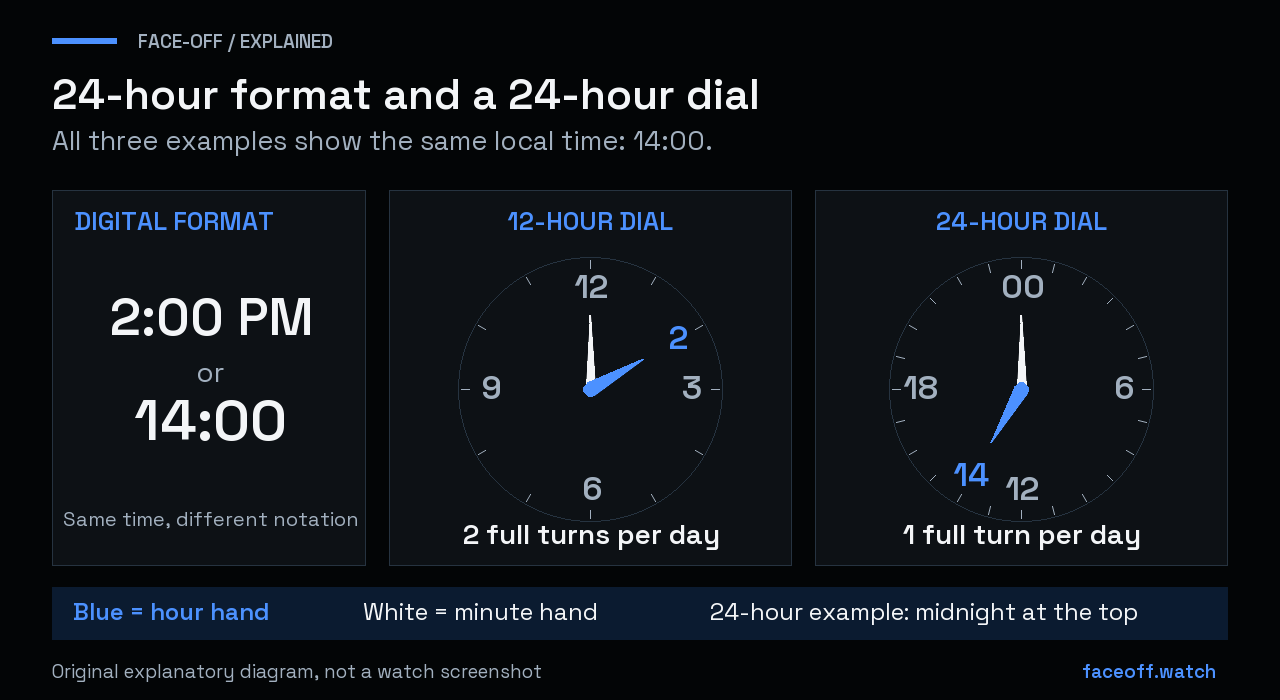
Original explanatory diagram. Blue hour hands show the same 14:00 on 12-hour and 24-hour dials; white minute hands point to 00. The 24-hour example uses midnight at the top.
Choose the behavior you want
| What you want | What to look for |
|---|---|
| Digital time such as 14:00 | A clock that follows the system’s 24-hour format, or a face with its own format option |
| An hour hand that takes a full day to circle the dial | A genuine 24-hour analog design |
| A second time zone | A world-time feature with the intended zone and dial scale |
For Wear OS makers, Android’s HourHand reference defines the standard hand as completing a rotation every 12 hours. Adding 24 numbers to its background does not change that motion.
Change digital time to 24-hour format
Google’s documented Wear OS route is Settings → System → Date & time → Use 24-hour format. The menu names can vary with the watch manufacturer and software version. Wear OS time and date help treats the format switch separately from automatic time and time-zone settings; changing the display format does not require setting a different time.
If one face still shows 2:00 PM, check that face’s customization options. Its author may have chosen a fixed format. Samsung’s current Watch Face Studio design guide describes digital hour components that can optionally follow the device’s 12/24-hour preference. The option has to be part of the design.
Changing this preference will not turn an ordinary analog hour hand into a one-revolution-per-day hand.
Check a 24-hour dial before downloading
Look for the hour scale and an explanation of the hand’s behavior. A decorative outer ring marked 13–24 can sit around a conventional 12-hour clock. A screenshot at midnight alone also proves little: both types can point upward then.
Ask for previews at 06:00 and 18:00. On a conventional 12-hour dial, the hour hand occupies the same position at both times. A 24-hour hand is on opposite sides of its circle.
Check where midnight and noon sit. The example in this guide uses 00 at the top and 12 at the bottom, with time advancing clockwise. Other layouts can put noon at the top. The printed scale and the hand’s movement must agree. If a design includes another time zone, confirm which hand shows local time.
For an editable design, obtain its source project. A Watch Face Studio project belongs in Watch Face Studio’s project workflow; a WFF XML design needs its containing build project and resources. An APK is an installation package and does not automatically include an editable project. Our watch-face file guide explains the download choices.
Give a custom hour hand a 24-hour rotation
One full turn is 360 degrees. Divide by 24 hours and the hand advances 15 degrees per hour. Include the minutes so that 14:30 falls between hour marks.
In Watch Face Studio, a static image component can use a rotation tag expression. For a hand pointing upward at zero rotation, the 24-hour expression is:
[HOUR_0_23_MIN] * 15
Keep its base rotation at zero and put its pivot at the dial center. Use an ordinary image for this approach; an automatically moving clock hand would introduce its own rotation. Samsung documents both rotation expressions and the fractional-hour tag in its tag-expression reference. This formula is derived from the documented 0–23-hour value and the geometry above.
In WFF XML, the corresponding data-source name is longer: HOUR_0_23_MINUTE. Place the static hand artwork inside a group and rotate that group:
<Group name="hour_24" x="0" y="0" width="450" height="450"
       pivotX="0.5" pivotY="0.5">
    <Transform target="angle" mode="TO"
               value="[HOUR_0_23_MINUTE] * 15" />
    <!-- Add your static, upward-pointing hand artwork here. -->
</Group>
This is a scene fragment, not a complete watch-face package. The group center, image pivot and dial center must coincide. Android documents the fractional-hour source, the clockwise group angle and absolute TO transforms. The 15-degree multiplier is our calculation, rather than a special 24-hour hand setting.
Preview the whole day and always-on mode
For the midnight-at-top layout, check these hour-hand positions:
| Time | Rotation clockwise from the top |
|---|---|
| 00:00 | 0° |
| 06:00 | 90°, right |
| 12:00 | 180°, bottom |
| 18:00 | 270°, left |
| 23:30 | 352.5°, just before the top |
Keep the minute hand on its normal one-turn-per-hour scale unless you deliberately design a different way to read minutes. Relabeling its scale to match the 24 hour marks would make ordinary minutes misleading.
WFS’s Run panel lets you change the simulated time and switch between active and always-on views. Check both modes at the same time, particularly if you use separate artwork or groups for always-on mode. Then test the built package on its intended watch or emulator. This guide explains the design logic; it does not certify a particular download or watch model.


Discussion
0 comments. Share feedback or ask a question.
Sign in to comment.
No comments yet.