An old Galaxy Watch Studio design can be a starting point for a Wear OS face. Samsung's Watch Face Studio can import an unencrypted .gwd project, but the imported design needs checking before you build it. Keep the original file so you can compare the two versions.
Import a copy of the GWD project
Open Watch Face Studio, then choose Import gwd resource from its File menu and select your .gwd file. Samsung documents this in its project guide. Encrypted GWD files cannot be imported; ask the original creator for an unencrypted project if necessary.
Save the imported version as a separate Watch Face Studio project. Retain the original creator's credit and any notices that came with the design. If you need to install the original on a Tizen watch, use the older Samsung installation guide.
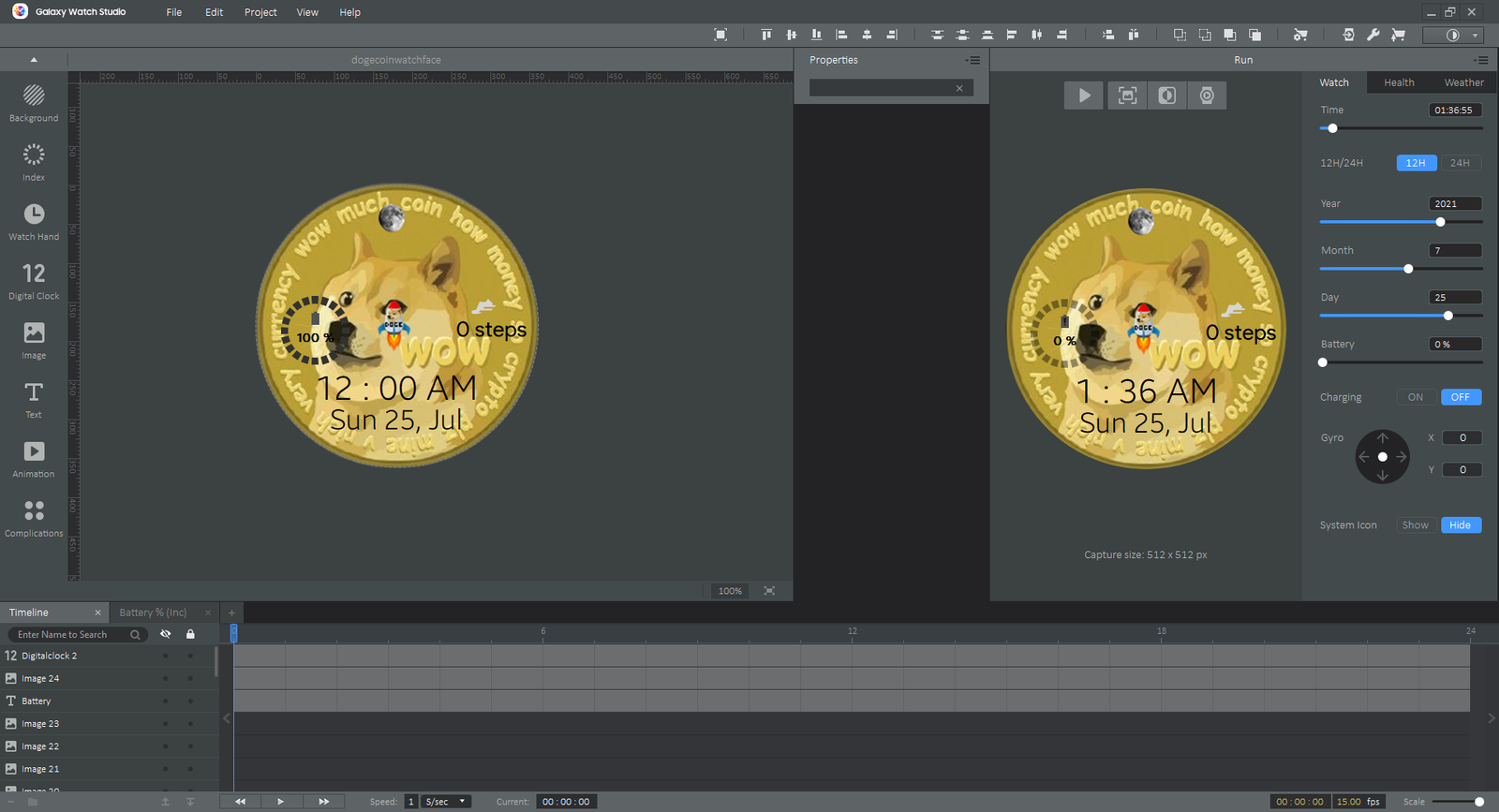
An original Galaxy Watch Studio screenshot from Face-Off's earlier tutorial. This is the legacy Tizen editor; its controls differ from Watch Face Studio.
Compare the artwork before changing it
Samsung warns that operating-system differences can leave components or settings out of an import. Put a reference from the original beside the new preview. Compare the dial border, hand positions, calendar window and small labels before changing colors or adding features.
A shifted hand can be easy to miss at one time. Check midnight, noon and a late-evening time. Look at where each hand rotates, whether its length still fits the dial and whether the date stays inside its window. Check the original font or bitmap digits if a label looks different.
Try the preview controls
The Run panel lets you change sample time, date, battery and other values. Move those controls and check the elements that should respond. A number that happens to match the current time can still have the wrong binding.
For each gauge or shortcut, decide whether the imported version works as intended, needs rebuilding or should be removed. Keep a short list of those changes. Check the always-on preview too, including the clock and date, before assuming the original ambient design survived.
Build the Wear OS version
Use Project > Publish, then choose APK under Publish type for local installation. Check the package name, app label, version and signing details in the Publish dialog. Keep your keystore and passwords private so you can maintain your own build later.
Check the minimum SDK shown by Watch Face Studio. Google lists the Wear OS requirements for each Watch Face Format version; features added in newer versions can raise the minimum. Keep the editable project with the package you built.
Check the result on your watch
Samsung's device-testing guide explains Project > Run on Device. You can also follow the Wear OS wireless installation guide for a completed APK. Select the installed face and compare it with the saved project.
Check the hands and calendar again, try the features you kept and let the watch enter its resting display state. Sample values in the editor do not show whether real data arrives on the watch. If something fails, keep the exact package, watch model and error message with your notes before changing the project again.
Discussion
0 comments. Share feedback or ask a question.
Sign in to comment.
No comments yet.