For music on a Wear OS watch, start with SimpMusic Wear OS, our free, open-source app. Browse YouTube Music and play directly on your watch as a guest, or prepare tracks with its beta download feature.
If you already have MP3s, or use an Apple Watch, Garmin or Amazfit, the local-file options below show how to put your own music on the watch. Completed watch downloads and local files can play without LTE.
Start with SimpMusic on Wear OS
Install the watch APK from our SimpMusic downloads page, open Discover or Search and choose a track. Online browsing and playback need an internet connection. The optional Android companion adds sign-in and controls for the watch player.
For later listening, save a few tracks, open Downloads and wait for the offline queue’s ready count to finish. Use Play offline queue to start those tracks. Downloads and automatic cleanup are beta features; try your intended tracks without internet before a run. The SimpMusic setup guide shows the APK choices and download controls.
For MP3s you already own, use the local-file route for your watch below. SimpMusic’s download controls save music through its own player.
Use your existing audio files
Choose an MP3 you created or lawfully obtained. Once a compatible player has the file on the watch, playing it does not require a music-service subscription. Check the price of the player and transfer app, though; those can cost money separately.
For a subscription library, use the service’s watch download option and wait for that copy to finish. A playlist downloaded on the phone does not show whether the watch has its own completed copy. Samsung’s ordinary file-transfer route excludes encrypted streaming-service downloads. Samsung’s music guidance.
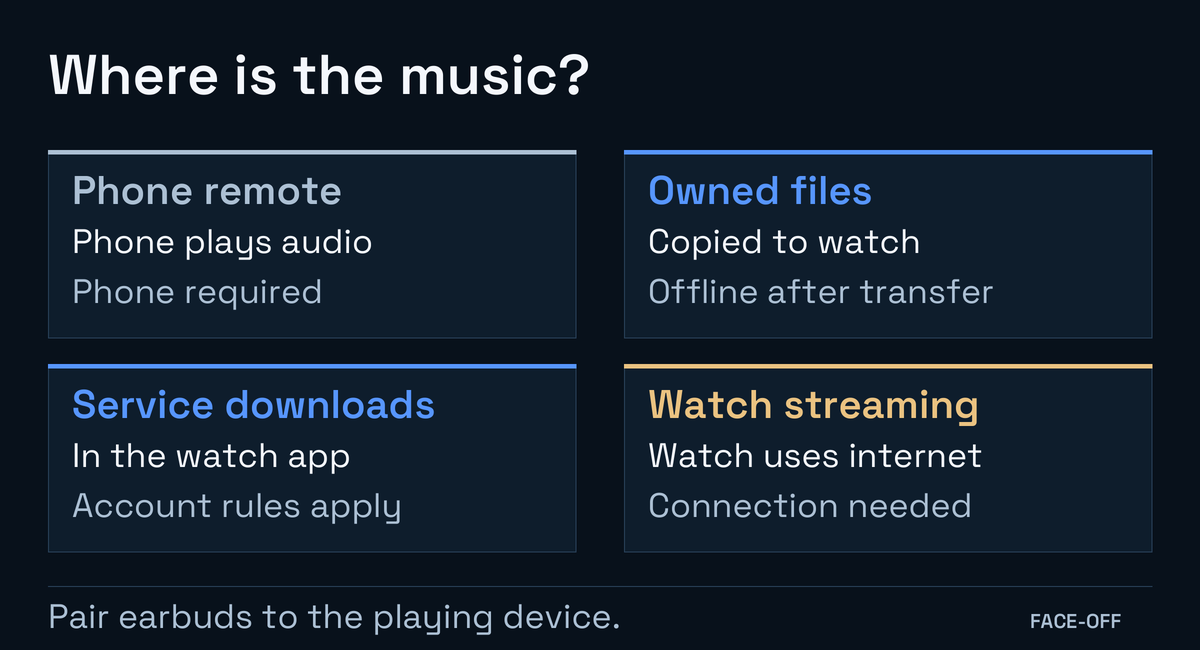
Local files and completed service downloads can play without internet. Service downloads still follow account rules. Pair earbuds to the device playing the audio.
Find a local-file route for your watch
Wear OS Galaxy Watch paired with Android
Transfer supported files with Galaxy Wearable, then select watch playback. The local MP3 guide covers the transfer and earbud setup. Other Wear OS brands need their own player and import method.
Apple Watch paired with your iPhone
Use the Watch app on iPhone to add selected albums or playlists from its Music library. Apple’s watch sync guide also covers adding Apple Music subscription content directly on the watch.
Garmin Forerunner 165 Music
Send personal MP3 or M4A files from a computer with Garmin Express, then choose My Music. The standard Forerunner 165 lacks the Music model’s storage feature.
Amazfit Balance 2
The global manual, pages 44 and 45 documents MP3/FLAC transfer through Zepp and playback on the watch or Bluetooth headphones. File transfer uses the watch’s hotspot. Check the manual for your exact Amazfit model and region.
An iPhone Music library can contain iTunes Store purchases or music transferred from a computer, so you can use that route without subscribing to Apple Music. Get music on iPhone. Wait for the watch copy to finish before leaving the iPhone behind.
Balance 2 has local playback and a remote for a connected phone. The phrase “music control” in another watch’s listing might describe only the remote. Check for a documented local-file option on that model; changing account region or resetting is not a general solution for a missing feature.
Check the service’s watch rules
Spotify on Wear OS can stream over the watch’s internet connection. You need Premium to download music playlists and albums. Podcast downloads are available without Premium under its current Wear OS rules. Spotify lists Wear OS 2.2 with Android 9 or newer, with features varying by model; check whether Play offers the app for your watch. Spotify on Wear OS.
On Apple Watch, both direct Spotify streaming and offline listening require Premium. A free account can control another device. The current watch app requires Series 4 or later running watchOS 10 or newer. Spotify on Apple Watch.
Garmin’s Spotify app requires Premium and plays downloaded content only. Find your model in the app’s Connect IQ compatibility list before choosing it for music. Spotify on Garmin.
The official YouTube Music app supports direct streaming and watch downloads on most watches running the latest Wear OS 2 or newer. Music downloads use Premium; podcast download rules differ. Google’s watch guide, download membership rules. Pixel Watch users in Canada and the US also have a non-Premium YouTube Music streaming option. Music downloads still require Premium. Pixel Watch music support.
Refresh service downloads before a longer trip. Account checks and download renewal can require an internet connection even after you have saved the playlist. See Spotify’s offline rules.
Do you need LTE?
A GPS-only Apple Watch can play downloaded Spotify content when it meets the app and Premium requirements above. Local files and completed watch downloads can play without cellular service.
To stream while away from your phone, the watch needs internet access. Wi-Fi can be enough. For LTE streaming outside Wi-Fi coverage, you need a supported active mobile plan as well as the LTE watch. Google’s Wear OS music guide also excludes cellular YouTube Music streaming in iOS setups. You may still need a phone for initial watch setup and transferring music.
Check playback before you leave
- On the watch, open the local library or service’s Downloads section and choose music that has finished transferring. Start playback there.
- Connect your earbuds directly to the watch. Disconnect the phone, then switch off the watch’s Wi-Fi and mobile data for the offline check. Keep Bluetooth on for the earbuds.
- Start a different saved track and seek into it. A song that was already playing can hide an unfinished download or the wrong source.
- Try pausing, resuming and starting your usual workout. Check the battery use over a session similar to the one you plan, then restore your normal connections.
If the player only offers a phone or another speaker as its destination, select the watch where the app supports it. Garmin’s My Music and Control Phone choices make that distinction explicit.
If you can browse downloads but none will start offline, check the exact watch app, subscription and completed download status. If your account does not include music downloads, choose a local-file route or a supported plan.


Discussion
0 comments. Share feedback or ask a question.
Sign in to comment.
No comments yet.