In this tutorial, you will discover two ways to enable RealView in SolidWorks, even if you use unsupported integrated or consumer GPUs.
Method 1: Manual registry edit
- Press Windows + R and open regedit.
- Go to
HKEY_CURRENT_USER\SOFTWARE\SolidWorks\SOLIDWORKS (version)\Performance\Graphics\Hardware\Current. - Open the Renderer value and copy it (example:
GeForce GTX 1660/PCIe/SSE2). - Now browse to one of these paths:
...\Gl2Shaders\NV40for NVIDIA...\Gl2Shaders\R300for Radeon (or try R350/R420 if needed)...\Hardware\Intelfor Intel iGPU
- Create a new key with the renderer name you copied earlier.
- Inside that key, create a DWORD (32-bit) named Workarounds and set it to hexadecimal 30008.
- Open SolidWorks and check whether RealView is now available.
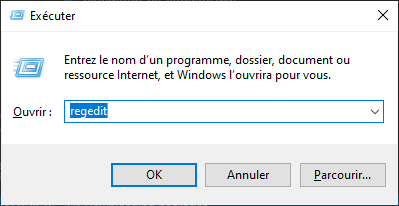
Step 1: Open the Run dialog.
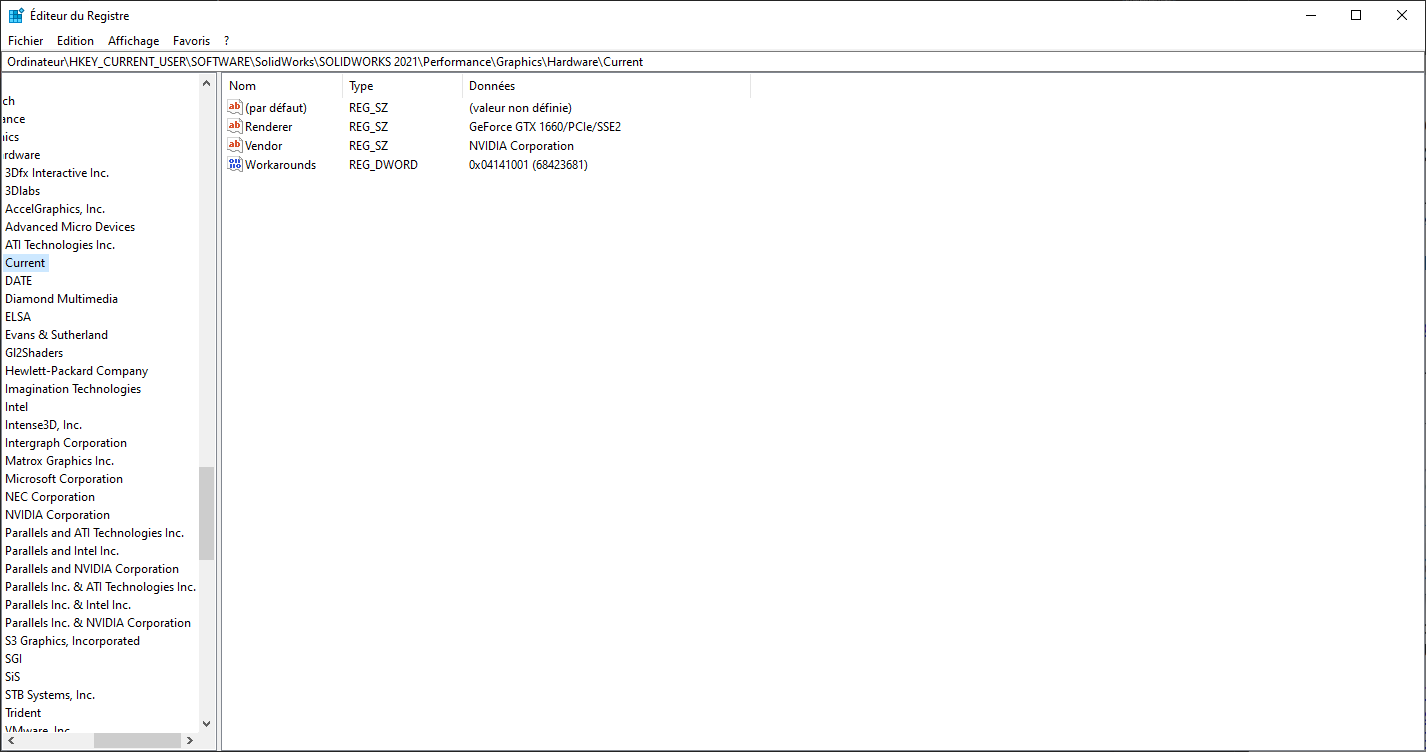
Step 2: Registry Editor with SolidWorks graphics keys.
Method 2: Registry patch package
If you prefer a quicker route, download this RealView patch package, extract it, and run the matching script as administrator.
After applying the patch, launch SolidWorks and verify RealView in the viewport options.
Troubleshooting
- Try alternate Workarounds values such as 31408 or 40408.
- For NVIDIA users, older Studio drivers can help. One known working build is Studio 462.31.
Discussion
Share feedback, ask questions, and upvote/downvote comments.
Sign in to comment.
No comments yet. Start the conversation!