Start with Face-Off’s editable analog face, change one hand, compare Normal and Always On Display, and save a project you can reopen. You can finish this first edit without importing someone else’s design or attempting a complex conversion.
You’ll have an editable .faceoff.json master and a reviewed preview. When you want to install it on Wear OS, build an APK from the project.
1. Open Studio and choose a starting point
Open the watch-face editor without signing in. You can create and edit a starter, reopen a portable project, save an editable master and export a PNG as a guest. The Help button reopens the quick tour.
Choose File → New project → Analog starter. The starter includes editable hands, a date window and a separate AOD clock. Choose Blank canvas if you want to construct everything yourself. Creating a new project is undoable.
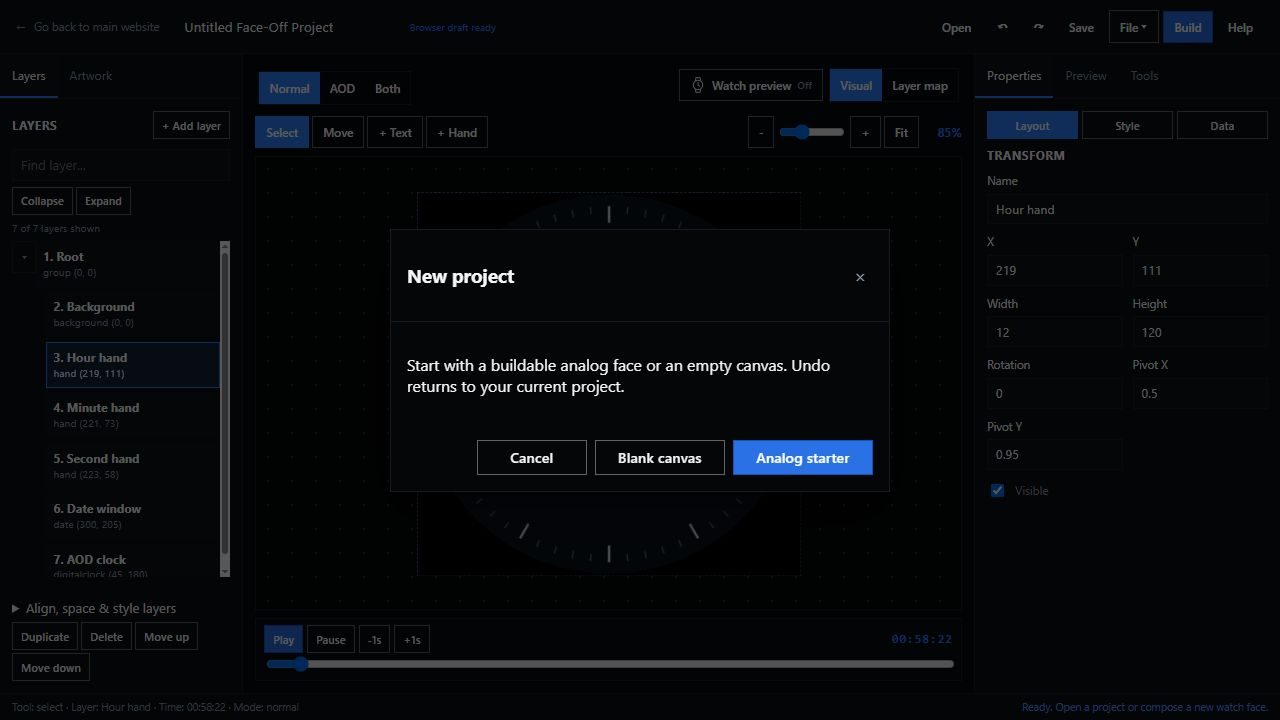
Analog starter gives you a face to edit immediately. These original screenshots show a local Studio session from 30 October 2026 using Face-Off’s own sample artwork. Account saves and server builds use separate, signed-in workflows.
As a guest, use Open for a portable Face-Off master. Sign in before importing your own local GWD, WFS, WFF or HWT source. Keep the original download: native imports have different coverage, and a recognizable dial can still have missing functions. Use the file-type guide to identify what you have before opening it.
2. Find the layer you actually want to change
Name the project in the top bar so you can recognize it later. Select Hour hand in the left-hand layer list. Properties → Layout now shows that layer’s position, size, rotation and pivot.
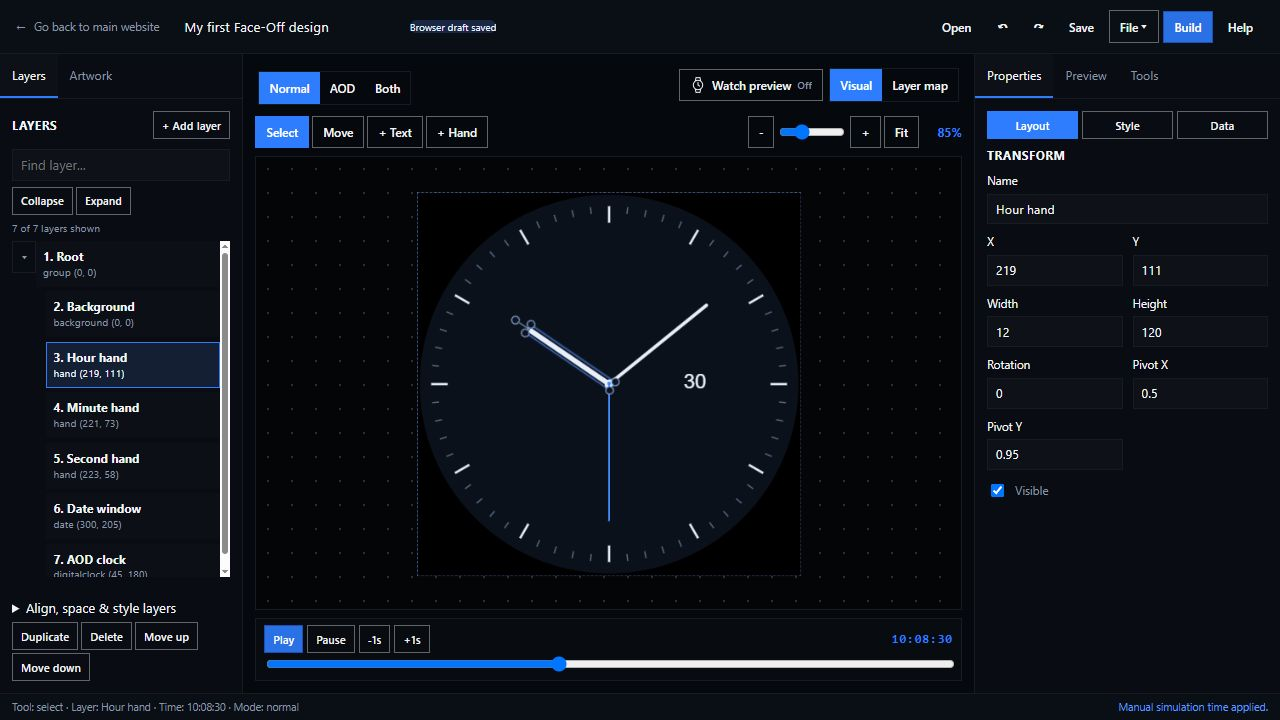
The layer list identifies what you selected; the right panel edits that layer. The pivot marks the point around which the hand turns.
Use Fit if the whole dial is outside your view. The layer filter helps with longer projects. Select a small item from the list when another layer covers it on the canvas.
Leave the pivot alone for your first color change. Moving a pivot changes how the hand rotates, so an edit that looks fine at one time can fail at another. A hidden or locked parent can also affect a child layer; check the group when a selection behaves unexpectedly.
3. Make one visible, reversible change
With Hour hand selected, open Properties → Style. Change Color to a hexadecimal color such as #ffb347, then leave the field to apply it. In the starter, this changes the hand’s shared shape color.
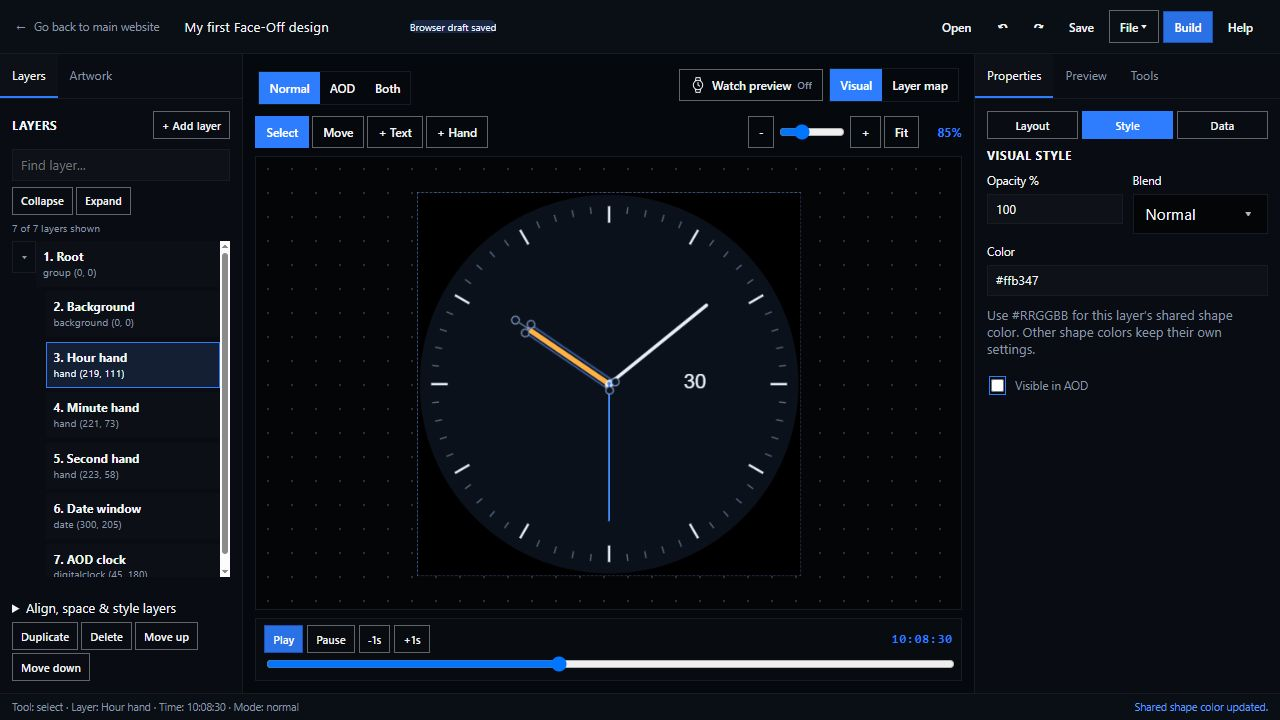
The color changes on this hand while the other hand, dial markers and date remain separate layers.
Try Undo, check that the previous color returns, then use Redo if you prefer the new one. Check the result before changing unrelated properties so you can trace a problem to the edit that caused it.
For imported projects, a bitmap can contain several visual elements in one image. Baked lettering needs an artwork edit, and a missing font needs to be restored; changing the layer’s color cannot do either job. Read the conversion findings and use the artwork/font tools to see what the import still needs.
4. Test more than one time and value
Open the right-hand Preview tab. Pause playback, turn Live time off and enter a fixed time, such as 10:08:30. Then try midnight, noon and 23:59:59. Watch how the hands cross and where their tips reach.
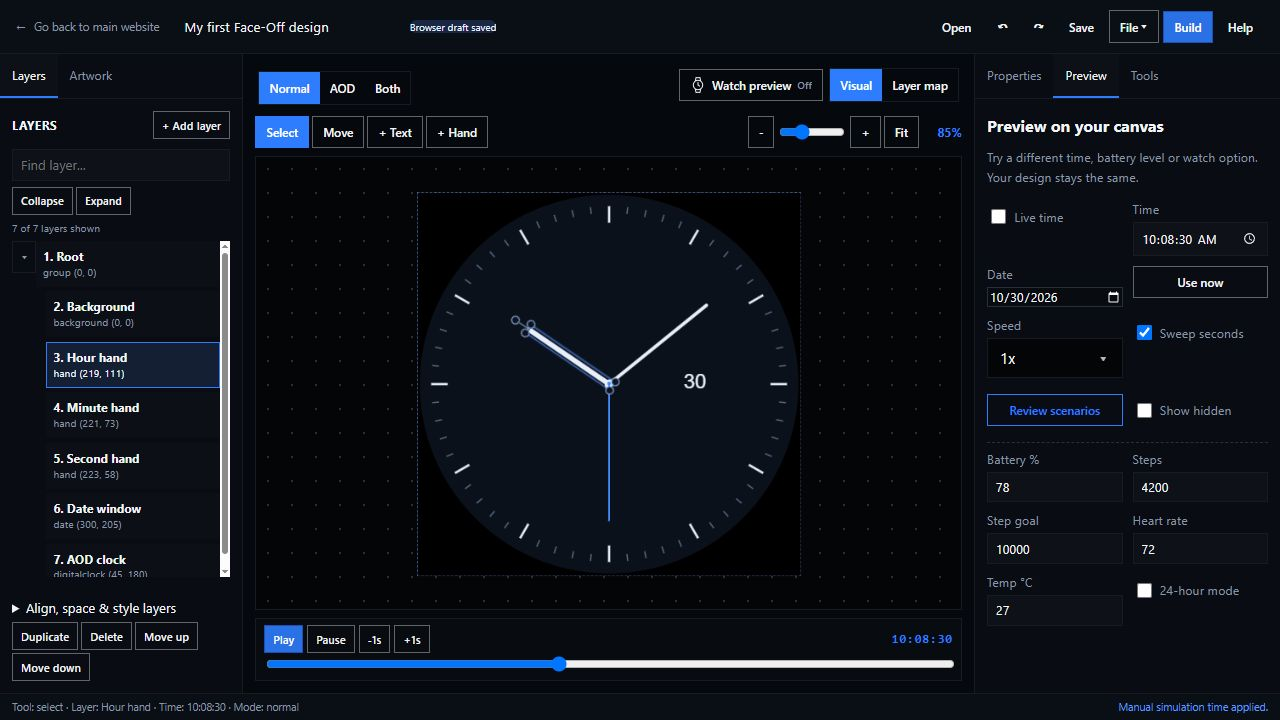
Only layers bound to battery data respond to the battery control. It cannot add a gauge to the design.
Change the date across a month boundary to inspect the date window. For a design with data-driven elements, test empty readings, intermediate values and the largest expected text. A progress bar should change with its bound value, and a long value should remain inside its compartment.
The preview uses simulated data without connecting to your watch. Check real health and weather readings on the device. Native complication images may need device review even when the text and layout look correct in Studio.
5. Check the dimmed face separately
Use the canvas’s Normal and AOD buttons to inspect each mode. The starter’s AOD is a simple digital clock; changing the Normal hour-hand color does not automatically redesign it.
Open Tools → Review project for side-by-side scenario comparisons. The review checks a snapshot of the design and shows findings for you to investigate.
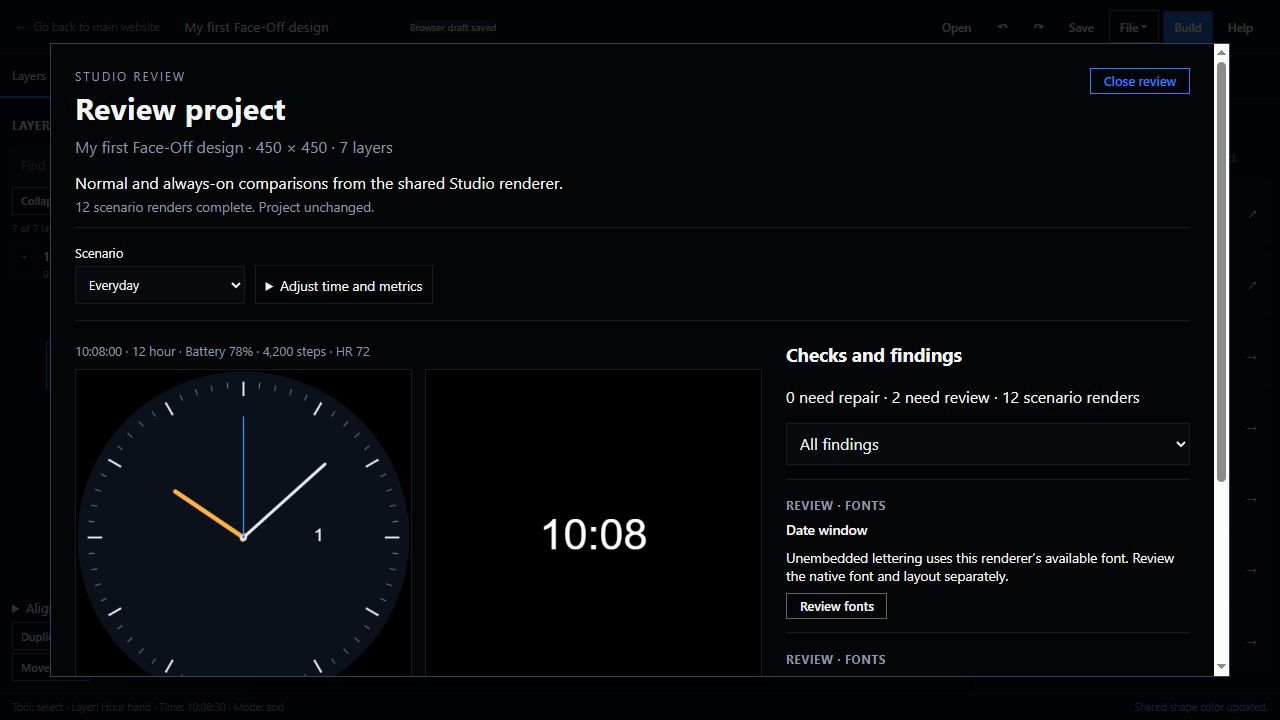
This run completed 12 scenario renders and reported two font-review findings. The fonts still need checking on the watch.
Check that the clock is readable, then inspect the edges, artwork and bright regions. Read each finding. In this example, the date and AOD clock use unembedded lettering, so the native font/layout still needs checking. Download the comparison and review JSON when you need to keep evidence with that revision.
For a more deliberate ambient design, follow the AOD artwork walkthrough. Use its preview and lit-pixel estimate to inspect the design. Battery life needs a separate measurement.
6. Save the editable master before exporting
Click Save in the top bar, whose accessible label is Save project file. Keep the downloaded .faceoff.json. It contains the normalized editable scene and embedded project resources, so you can reopen it with Open.
The Browser draft saved indicator marks a recovery copy kept in this browser on this device. Guest and signed-in sessions keep separate drafts. Before signing in, download the project with Save, then reopen that file in the signed-in editor. Clearing browser storage can remove the recovery copy, so keep a project file outside the browser. After signing in, File → Account projects & revisions provides server-side revisions; wait for its save acknowledgement before treating a revision as saved.
| What you need | Choose |
|---|---|
| Continue editing or keep a portable backup | Save → .faceoff.json (available to guests) |
| A picture for feedback | File → Export image… → Download PNG (available to guests), or a review comparison |
| A supported editable native source | Sign in, then use File → Export .wff, .wfs or .gwd and inspect conversion findings |
| Something to install on Wear OS | Sign in to request an APK build when build tools are available, then test that APK on the device |
Renaming the master or an exported source to .apk does not build it.
7. Build and publish when the design is ready
In the signed-in editor, the Build button opens the build workflow. Availability still depends on the host’s configured build tools. When a private development build completes, use Download APK and follow the Wear OS installation guide. You can keep the portable master even when the build service is unavailable.
Test the exact APK you intend to share: choose it in the watch’s face picker, check time/date, put the watch into its actual ambient state and change any supported complications through the native editor. Wear OS renders Watch Face Format designs itself, so desktop preview and native rendering are separate checks.
When you prepare a listing, use screenshots from that version and connect each preview to the correct file or variant. The listing and variants guide covers that handoff. Explain any remaining conversion or device limits that affect the download.
If you get stuck
| What you see | What to check next |
|---|---|
| You cannot select the intended item | Use the layer list/filter; check parent visibility and locking. |
| A hand looks right only at one time | Review its pivot and time binding, then test several times. |
| Changing a preview metric does nothing | Check whether any layer actually uses that metric. |
| Lettering changes after import/export | Read font findings; supply the appropriate font or artwork instead of judging only the first preview. |
| AOD is blank or unexpectedly busy | Inspect AOD visibility separately and read the review findings. |
| Your latest edit is missing from an older build | Save and build the current revision; match screenshots and APKs deliberately. |
Workflow and screenshots checked on 30 October 2026 in a local session covering starter creation, inspector editing, simulation, review and portable saving. Listing publication, account saves, server builds and physical-watch testing were outside that session. Guest access and the sign-in requirements described here were reviewed against the public editor and its source on 16 November 2026; no new build or physical-watch test was performed.


Discussion
0 comments. Share feedback or ask a question.
Sign in to comment.
No comments yet.