Give a seasonal collection a clear watch platform and a reason for each face to be there. Shared colors help the selection hang together, but readers still need to find a design they can install and read every day. Order the faces so the choices are easy to compare.
Face-Off's collection editor groups existing catalog entries into a reviewed collection. Watch-face uploads, prices, compatibility and licenses stay with the underlying listings.
Give the collection a specific job
Write one sentence describing who it is for and what the choices have in common. For example, “Autumn dials for Wear OS: warm colors with readable dates” tells readers what to expect. “Seasonal favorites” leaves those choices unexplained. This example brief does not mean every matching face is already in the catalog.
Decide the platform, visual theme and essential function before collecting items. A reader who needs an always-on date should not have to open every entry to discover that it disappears in ambient mode. If the collection crosses platforms, state that prominently and tell readers to check each listing.
Browse the watch-face catalog first. Use its platform, type, creator and search filters to make a shortlist, then open the actual product pages. Check the available download or store destination, Normal and AOD images, price and any device-specific compatibility reports.
Start the collection in Studio
- Sign in to the creator account that will maintain the collection. Open Studio → Collections. Creator permissions are required; signing in alone does not grant publishing access.
- Start a new collection and choose Watch faces as its collection type. Wearable apps use a separate type and cannot share the same collection selection.
- Enter a specific title and a short description. State the platform or explain that the selection covers several platforms.
- Under Find items, use Search title or creator, then Search catalog.
- Add the relevant entries to Your selection. Change search terms or result pages to continue finding items.
- Choose Save draft before leaving. A preview is useful for checking the presentation; saving is the action that lets you return to the server-saved draft.
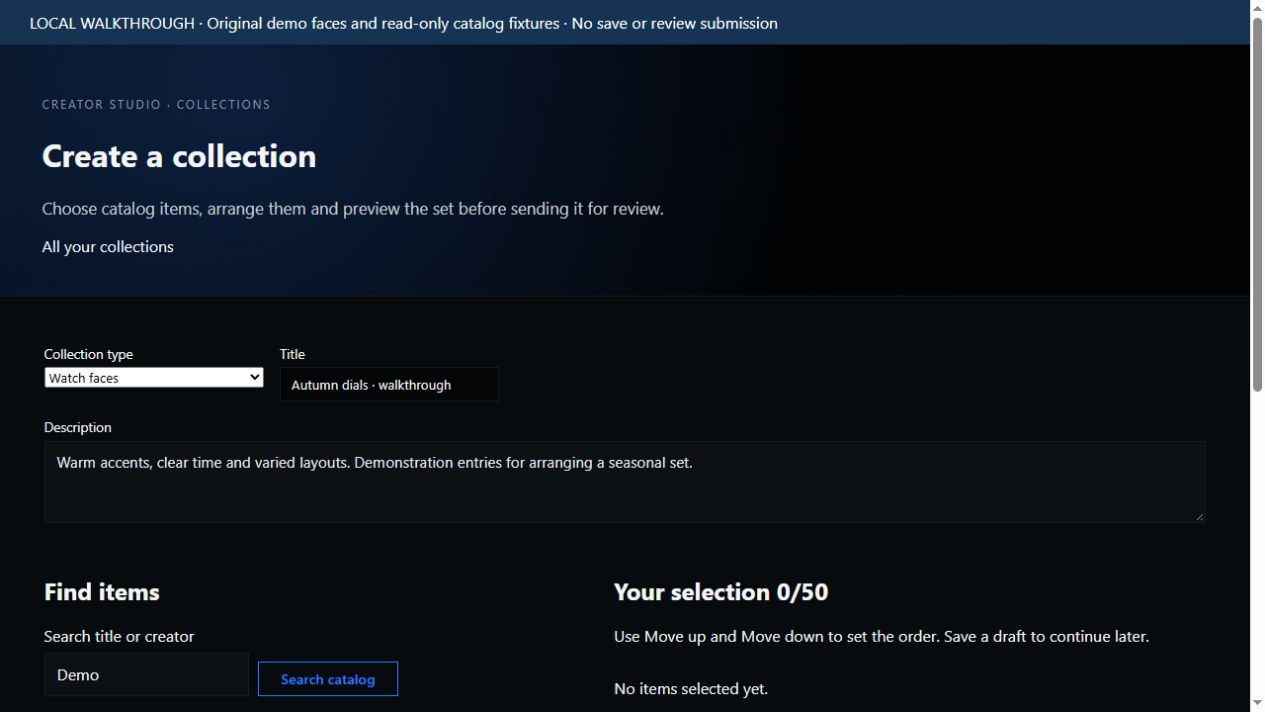
Choose a content type, give the set a useful title, then search by title or creator. This is the actual collection editor in a local walkthrough with Face-Off-owned demonstration entries.
The editor accepts up to 50 distinct entries. You can stop well before that limit: a small set with clear differences is easier to choose from than a long list of nearly identical dials.
Check each item before adding more
| Question | What the reader needs |
|---|---|
| Can I install it? | The correct platform and a working installer or store destination. An editable project by itself may need a build. |
| Can I read it at a glance? | A clear time display and enough contrast in the actual Normal image. |
| What stays visible in AOD? | The actual ambient image, especially if the collection promises a date, battery reading or luminous look. |
| Can I change the data or colors? | Documented controls in that face. A decorative dial area is not automatically an editable complication. |
| Why this one? | A reason that adds variety: a cleaner time display, a different layout or a useful function, rather than just another similar thumbnail. |
Use each compatibility report only for the model and release it names. Sharing a platform alone cannot establish universal compatibility. Leave AOD or feature support unresolved when the listing does not show it.
The source-versus-package guide helps explain download types. The Wear OS customization guide shows what readers can check after installation.
Order the selection and review the result
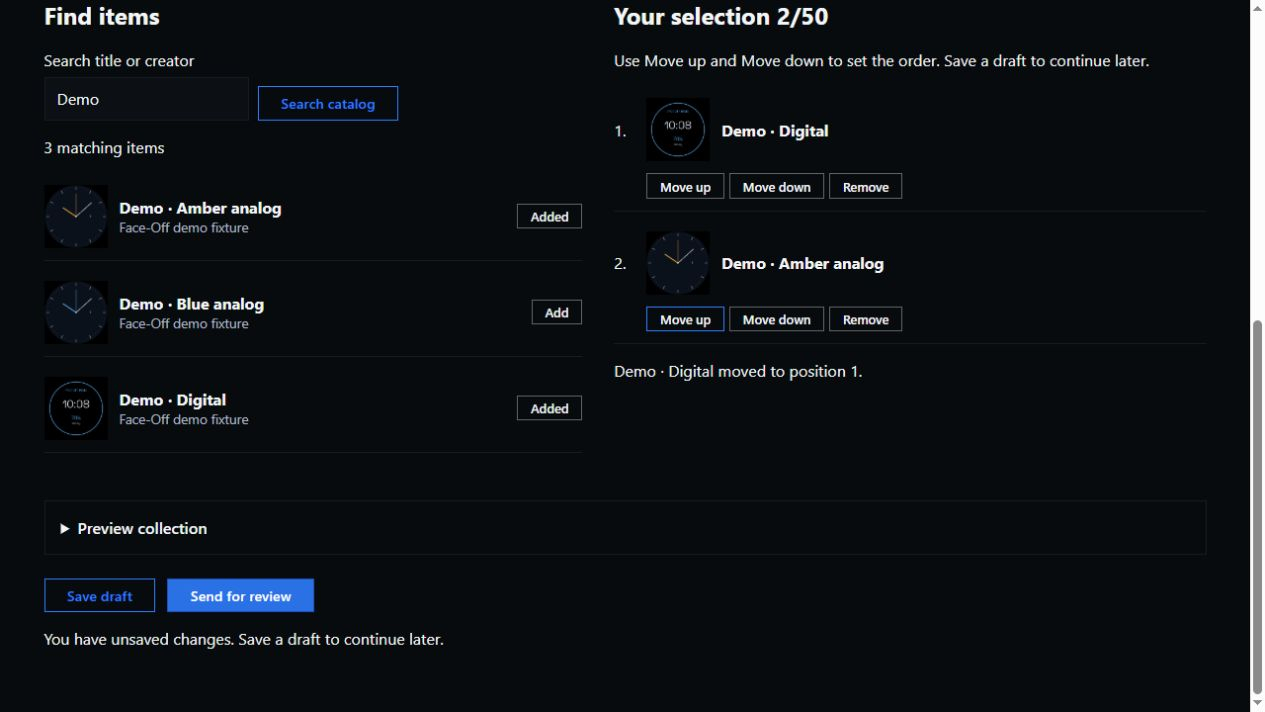
Add items from the catalog results, then use Move up and Move down to set the order. Here the digital demo has moved to position 1; this selection has not been saved.
- Use Move up and Move down to set the order. Lead with a strong example of the collection's brief, then introduce meaningful differences.
- Open Preview collection. Read the title and description with the thumbnails visible. Remove entries that need a long explanation to fit the theme.
- Check the item pages again for unavailable downloads, unclear platform information or a mismatch between the thumbnail and the promised feature.
- Choose Save draft if you are still working, or Send for review when the selection and description are ready.
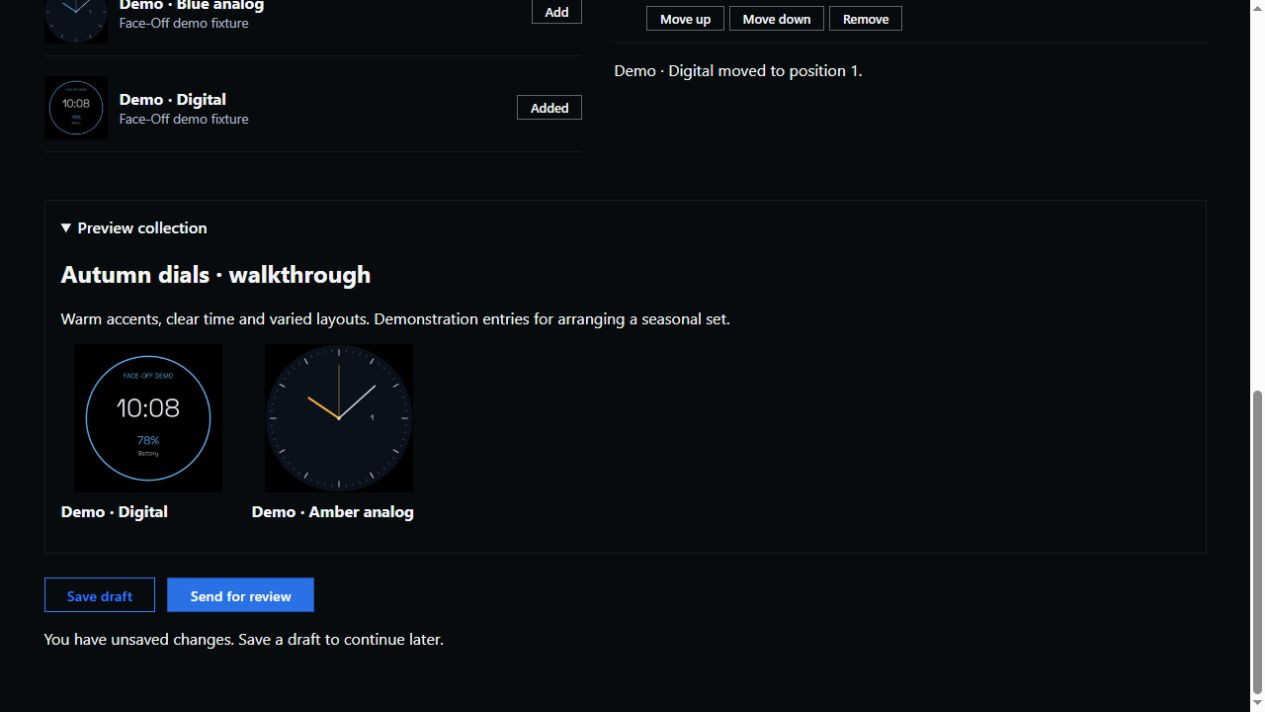
Preview collection shows the ordered set together. The unsaved-changes message is still visible: checking a preview does not save a draft or send a proposal for review.
A pending proposal is read-only. If a reviewer requests changes, reopen the feedback and prepare the linked correction. An approved collection has a public page; editing it creates a proposal while readers continue to see the last approved version.
Help readers return to the collection
Share the approved collection's URL once it is public. Signed-in readers can follow it and find it again in their saved library. Following keeps the collection accessible in the library. Email delivery is not guaranteed for every reader.
Revisit the collection when the season or an included listing changes. Use the same proposal workflow to remove unavailable entries and update the description while keeping the collection's purpose clear. The existing public page and followers are retained.
To see the current public selections, browse Collections. If you are preparing the underlying face itself, use the watch-face listing checklist before asking readers to install it.


Discussion
0 comments. Share feedback or ask a question.
Sign in to comment.
No comments yet.