Choose the destination and the kind of record you want to move. A workout for Strava, daily steps for another Android app and an older activity each need a suitable route. Start with one recent record that already appears in Huawei Health, then follow it through that route.
| What you need | First route to check |
|---|---|
| New activities in Strava | Huawei Health’s available Strava connection. |
| Fitness records in another Android app | Health Connect, when the source and destination support those records. |
| A different destination or sync configuration | Health Sync’s current choices for your phone and data type. |
| One older activity in Strava | Export a compatible activity file and upload it. |
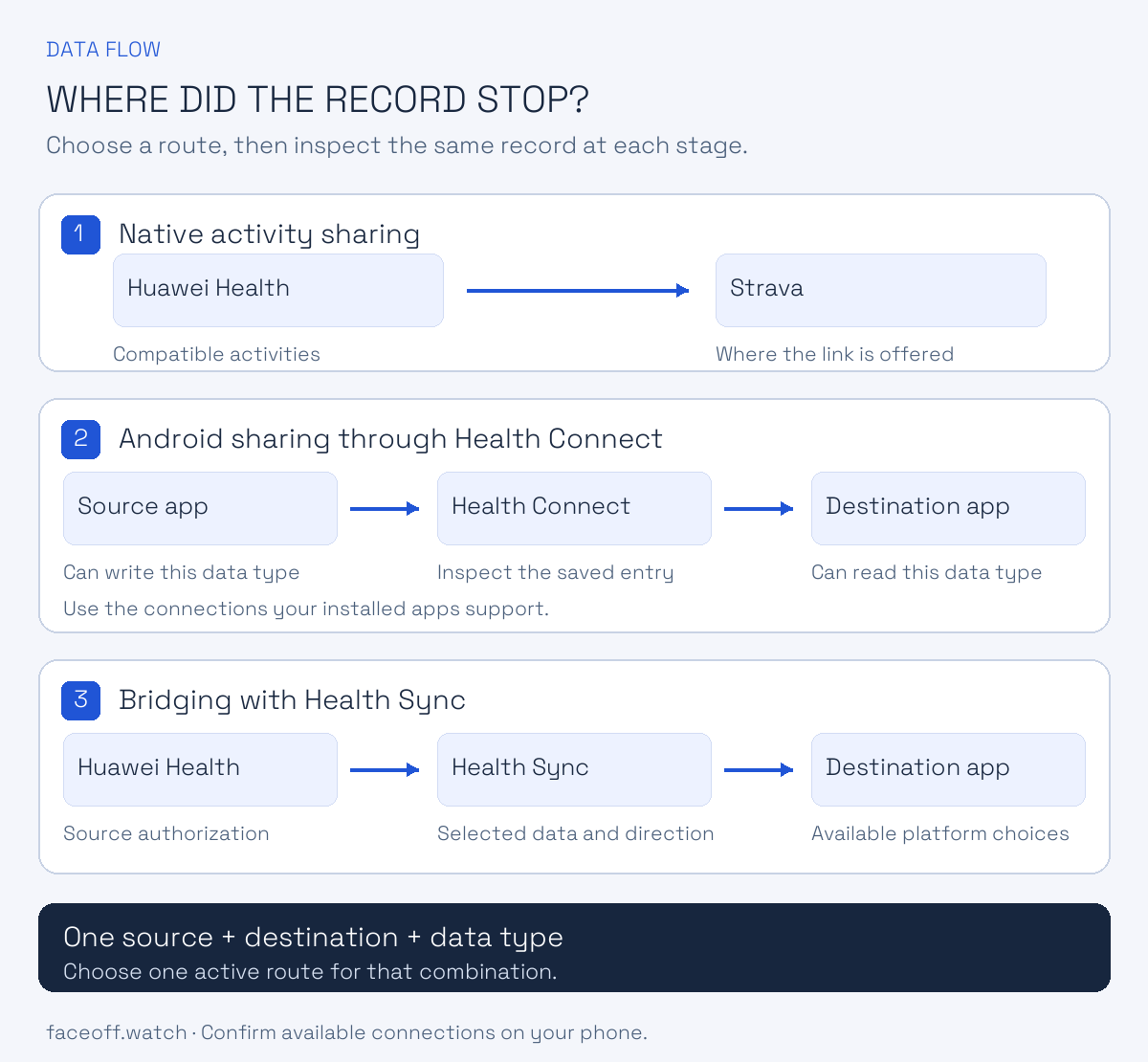
Three possible data routes. Confirm the available connections and permissions on your phone.
Check Huawei Health’s available sharing connections
Open Huawei Health’s Me tab, then Privacy management → Data sharing and authorization. Look for the destination you want and review its requested data access. Huawei also documents a manual cloud sync through Me → Settings → Sync data manually → SYNC. Finish that upstream sync before checking a cloud-connected destination. Huawei’s cloud-sync instructions
For an available Strava entry, choose Connect with Strava and complete its authorization flow with the intended Strava account. Strava offers this connection in selected countries across Europe, Latin America, Asia Pacific and Africa. An absent entry is a reason to check availability for the account. Strava’s Huawei Health guide
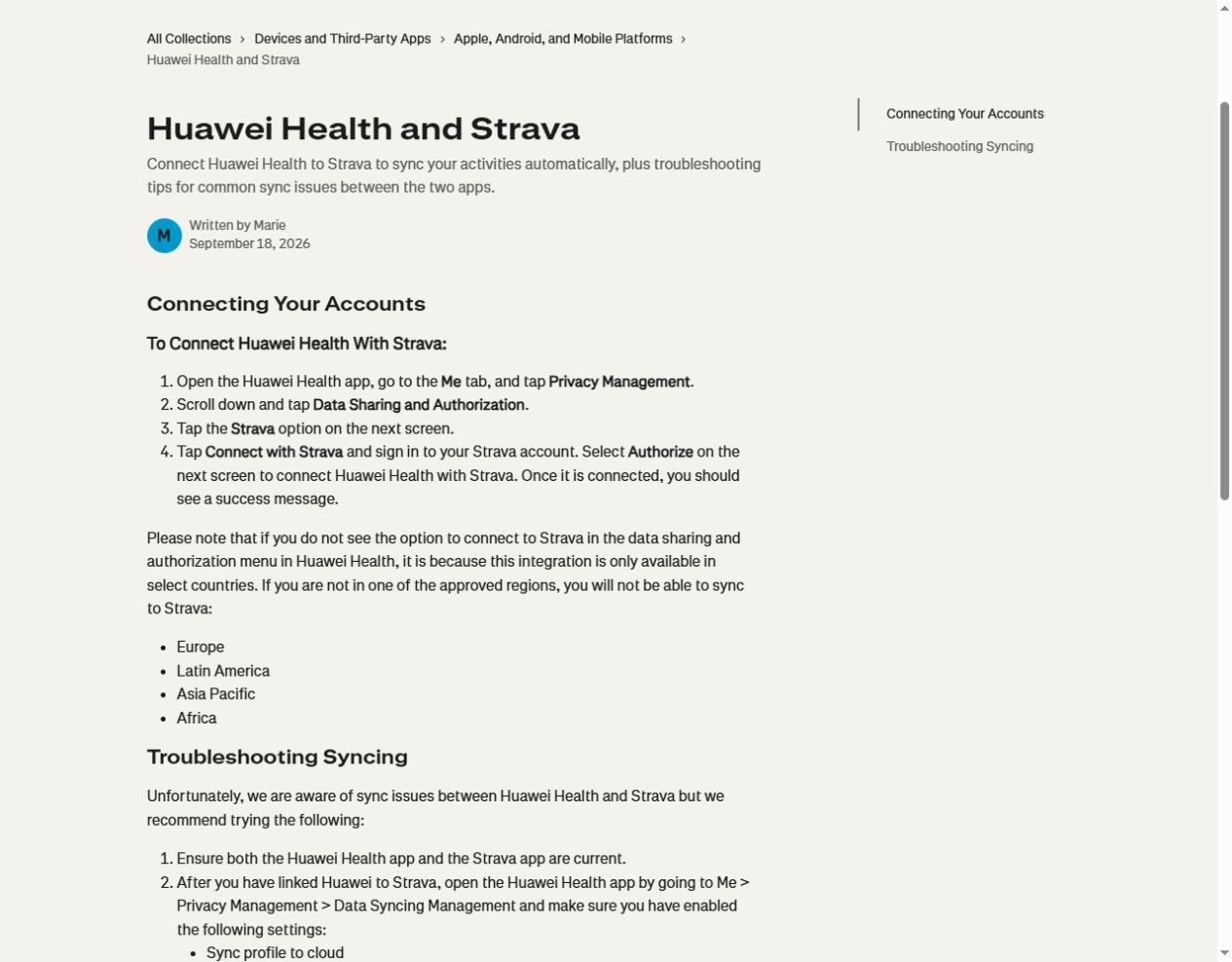
Strava’s Huawei Health guide, dated 18 September 2026, shows the connection steps and the selected-country availability statement.
Check that Huawei’s cloud settings include your profile, fitness records and health data. Then compare one recent activity in both apps, including its start time, duration and distance. Strava’s guide directs continuing sync problems to Huawei support. Strava’s connection troubleshooting
Check the Health Connect route on Android
Huawei’s September 2026 privacy notice for its Hong Kong service describes authorized sharing of fitness and sleep data with Health Connect. Check for that connection in your installed Huawei Health app before using the direct route. Huawei’s Health Connect sharing notice
Health Connect requires a supported Android phone with Android 9 or later and Google Play services. On Android 14 and later it is part of the system. Earlier supported Android versions use the Play Store app. Use the phone’s personal profile, because Health Connect does not support work profiles. Google’s availability guide
Health Connect stores shared records on the phone. The source writes a supported data type into it, and the destination needs permission and support to read that type. Open Health Connect’s App permissions, choose each participating app and check the relevant read or write categories. If an app is missing, check the compatible-app list and the connection options inside that app. Google’s explanation of Health Connect, connected-app permissions
To locate a missing record, inspect Data and access, choose its category and type, then open See all entries. Recent access helps identify which apps have used the hub. If the entry is there, check the destination’s read permissions and support for that data type. Google’s sync troubleshooting

Google’s documentation explains how to check recent app access and the entries stored in Health Connect.
If recent records appear but older fitness data remains missing, check the destination’s history access. For records written by another app, a destination normally has access back to 30 days before it first received Health Connect permissions. Older records require the destination to support and request the additional history permission. Health Connect’s history-read rules
Use Health Sync for an available bridge
Health Sync supports Huawei Health as a source on Android and iOS, with different destination choices. On Android, Health Connect can be a destination. Its current matrix also limits writing back into Huawei Health to weight, blood pressure and blood glucose. Check your intended direction and data type in the app. Health Sync’s supported routes
- Use the store linked from Health Sync’s official website.
- Choose Huawei Health as the source and the available destination.
- Complete the requested Huawei account and data authorizations.
- Sync a small recent period and inspect the destination.
Health Sync receives this Huawei data through the Health Service Kit cloud. Let Huawei Health finish its cloud sync before testing that bridge. For a connection problem, use Health Sync’s platform-specific FAQ. Its Android instructions identify the Huawei profile’s Login ID, while its iOS instructions use the Huawei ID email address. Check any regional availability error reported during authorization. Health Sync’s Huawei connection help
During the free trial, historical sync and manual resyncs of past days are unavailable. With a Health Sync license, you can use the history controls for dates before installation. Set the date range and watch the progress as the app processes it in batches. Health Sync’s trial and historical-data rules
On iPhone, choose from the connections offered by Huawei Health and Health Sync for iOS. Health Connect is an Android service. Huawei’s current notice also describes authorized Apple Health sharing. Huawei’s sharing notice, Health Sync’s platform choices
If Huawei Health is connected on iPhone but Apple Health is empty, open your profile in Apple’s Health app, then Privacy → Apps. If Huawei Health is listed, review its offered health categories and its own sharing settings. If it is absent, Apple says it may not be compatible. For a category you are checking, open its subcategory in Health, then choose Data Sources & Access to identify contributing sources. Check the destination app’s permissions separately: access is per app, reading or writing direction, and data type. You still need to check whether Huawei has written the record or recovered the missing history; permissions only allow that transfer. Apple’s Health data and source controls, Apple’s Health permission model.
Recover one older activity
For a single outdoor activity, Huawei documents opening the activity’s route and using its export option. You can also request an account data archive. Check its format: grouped JSON records need conversion into a supported activity format. Huawei’s activity-export guidance
Strava accepts GPX, TCX and FIT files up to 25 MB when they contain workout data. Use its website’s activity file uploader with a compatible file, then inspect the imported result. This can recover a specific old activity while your automatic connection handles future ones. Strava’s file-upload instructions
Keep one active route for the same record
List the paths you enabled for each source, destination and data type. If the same activity reaches Strava through Huawei’s native connection and a bridge, stop the extra path before testing another import. Keep the original record while you check the result.
When a step total differs even though entries are present, inspect Health Connect’s app priority. Google explains how Health Connect prioritizes overlapping records. Some destination apps read and merge the raw entries themselves, so compare the source entries with the destination’s total. Health Connect’s overlapping-data explanation
Find the stage that stopped
| What you can see | Next check |
|---|---|
| The record is absent from Huawei Health | Finish the watch-to-phone sync first. |
| The record is in Huawei Health, with no entry in the selected hub | Check the source’s write access or the bridge’s upstream connection. |
| Health Connect contains the entry, but the destination does not | Check that destination’s read permission and support for the data type. |
| A manual sync works, but background transfers stop | Follow the sync app’s instructions for your phone’s background settings. |
| New records arrive, but history does not | Check the chosen date range, licensing and destination history access. |
Health Sync’s FAQ separates Huawei account problems from phone-specific background restrictions. Choose the section matching the stage you observed. Health Sync troubleshooting
When requesting help, include the phone OS, Huawei Health version, source, destination, record type, a sample record’s time and the last place it appears. State whether a manual sync succeeds. Keep passwords and authorization tokens out of screenshots.
Interface images from the original article
The original screenshots show an earlier interface and the connections available to that account. For a current Google Fit-related setup, consult the destination’s present integration instructions. Google has announced a 2026 transition for its Fit APIs. Google’s current Fit platform notice
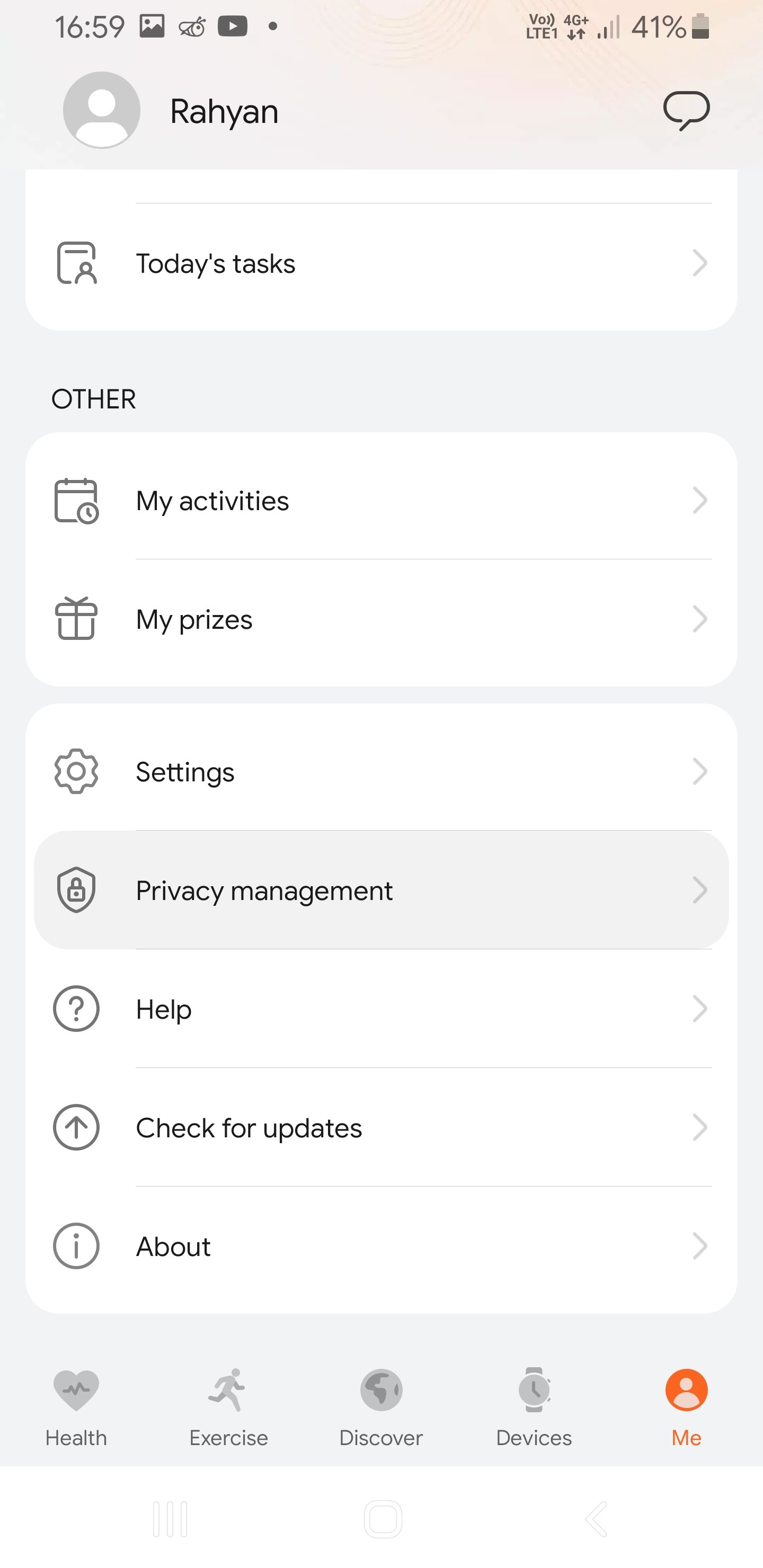
The Me tab in the original article's screenshot. This older interface may differ from your installed version.
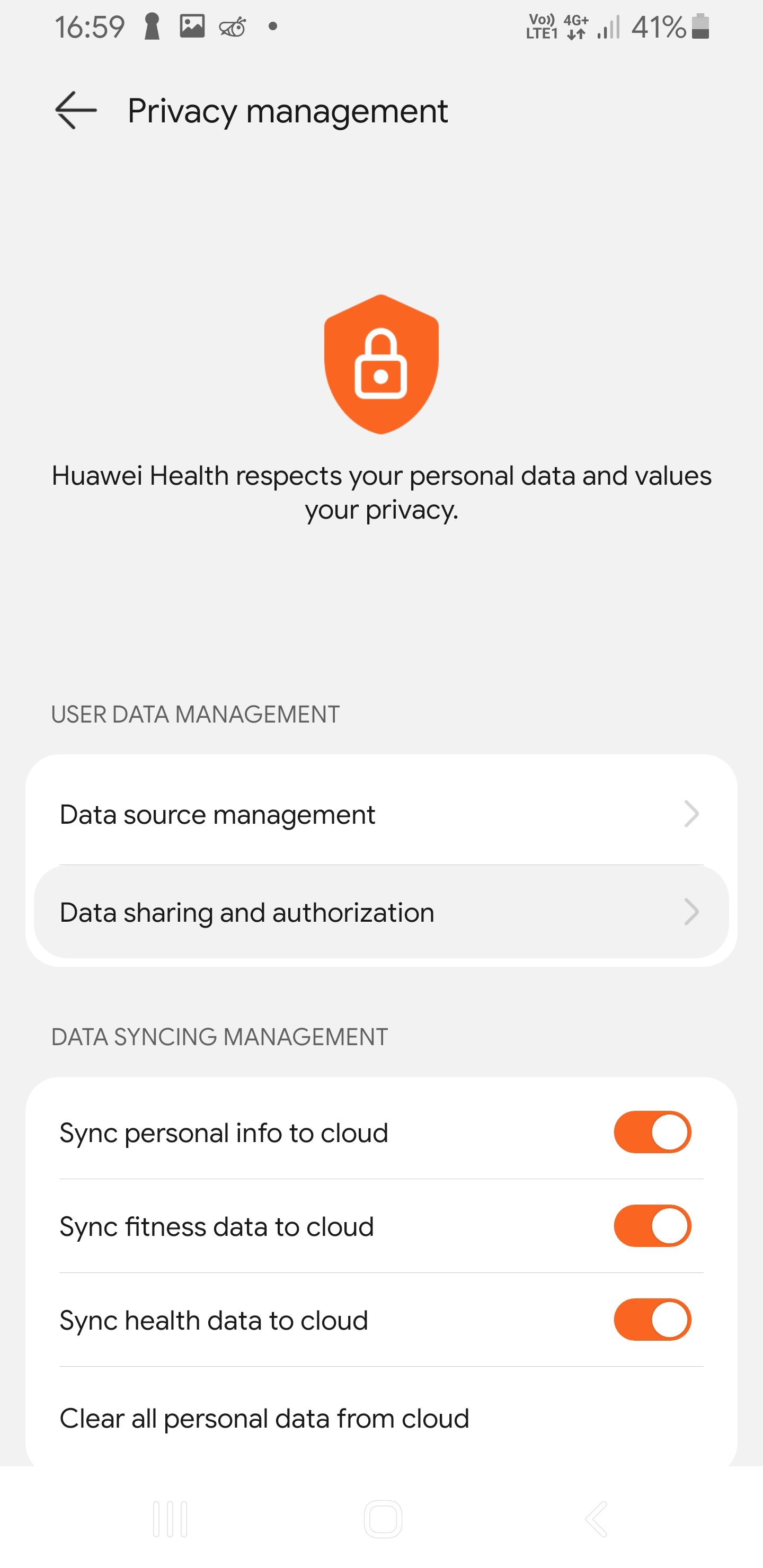
Privacy management contains sharing permissions and cloud synchronization settings.
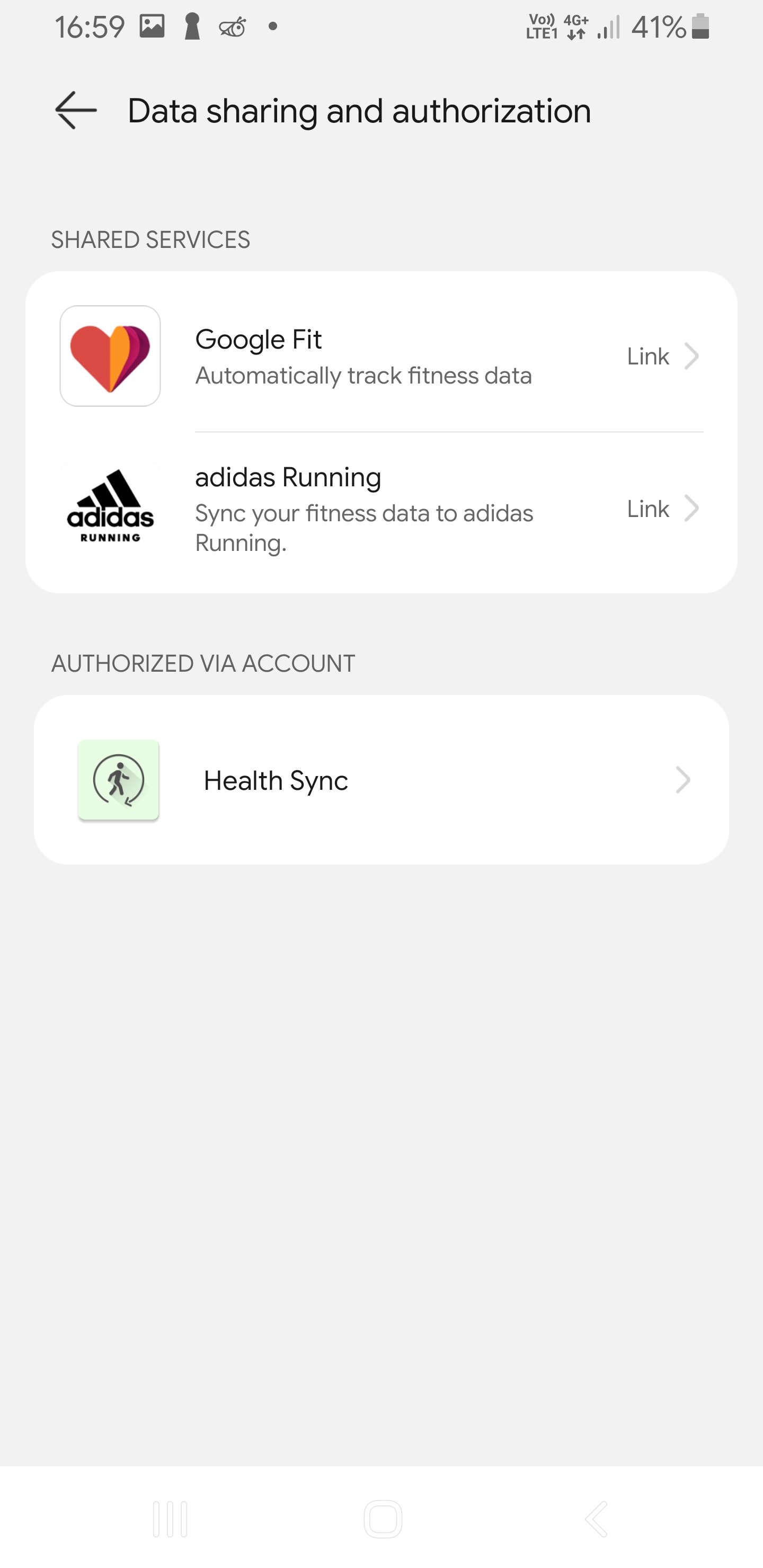
These were the connections available to this account when the screenshot was taken. Check your current app for its supported services.
Primary documentation reviewed on 7 November 2026.


Discussion
0 comments. Share feedback or ask a question.
Sign in to comment.
No comments yet.