If an alarm you set on your Galaxy Watch rings but email alerts never appear, check which app sends them. A watch app can alert independently of a notification forwarded from the phone. Wear OS supports both paths.
That split appears in a Watch8 owner’s report: watch WhatsApp and Health alerts worked while Discord, email and other phone notifications stopped.
These checks cover Wear OS Galaxy Watches paired to Android through Galaxy Wearable. iPhone pairing has different limits.
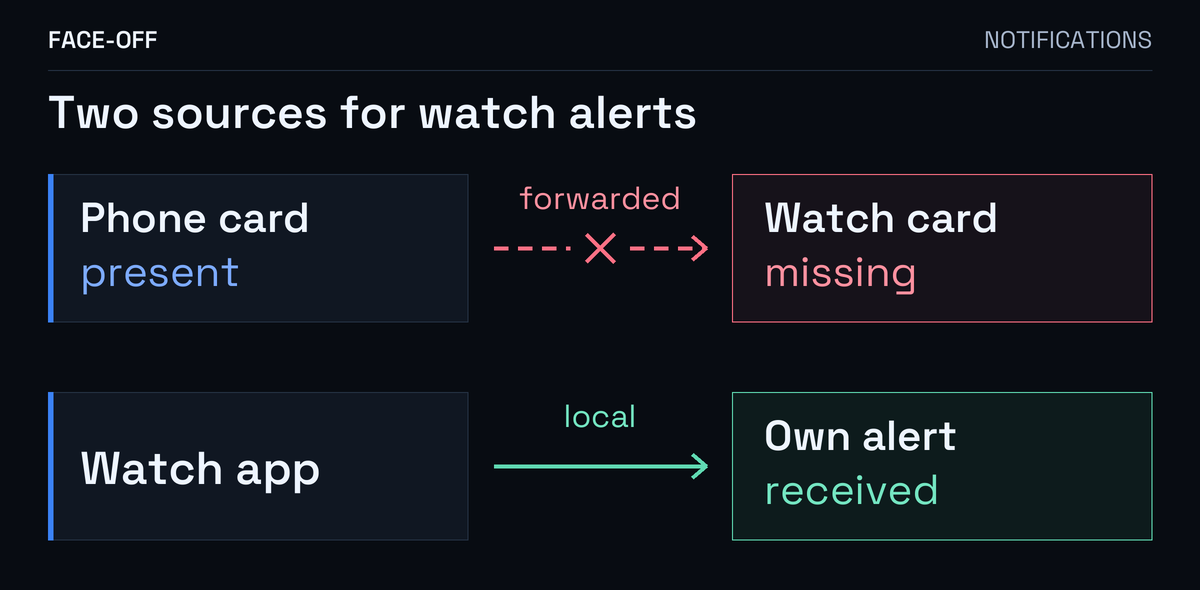
A watch app can alert while a forwarded phone notification is missing.
Is the notification card missing?
Choose one affected app and generate a fresh, ordinary notification, such as an email or message. Confirm it appears in the phone’s notification list, then look for its card on the watch. Leave the phone notification there while checking.
Some ongoing, non-clearable and local-only notifications are excluded from forwarding. A permanent connection banner is a poor test; use a new message you can dismiss.
- No notification on the phone: The phone app’s notification settings
- Phone notification present, watch card missing: App selection and forwarding
- Watch card present, no buzz: Sound, vibration and mute settings
An alarm can still ring with Do not disturb on. If cards arrive silently, swipe down on the watch and check that mode before changing app access. Samsung’s silent-mode guidance explains the alarm exception. For a comparison, note its state, turn it off briefly if enabled, and restore it afterward.
With a paired Galaxy phone, also review Watch settings → Notifications → Sync Do not disturb with phone if the mode keeps returning. Samsung documents that synchronization.
Muted alerts may leave the screen dark. Samsung’s controls separate screen wake from the notification card.
Find the phone app’s switch
In Galaxy Wearable → Watch settings → Notifications → App notifications, select All. Find the affected app under Phone apps, separate from Watch apps. Check Apps with notifications turned off on phone at the bottom, too. Samsung’s instructions show the groups; labels can vary.
Enable the affected phone app if it is switched off.
If the phone itself has no notification, check the app’s permission to post alerts there. On Android 13 and later, newly installed apps need permission before sending ordinary, non-exempt notifications. Android’s permission documentation explains that phone-side requirement.
Compare with the phone locked and in use
Keep the watch on your wrist. Samsung documents that off-body detection can prevent phone alerts reaching it.
Under Watch settings → Notifications → Phone notifications on watch, Smart device selection withholds phone notifications from the watch while you use the phone. Always show on both permits them during phone use. Samsung’s explanation describes both choices.
Record your current choice. Temporarily select Always show on both, send a fresh message while using the phone, then repeat with it locked. Restore your preference afterward. Note which attempt produced a watch card.
If the switch was already on
When only one app fails, check whether it also has a watch app needing setup or sign-in. Wear OS lets a watch app supply its own alerts and suppress forwarded duplicates. The phone and watch copies can therefore have different problems.
For WhatsApp, see the linking and phone-alert guide.
If every ordinary phone app fails, record whether phone media controls or Open on phone actions have also stopped.
A repeating Notification access prompt is worth recording exactly. Access to read other apps’ notifications differs from permission to post an app’s own alerts. For work-only failures, Android also lets an administrator block notifications originating from a work profile. Android documents those listener restrictions; ask your administrator about that policy.
If notifications arrive but the Google Calendar agenda is empty, use the Calendar account and app guide.
Send Samsung the failed comparison
For a watch report, the documented route is Galaxy Wearable → Menu → More → Settings → Contact us → Error reports. Choose your watch and review the system-log option before sending. Samsung’s reporting instructions show the screens.
Include the watch and phone models, their software versions, the affected app, the test time, whether the phone was locked, and whether each device received a card. Mention any repeating access prompt or failed phone media controls. For example: “Phone notification present; watch card absent with the phone locked and in use, including with Always show on both.”


Discussion
0 comments. Share feedback or ask a question.
Sign in to comment.
No comments yet.