A Garmin face can be free to download while charging for extra features. Garmin’s developer guidance distinguishes required payment from optional upgrades. Check which applies to the features you chose.
Start by writing down the message on your watch. A price, an unlock request and IQ! need different next steps. Keep the exact listing open so you can match the face, its developer and the instructions.
Check what the listing actually offers
Garmin’s 2021 guidance allows paid secondary features without a Payment Required badge, provided the description explains them. Read that description even when no badge appears. Garmin’s developer guidance.
Look for the trial length, what happens when it ends, and whether the price covers one face, a bundle or a time-limited license. If you cannot find those terms, ask the developer before paying. Save the description with the version you installed; a screenshot of the dial alone will not show which edition or settings you chose.
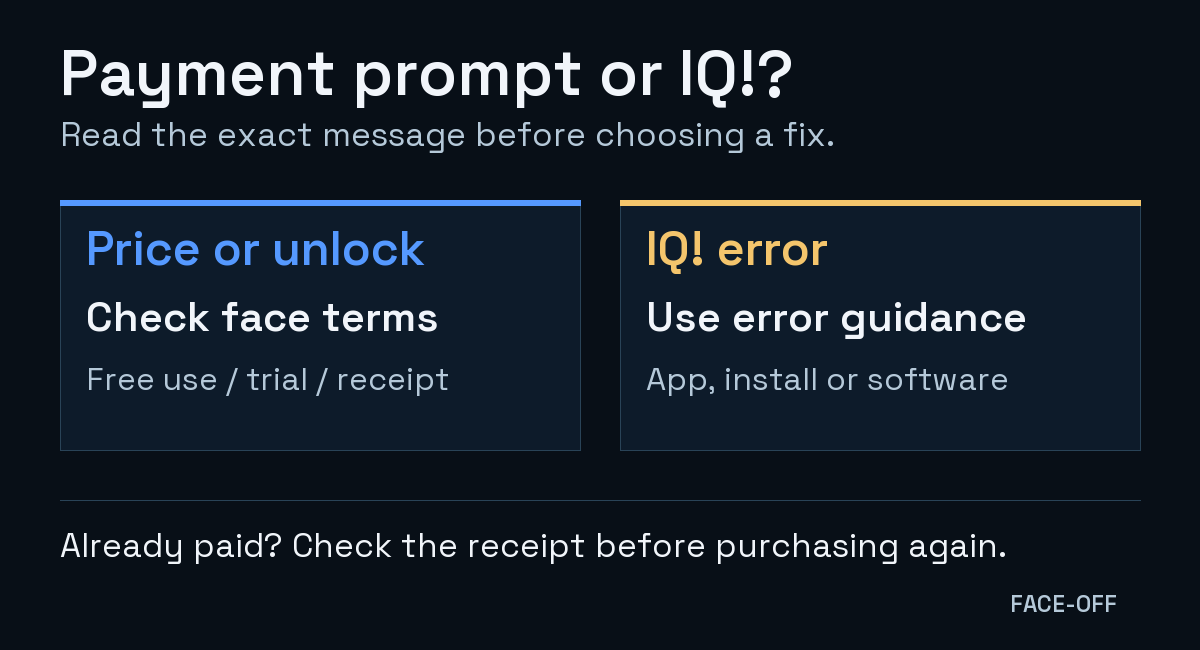
Follow the exact message, then check the matching instructions.
Match the message to the payment route
Buy in Connect IQ
Garmin’s purchase flow and, if you already paid, its Purchase History. Garmin purchases
Payment or Payment Required on the listing
The developer’s payment instructions. Garmin says these payments use a service chosen by the developer. Third-party fees
IQ! on the watch
Garmin’s app-error troubleshooting. Its documented causes include pending software updates and app or installation problems. IQ! guidance
Compare a symbol or code with the developer’s description before paying. If it appeared after you changed a field, note the field and selected value. Ask whether that choice needs an upgrade.
Already paid? Start with the receipt
For content bought through Garmin’s own Connect IQ purchase flow, open your profile icon, then Purchase History. Garmin says that purchase can be downloaded to other compatible devices registered to the same account without buying it again. Check that history before starting a second transaction. Garmin’s purchase instructions.
An external license uses its provider’s recovery process. KiezelPay, for example, says reinstalling a face can cause it to ask again because it did not recognize the earlier purchase. Its FAQ directs existing customers to its unlock page using the code currently displayed on the watch and the original purchase email. That is KiezelPay’s procedure; another provider may use a different one.
Compare the receipt’s face name and developer with the installed listing. Check whether you bought that exact face or a bundle containing it. Keep the receipt, unlock code and purchase email in a private support exchange. A publicly posted screenshot only needs to show the symptom, not your payment details.
If you want to keep using it for free
Ask whether your chosen fields are included in the free configuration, and what the face shows after any trial. Use the developer’s stated free settings if they meet your needs. Otherwise, switch to a face already built into your watch while deciding what to install next.
Ask: “Which setting caused this payment message, and which setting can I use without an upgrade?” Save the answer with the listing so you can restore that configuration later.
Treat IQ! as a fault to investigate
For IQ!, follow Garmin’s error instructions: check watch software, then remove the affected content, restart and reinstall it. Its guide also says the watch must first be connected in Garmin Connect before it appears connected in the Connect IQ Store app. Follow the full error guide for the current controls.
Before removing a face, save its listing and settings. Note whether the error began after a face update, watch update or settings change. If it returns, send the developer the watch model, software version, face version and the setting that triggers it. Those details help separate an app failure from an unlock question.
Contact the developer or the payment service
For developer-processed fees, Garmin says it cannot issue the refund. In Connect IQ, select Device, the correct watch, My Watch Faces, then the face and App Support. Ask its developer which payment service handled your transaction. Garmin’s third-party payment guidance.
Garmin’s own purchase flow has a separate route: Purchase History → the item → Report a Problem → Request a Refund. Its published window is 48 hours to submit a request. That does not cover developer-processed payments or guarantee approval. Garmin’s refund instructions.
If the clock works and only its weather field is empty, use the Garmin weather guide for that data check. For a face whose seconds stop, see the Garmin seconds guide.


Discussion
0 comments. Share feedback or ask a question.
Sign in to comment.
No comments yet.