If your favorite Garmin face is missing and you cannot remember its name, check the watch before removing anything. A face can still be on the watch when the phone app does not list it.
Look on the watch, then check the selected device
Open the watch’s face selector using your model’s controls. Note whether the face is present, briefly appears before IQ!, or is gone altogether.
In the Connect IQ phone app, open Device and check which watch is selected. Garmin’s navigation guide puts installed content there; some of its help pages use the older label My Device.
Garmin documents Device → My Watch Faces → the face → App Support in its developer-contact instructions. If you find the face, save its name, developer and listing link.
Garmin’s IQ! instructions also describe My Device → My Watch Faces → Not Installed for previous downloads. Check that section if it appears in your app.
Try a saved link or purchase record
A bookmark, old message or screenshot from when you chose the face can help. Compare the developer as well as the name when you find a candidate.
Connect IQ search filters results for the selected device. Keep a direct link if the website shows the face but your phone search does not.
For a purchase made through Garmin’s own Connect IQ flow, open the profile icon at the upper left, then Purchase History. Garmin’s purchase guide describes that route and downloads to compatible devices on the same account. An external payment receipt may identify the developer instead. See the Garmin payment guide for those separate routes; Purchase History is not a universal list of free downloads or external licenses.
IQ! can leave an identification clue in a log
Garmin’s IQ! help lists software, app and installation problems as possible causes. Record the symbol or message exactly.
The computer route below is optional. If you already have USB access to the watch’s storage, look for existing files in GARMIN/APPS/LOGS. Garmin’s developer FAQ describes CIQ_LOG.YML, older CIQ_LOG.TXT files and archived .BAK logs.
Copy a relevant existing log to a private folder on your computer and read the copy. Match its time to the failure, then look for Appname and Store-Id if present. Leave the watch’s files unchanged. If storage or a log is unavailable, ask Garmin support how to collect diagnostics for your model.
Match the store ID with the listing
A Tactix Delta owner used those fields to identify GearMin and reported finding its developer. The matching public listing names _MASHAKE_ as its author.
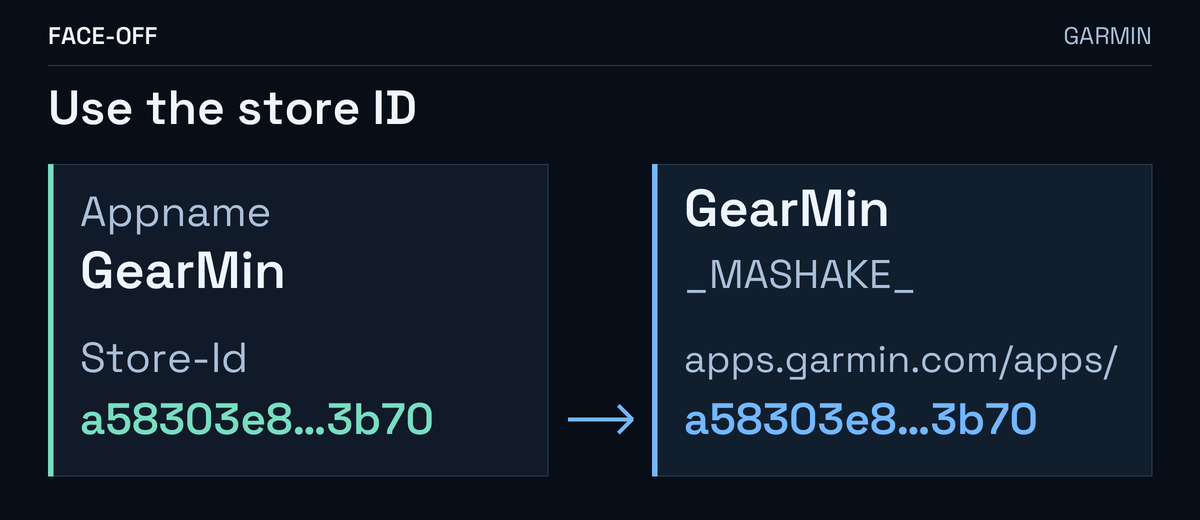
The store ID is the part after https://apps.garmin.com/apps/ in the address. Keep its hyphens and full length; the figure uses an abbreviation.
Report the failure with the identity attached
For one third-party face, use its app-support or developer-contact link. Include:
- The exact listing, watch model and installed software.
- The face version, if available, and when the error appeared.
- The setting or action just before it failed.
Send a requested log privately. Garmin’s bug-report guidance directs third-party app crashes to their developers. If the phone store will not load, all downloaded faces fail, or the whole watch reboots, describe that wider problem to Garmin support.
If the old listing no longer opens, keep its URL and ask the developer whether a current version supports your watch. A recovered name gives you someone to ask; the old release may still be unavailable.


Discussion
0 comments. Share feedback or ask a question.
Sign in to comment.
No comments yet.