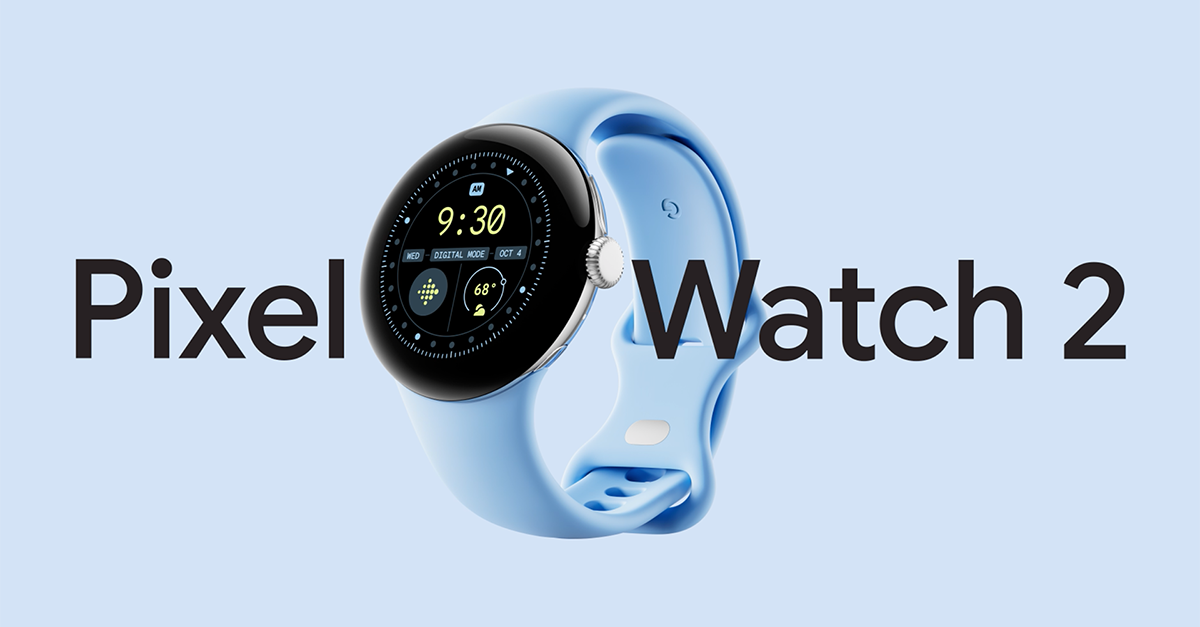
Find Pixel Watch 2 faces on Face-Off or start a layout in the Pixel Watch 2 editor. This model has one 41 mm case size.
Display and battery
| Part | Specification |
|---|---|
| Case | 41 mm diameter; 12.3 mm height |
| Display | AMOLED, 320 ppi, always-on display |
| Battery | 306 mAh typical; Google quotes up to 24 hours with always-on display |
Identify a Wi-Fi or LTE watch
Open Settings → System → About to find the watch's identifiers. Google also marks them where the bands attach to the case: an LTE watch has an IMEI as well as a serial number; a Wi-Fi watch has only the serial number. This helps identify the radio version when a secondhand listing only says “Pixel Watch 2.” Google's identification guide shows where to look.
Pair with an Android phone
Google's model-specific compatibility table lists Android 9 or newer for Pixel Watch 2 and excludes iPhone. The Google Health app has a separate Android 11 minimum.
- Charge the watch and turn on Bluetooth on your phone.
- Install the Google Pixel Watch app, select your watch and check that the pairing codes match.
- Confirm pairing and sign in to your Google Account. Google's setup instructions cover the remaining prompts.
Choose a face or use your photos
Hold the dial, swipe through the faces and tap one to select it. Use Edit to change the options that design provides. On the phone, open Pixel Watch → Watch faces and choose Use on watch or Edit.
For photos, use Watch faces → Add new → Photos in the phone app. Choose pictures in Google Photos, then tap Add and Save. Keep Google Photos updated on both devices. Google's face and photo guide explains these routes.
Check the build and update apps separately
Settings → System → About → Versions shows the installed software. Record the build number and Android security update level when comparing an update notice with your watch.
For a system update, put the watch on its charger, charge it to at least 50% and connect to Wi-Fi. Open Settings → System → System updates. Once installation finishes, check Versions again.
Watch apps have their own update control: press the crown, open Play Store → Manage apps → Update all. Update the Google Pixel Watch phone app through the phone's Play Store as well. Google's update instructions cover these separate checks.
Moving to a new phone
Google documents a transfer route for Wear OS 4 or later: Settings → System → Transfer watch. Add the watch in the Pixel Watch app on the new phone and confirm the pairing code. Follow that route before deciding to reset it.
SimpMusic on Pixel Watch
Use Face-Off's SimpMusic setup for Pixel Watch for music installation and account setup. The Google Pixel Watch app remains the watch's pairing companion.
 IV-22 HMS
 Workshop Analog
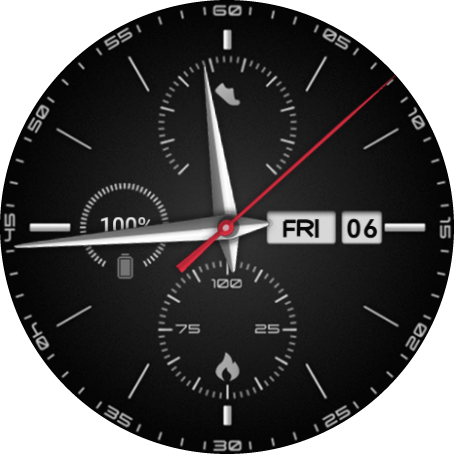 A36 Black
Comments
Discussion
0 comments. Share feedback or ask a question.
Sign in to comment.
No comments yet.